Your Veo prompt failed again. The video looks nothing like what you imagined, or worse—Google’s AI video generator returned an error message instead of your masterpiece. Frustrating? Absolutely. But fixable? Yes.
Google’s Veo 3 model has become incredibly popular for AI video generation, yet many users struggle with cryptic errors and disappointing outputs. The problem usually isn’t the technology—it’s how you’re communicating with it.
What you’ll discover in this guide: the exact reasons your Veo prompts fail, step-by-step fixes for the most frequent errors, and prompt engineering techniques that consistently produce professional-quality videos. Whether you’re creating content for social media, marketing campaigns, or creative projects, these solutions work.
Table of Contents
- Why Your Veo Prompts Fail
- Veo Error Messages Explained
- Fixing Blurry or Low-Quality Outputs
- Solving Motion and Animation Problems
- The Correct Veo Prompt Structure
- Style Modifiers That Actually Work
- 7 Mistakes That Ruin Your Veo Videos
- Quick Troubleshooting Reference
- FAQ
Why Your Veo Prompts Fail
Veo processes language differently than you might expect. According to Google DeepMind’s documentation, Veo models interpret prompts through multiple neural pathways that analyze semantics, visual concepts, and temporal relationships simultaneously. When your prompt contains ambiguity, contradictions, or unsupported requests, the system either fails outright or produces unexpected results.
The most common failure points break down into three categories:
Semantic confusion happens when your words mean one thing to you but something entirely different to the model. “A person running fast” might generate someone jogging, sprinting, or running in fear—context matters enormously.
Technical limitations trigger errors when you request capabilities the model doesn’t support. Veo excels at certain video styles but struggles with others. Asking for photorealistic human faces in close-up, for example, often produces unsettling results because of known AI limitations with facial consistency across frames.
Policy violations cause immediate rejections. Google’s safety filters block content involving violence, explicit material, or recognizable public figures. Sometimes legitimate prompts accidentally trigger these filters due to word associations.
Veo Error Messages Explained
When Veo returns an error instead of your video, the message usually provides clues about what went wrong. Here’s what each common error actually means and how to resolve it:
“Unable to generate content for this prompt” – This generic message typically indicates a safety filter trigger. Review your prompt for words that might have dual meanings. “Shooting” (photography) might flag as violence. “Naked” trees in winter might trigger explicit content filters. Rephrase using synonyms: “capturing” instead of shooting, “bare” instead of naked.
“Request timeout” – Your prompt is too complex for the allocated processing time. Simplify by removing unnecessary details or breaking your concept into shorter clips. Veo handles 8-16 second clips more reliably than longer sequences.
“Invalid prompt format” – The system couldn’t parse your text structure. Remove special characters, excessive punctuation, or unusual formatting. Plain, straightforward sentences work best.
“Content generation failed” – An internal processing error occurred, often unrelated to your prompt. Wait a few minutes and try again. If the error persists, slightly modify your prompt wording to trigger a different processing pathway.
Fixing Blurry or Low-Quality Outputs
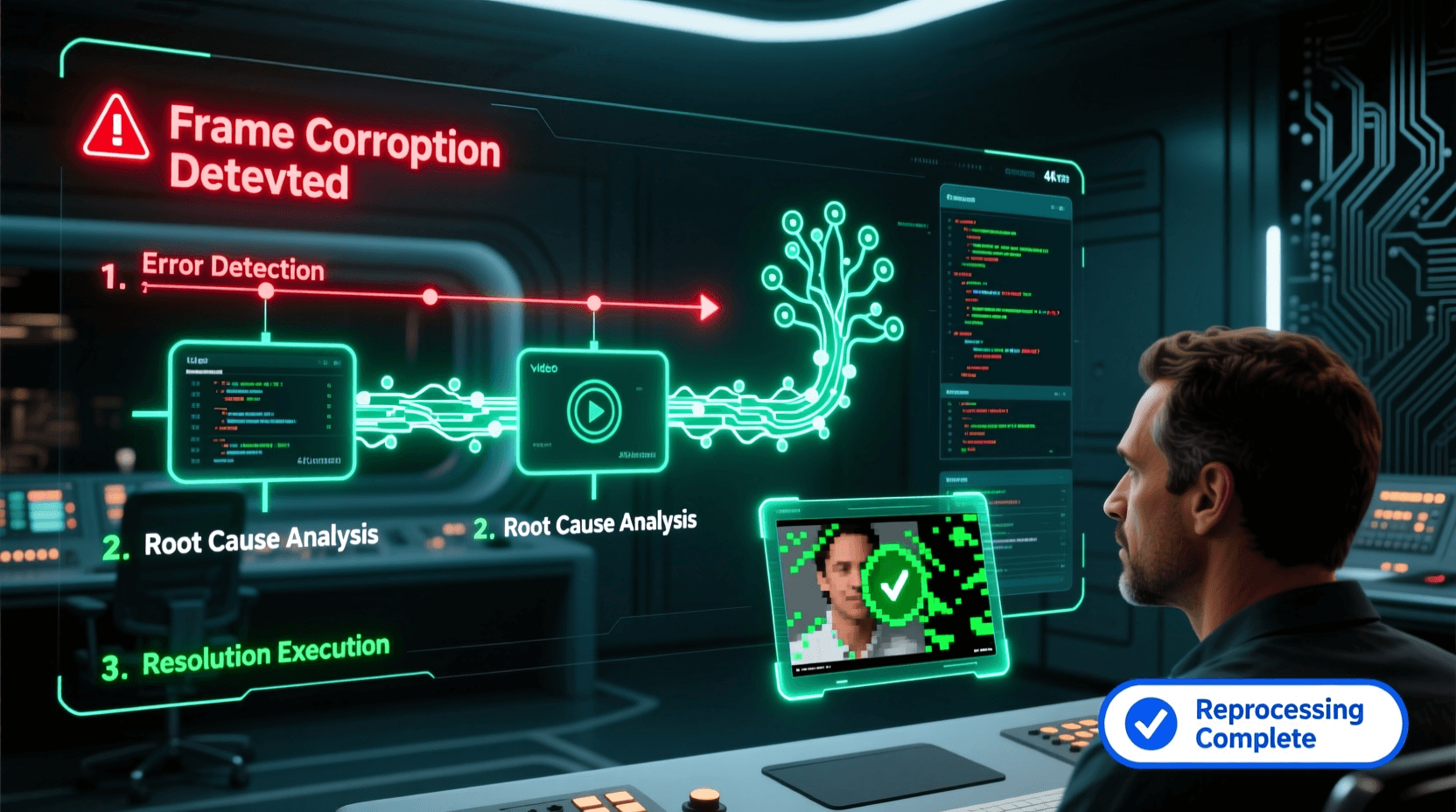
Blurry Veo outputs frustrate creators more than outright errors because you get a result—just not a usable one. The fix depends on identifying which of these causes applies to your situation.
Insufficient detail specification plagues most low-quality generations. Veo fills gaps in your prompt with default assumptions, and those defaults prioritize speed over quality. Adding resolution indicators helps: include phrases like “sharp focus,” “high detail,” “4K quality,” or “crystal clear” in your prompt.
A vague prompt produces vague results. Compare these approaches:
Weak: “A cat sitting on a couch”
Strong: “A tabby cat with green eyes sitting on a burgundy velvet couch, natural window lighting, sharp focus, detailed fur texture”
The second version gives Veo specific visual targets to render, dramatically improving output quality.
Conflicting style instructions confuse the rendering engine. If you request both “vintage film grain” and “crystal clear 8K,” the model attempts both and achieves neither. Pick one aesthetic direction and commit to it throughout your prompt.
Camera movement during complex scenes often causes blur. Veo struggles to maintain sharpness during rapid zooms or pans, especially in detailed environments. For sharper results, specify slower camera movements: “gentle pan,” “slow dolly in,” or “subtle camera drift.”
Using a Veo prompt generator can help structure your prompts with the right quality modifiers already built in, reducing trial-and-error cycles significantly.
Solving Motion and Animation Problems
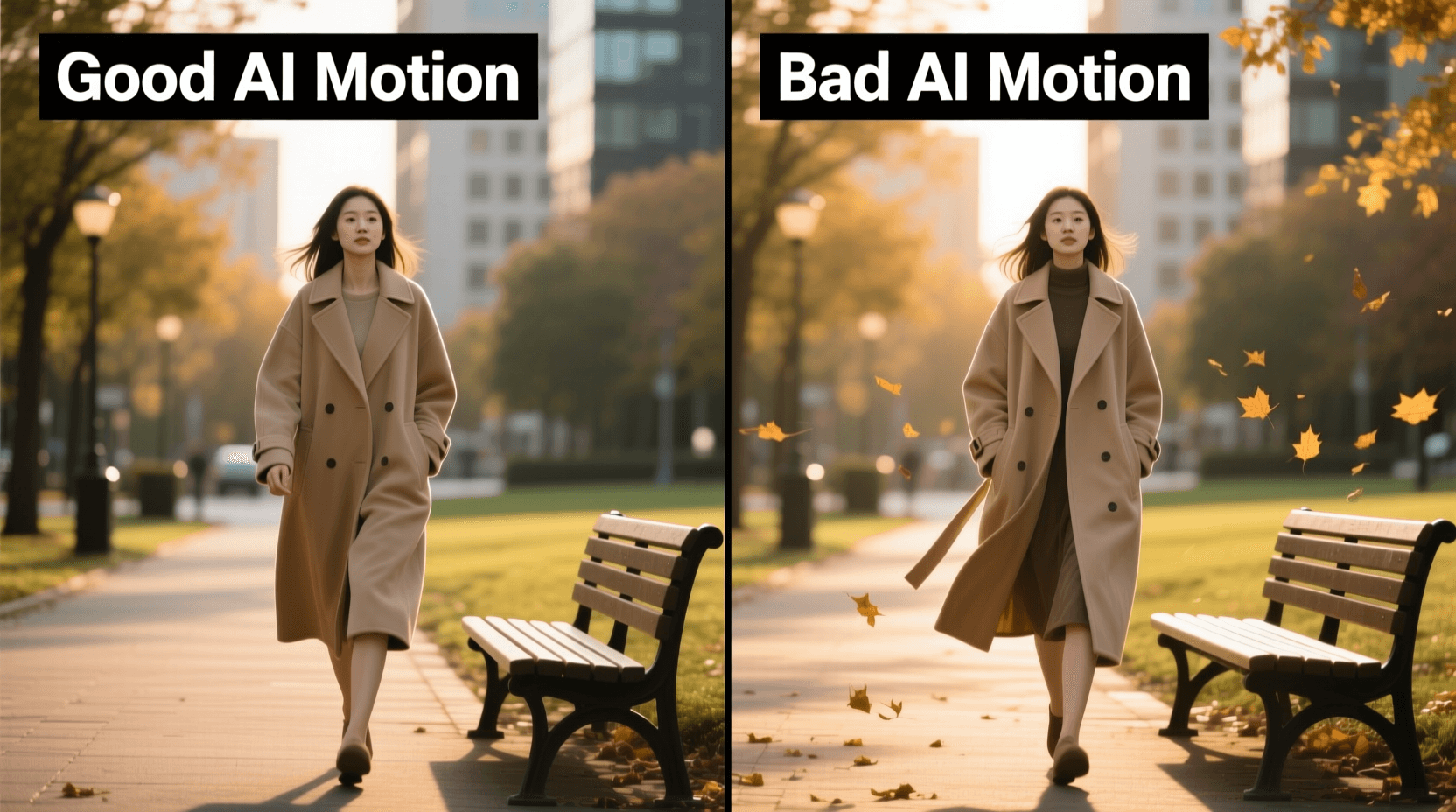
Motion errors in Veo manifest as jerky movements, unnatural physics, or subjects that mysteriously morph between frames. Each problem has specific causes and solutions.
Jerky or stuttering motion usually results from asking for too many simultaneous actions. Veo calculates motion vectors for every moving element. Overload it with “a bird flying while the camera pans and trees sway and clouds drift” and the system prioritizes some movements over others, creating inconsistency.
Fix this by simplifying: focus on one primary motion with minimal secondary movement. Generate separate clips for complex sequences and composite them in video editing software.
Physics violations—water flowing upward, objects floating inexplicably, impossible shadows—occur when your prompt contradicts learned physics without providing context. If you want surreal effects, explicitly state that intention: “dreamlike physics,” “gravity-defying motion,” or “surrealist style.”
Subject morphing happens when Veo loses track of what it’s rendering across frames. Characters might gain or lose features, change proportions, or blend into backgrounds. Combat this with consistent, specific subject descriptions maintained throughout your prompt. Anchor subjects with distinctive features: “a woman with shoulder-length red hair and a blue dress” stays more consistent than “a woman.”
For especially complex motion requirements, consider pairing Veo with other video prompt generators to compare outputs and find which platform handles your specific motion type best.
The Correct Veo Prompt Structure
Prompt architecture matters. Veo processes information in a specific order, and structuring your prompt to match that processing flow dramatically improves results. The optimal structure follows this pattern:
1. Subject and action (first 20 words) – Veo weights the beginning of prompts most heavily. Lead with your main subject and primary action. “A golden retriever puppy running through autumn leaves” immediately establishes the core scene.
2. Environment and setting (next 15-25 words) – Ground your subject in space. Specify location, time of day, weather conditions, and surrounding elements. “In a sunlit forest clearing, late afternoon golden hour, scattered oak and maple trees with orange and red foliage.”
3. Camera and movement (10-15 words) – Define the cinematographic approach. “Tracking shot following the puppy, slight slow motion, shallow depth of field.”
4. Style and quality modifiers (final 10-20 words) – Add aesthetic direction and technical specifications. “Cinematic color grading, film grain texture, professional quality, 4K resolution.”
This structure typically produces prompts between 55-80 words—a sweet spot for Veo comprehension. Shorter prompts lack necessary detail; longer prompts risk confusing the model with contradictory or redundant information.
Experimenting with the free Veo 3 prompt generator can help you internalize this structure, as it automatically arranges your concepts in the optimal order.
Style Modifiers That Actually Work
Not all style keywords affect Veo equally. Some produce dramatic changes; others do almost nothing. Through extensive testing, certain modifiers consistently deliver expected results.
Reliable cinematic modifiers:
- “Anamorphic lens” – Creates the widescreen cinema look with characteristic lens flares
- “35mm film” – Adds organic film texture and color response
- “Steadicam movement” – Produces smooth, professional camera motion
- “Golden hour lighting” – Warm, directional sunlight with soft shadows
- “Moody lighting” – High contrast with atmospheric shadows
Effective visual styles:
- “Documentary style” – Handheld feel with natural lighting
- “Commercial aesthetic” – Clean, polished, product-focused look
- “Music video style” – Stylized color grading with dynamic movement
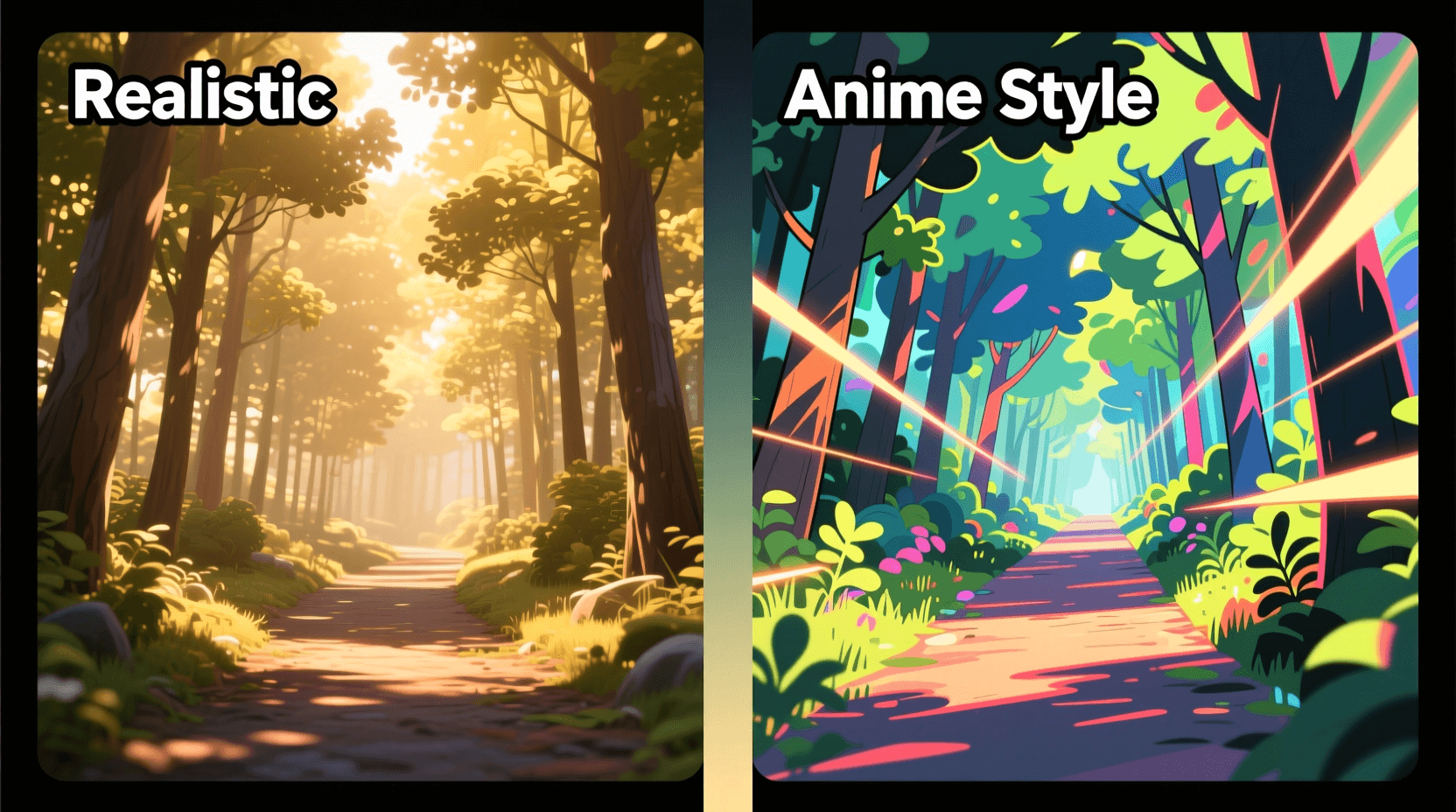
- “Vintage 1970s film” – Period-accurate color palette and grain
Modifiers to avoid or use carefully:
- “Hyperrealistic” – Often produces uncanny valley effects, especially with humans
- “Perfect” – Veo interprets this unpredictably
- “Beautiful” – Too subjective to produce consistent results
- “Like [specific movie]” – Copyright concerns may trigger filters or produce generic output
Pairing Veo with cinematic image generators for reference frames can help Veo understand the exact visual style you’re targeting.
7 Mistakes That Ruin Your Veo Videos
1. Cramming multiple scenes into one prompt
Veo generates continuous footage, not edited sequences. Asking for “A car driving through the city, then through mountains, ending at the ocean” forces the model to awkwardly morph between incompatible environments. Generate each scene separately.
2. Ignoring aspect ratio implications
Vertical and horizontal videos require different compositional approaches. A cinematic landscape prompt designed for 16:9 will look cramped and poorly balanced when generated in 9:16 for social media. Adjust framing language accordingly—”wide establishing shot” works for horizontal; “vertical composition with subject centered” suits vertical formats.
3. Using real celebrity or brand names
Beyond potential filter triggers, this wastes tokens on requests Veo is designed to reject or genericize. Describe the type of person or style you want instead: “a confident executive in a tailored suit” rather than a specific celebrity.
4. Neglecting audio considerations
Veo 3 includes audio generation capabilities. If you want synchronized sound, your prompt should address both visual and audio elements. “A thunderstorm over the ocean, crashing waves, rumbling thunder” produces better audiovisual results than only describing visuals.
5. Requesting specific text in scenes
AI video generators struggle with readable text. Signs, screens, or written words often appear garbled or change between frames. If you need text, plan to add it in post-production rather than generating it.
6. Overspecifying exact timing
Phrases like “at exactly 3 seconds, the door opens” don’t translate to precise timing control. Veo interprets temporal sequences loosely. Describe the sequence of events without exact timestamps.
7. Skipping iteration
Professional Veo users rarely nail their vision on the first attempt. Plan for 3-5 generation cycles, refining your prompt based on each output. What Veo produces tells you how it interpreted your words—use that feedback to adjust.
Quick Troubleshooting Reference
| Problem | Likely Cause | Fix |
|---|---|---|
| Prompt rejected immediately | Safety filter trigger | Replace potentially flagged words with neutral synonyms |
| Blurry output | Missing quality modifiers | Add “sharp focus,” “high detail,” “4K quality” |
| Wrong subject | Ambiguous description | Add more specific visual details in first 20 words |
| Jerky motion | Too many moving elements | Reduce to one primary motion, simplify scene |
| Morphing subjects | Inconsistent descriptions | Use distinctive, consistent subject anchors |
| Wrong style | Conflicting modifiers | Choose one aesthetic direction, remove contradictions |
| Timeout errors | Prompt too complex | Shorten clip length, simplify scene elements |
| Generic output | Vague prompt | Add specific environment, lighting, and camera details |
For complex projects, combining your refined prompts with a Sora prompt generator allows you to compare how different AI video platforms interpret similar concepts, helping you choose the best tool for each scene.
Frequently Asked Questions
Why does Veo keep rejecting my completely innocent prompts?
Safety filters analyze word associations, not intent. Words with multiple meanings (shoot, execute, strip, etc.) can trigger false positives. The filter also considers context from your recent prompt history. If previous prompts were borderline, subsequent innocent prompts face stricter scrutiny. Try rewording with unambiguous synonyms, or wait a few hours before trying again to reset context.
How long should my Veo prompts be?
Optimal length falls between 50-80 words for most use cases. Below 30 words, Veo lacks guidance and fills gaps with generic defaults. Above 100 words, important details may be deprioritized or contradictions may emerge. Quality matters more than length—every word should add specific, non-redundant information.
Can I get consistent characters across multiple Veo clips?
Character consistency remains challenging in AI video generation. Your best approach is using extremely detailed, identical character descriptions in each prompt and generating extra takes to select frames where the character most closely matches. For projects requiring strict consistency, consider generating a character in an AI photo generator first, then using that as a visual reference description.
Why do my Veo videos look different from examples I’ve seen online?
Published examples often represent cherry-picked results from multiple generation attempts. Creators also frequently enhance Veo output in post-production with color grading, stabilization, and compositing. Your raw Veo outputs may match the quality of others’ raw outputs—you’re just seeing their finished, polished versions.
Does prompt order actually matter?
Yes, significantly. Veo applies declining weight to prompt elements as they appear later in the text. Your first 20 words have the strongest influence on output. Place critical elements—main subject, primary action—at the beginning. Save style modifiers and technical specifications for the end.
How can I make Veo videos look more professional?
Three factors make the biggest difference: lighting descriptions, camera movement specifications, and color grading keywords. “Golden hour sunlight streaming through windows” beats “indoor lighting.” “Slow tracking shot” produces smoother, more cinematic motion than unspecified camera work. “Film color grading” or “cinematic color palette” pushes outputs toward professional aesthetics.
What’s the best way to iterate on a Veo prompt?
Change one element at a time between generations. If your output had good motion but wrong lighting, only adjust lighting terms in your next attempt. Changing multiple variables simultaneously makes it impossible to identify what’s working. Keep a text file of prompt versions and their results to track patterns.
Getting Consistently Better Results
Veo prompt mastery comes from understanding how the model thinks, not from memorizing magic words. Every error message and imperfect output provides information about how Veo interpreted your words. Treat failed generations as feedback, not failures.
The patterns covered here apply broadly, but your specific use case may reveal additional nuances. A free AI video prompt generator can serve as a starting point for experimenting with different structures and modifiers without spending extensive time on manual prompt construction.
As AI video generation technology continues evolving, prompt techniques will evolve too. The foundational principles—clarity, specificity, structure, and iteration—will remain valuable even as models become more capable. Master these fundamentals, and you’ll adapt quickly to whatever improvements Google releases next.