AI video generation has reached a point where the line between real footage and machine-generated content continues to blur. Google Veo and OpenAI’s Sora now produce videos that can fool even trained eyes—but only when you know exactly how to prompt them.
Most users get mediocre results because they approach these tools like basic text generators. The reality? Creating convincing photorealistic Veo videos or lifelike Sora clips requires specific techniques that leverage each platform’s strengths.
Here’s what you’ll discover: 15 actionable strategies for generating realistic AI video content, from camera terminology that triggers cinematic quality to lighting specifications that eliminate that “AI look.” Each tip comes with practical examples you can adapt immediately.
Table of Contents
1. Start with Camera and Lens Specifications
2. Define the Lighting Environment First
3. Use Temporal Anchors for Consistent Motion
4. Specify Film Stock or Sensor Characteristics
5. Include Environmental Physics
6. Layer Your Depth of Field Instructions
7. Reference Real Cinematographers
8. Control Color Grading Through Prompt Language
9. Add Imperfections Intentionally
10. Structure Prompts for Specific Shot Types
11. Master the Negative Prompt
12. Sync Audio Cues in Your Text
13. Build Scenes in Sequential Layers
14. Leverage Platform-Specific Strengths
1. Start with Camera and Lens Specifications
Professional cinematographers never shoot without knowing their gear. Apply the same logic to your prompts. When you specify “shot on ARRI Alexa Mini with Cooke S4 35mm lens,” the AI draws from training data associated with that exact visual signature—the subtle barrel distortion, the characteristic bokeh, the color science.
Veo prompt techniques become significantly more effective when you open with hardware context. A prompt reading “handheld RED Komodo footage, 50mm anamorphic” immediately tells the model what visual characteristics to prioritize: the organic shake pattern, the horizontal lens flares, the 2.39:1 aspect ratio feel.
Practical example: Instead of “a woman walking through a market,” try “documentary footage shot on Sony FX3, 24mm Sigma Art lens, natural handheld movement, woman browsing a busy morning fish market, available light.”
The Veo prompt generator can help structure these technical specifications if you’re unfamiliar with camera terminology.
2. Define the Lighting Environment First
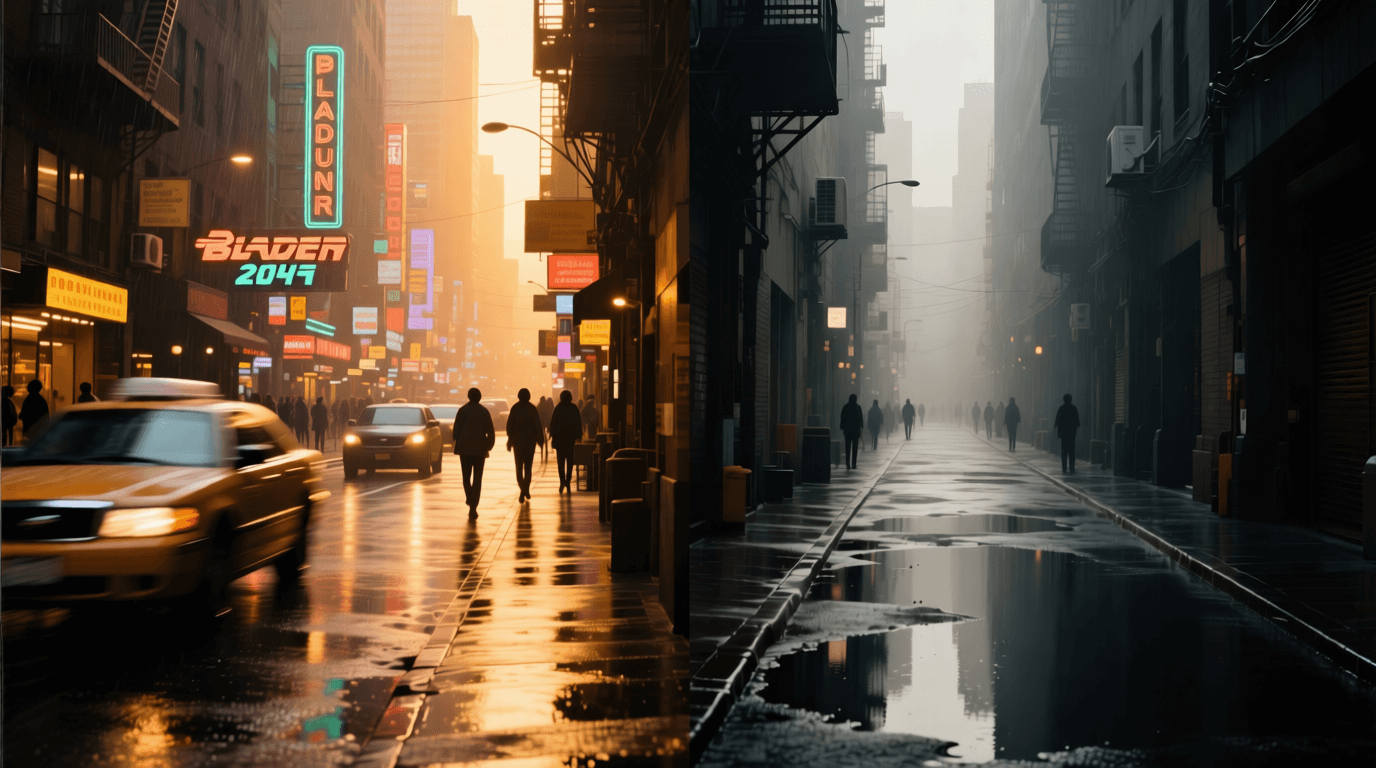
Lighting makes or breaks photorealism. According to research published by ScienceDirect on neural rendering, lighting inconsistencies remain one of the primary tells that reveal AI-generated content.
Specify your light sources explicitly: “overcast sky providing soft diffused light from above, reflected fill light bouncing off wet pavement.” This level of detail forces the model to compute realistic shadows and highlights rather than defaulting to flat, even illumination.
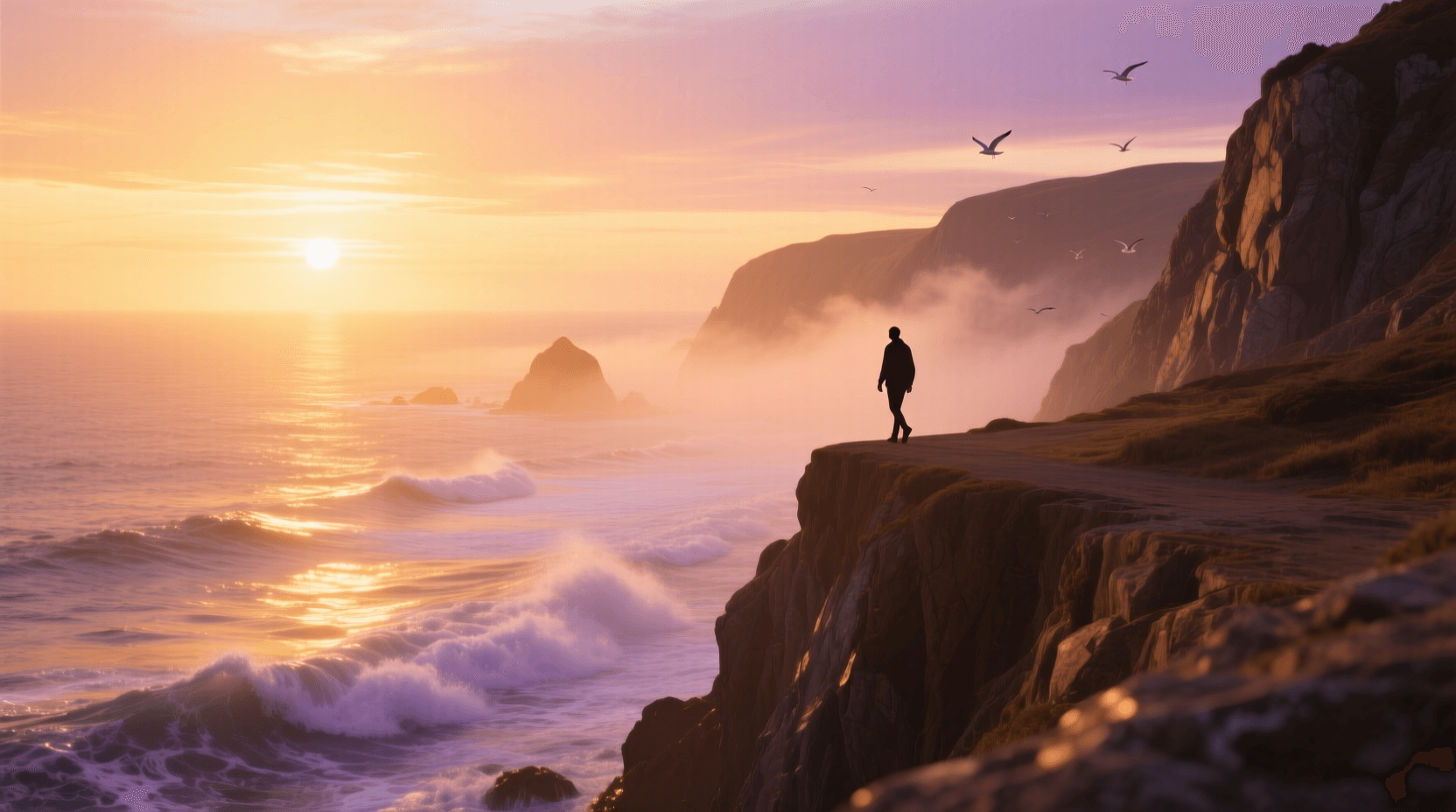
Golden hour and blue hour prompts work exceptionally well because these conditions have clear visual signatures. “Magic hour sunlight, sun 15 degrees above horizon, long shadows stretching left to right, warm orange key light with cool blue shadow fill.”
3. Use Temporal Anchors for Consistent Motion
Realistic AI video clips fall apart when motion becomes erratic or physics-defying. Temporal anchors—specific references to how movement progresses through time—help maintain coherence.
Rather than “bird flying across frame,” write “seagull enters frame left, glides on thermal current with minimal wing movement for 2 seconds, banks right and exits top of frame.” This gives the model clear keyframes to interpolate between.
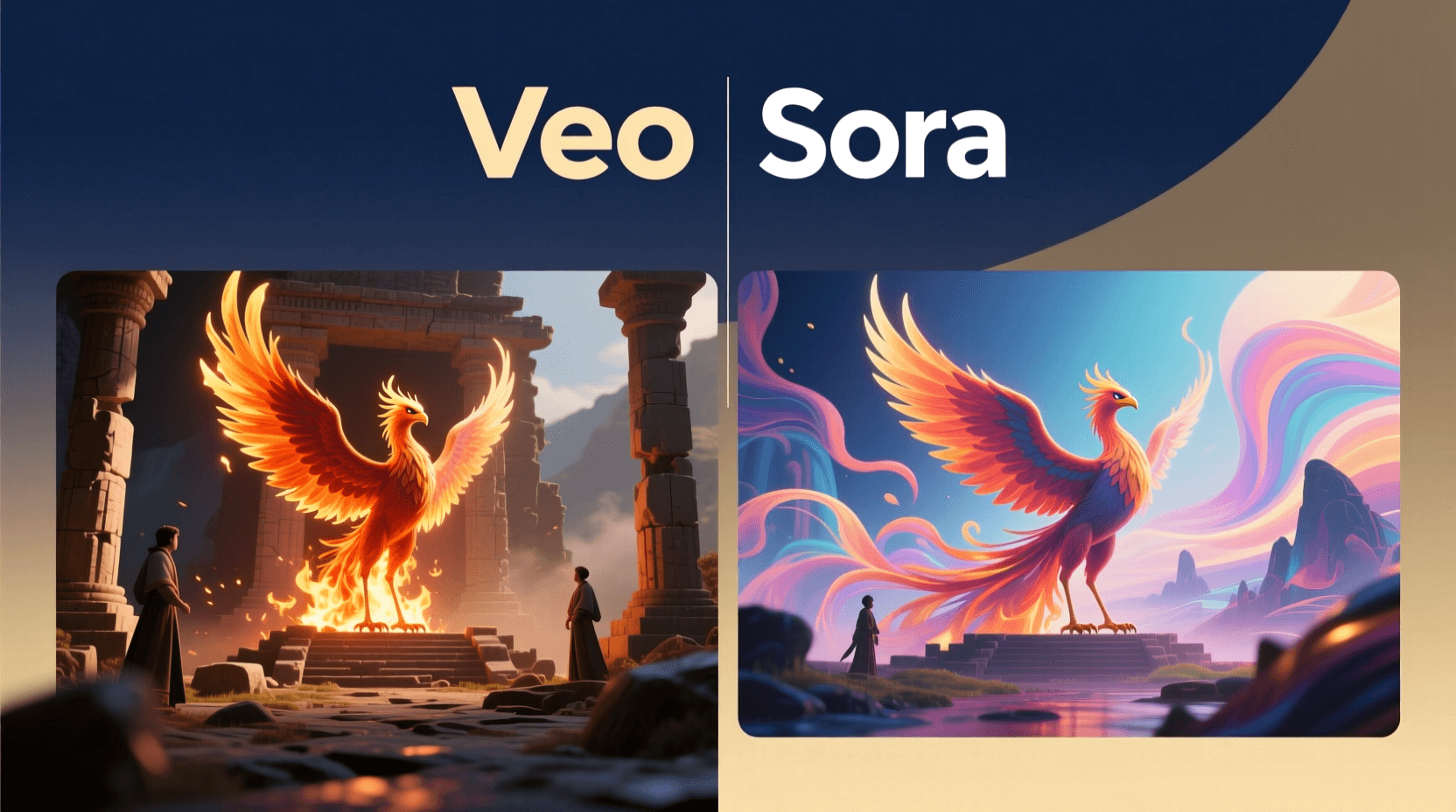
Both Veo and Sora handle motion differently. Google’s Veo 3 excels at continuous smooth camera movements, while Sora tends to produce more dynamic action sequences. Knowing these tendencies helps you craft prompts that play to each platform’s strengths.
4. Specify Film Stock or Sensor Characteristics
Digital cinema and analog film each carry distinct visual DNA. Mentioning “Kodak Vision3 500T film stock” versus “clean digital sensor, low ISO” produces dramatically different results.
Film stock references add organic texture: grain patterns, halation around highlights, and color response curves that digital sensors don’t naturally replicate. For photorealistic Veo videos targeting a vintage aesthetic, this single addition transforms output quality.
Sample prompt structure: “16mm Kodak Ektachrome film, visible grain texture, slightly lifted blacks, saturated but not oversaturated colors, subtle gate weave.”
If you’re working on multiple visual styles, cinematic image generators can help you understand different film looks before committing to video prompts.
5. Include Environmental Physics
Wind affects hair, fabric, leaves, and water. Gravity influences how objects fall and liquids pour. These physical interactions separate amateur AI output from professional-grade results.
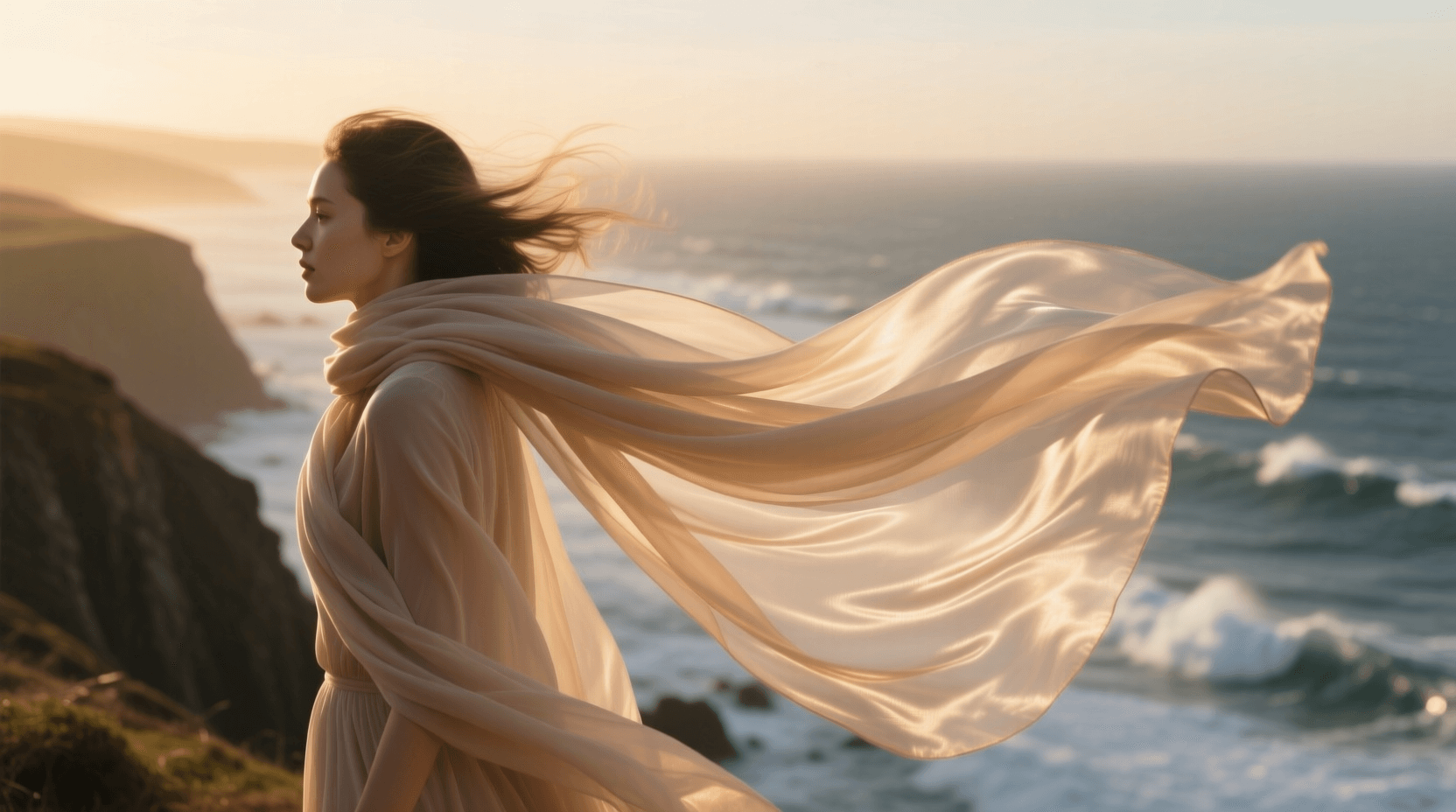
When your scene includes elements that should respond to environmental forces, state them: “gentle breeze causing dress fabric to ripple naturally, loose strands of hair moving independently from head movement.” The more specific your physics descriptions, the more convincing the final render.
A 2024 technical overview from OpenAI confirmed that Sora’s training included extensive physics simulation data, making it particularly responsive to these environmental cues.
6. Layer Your Depth of Field Instructions
Real cameras can’t focus on everything simultaneously. This optical limitation actually helps sell realism—sharp subjects against softly blurred backgrounds look natural because that’s how human vision and camera optics actually work.
Structure depth prompts with clear foreground, midground, and background definitions: “shallow depth of field, f/1.8 aperture, subject tack sharp, background elements 15 feet behind rendered with circular bokeh, foreground objects slightly soft.”
The Sora prompt generator includes depth of field presets that can accelerate this process for beginners.
7. Reference Real Cinematographers
Roger Deakins lights scenes differently than Bradford Young. Emmanuel Lubezki moves cameras in ways distinct from Robert Richardson. Name-dropping specific cinematographers tells the AI to emulate recognizable visual styles.
“Cinematography inspired by Hoyte van Hoytema, anamorphic wide shots, practical lighting sources visible in frame, desaturated color palette with retained skin tones” produces very different output than generic instructions.
This technique works because AI models trained on film footage have learned associations between these names and their characteristic visual signatures. It’s prompt shorthand that compresses multiple technical specifications into a single reference.
8. Control Color Grading Through Prompt Language
Color science determines emotional tone. Teal-and-orange blockbuster palettes feel different from muted independent film aesthetics or the punchy saturation of music videos.
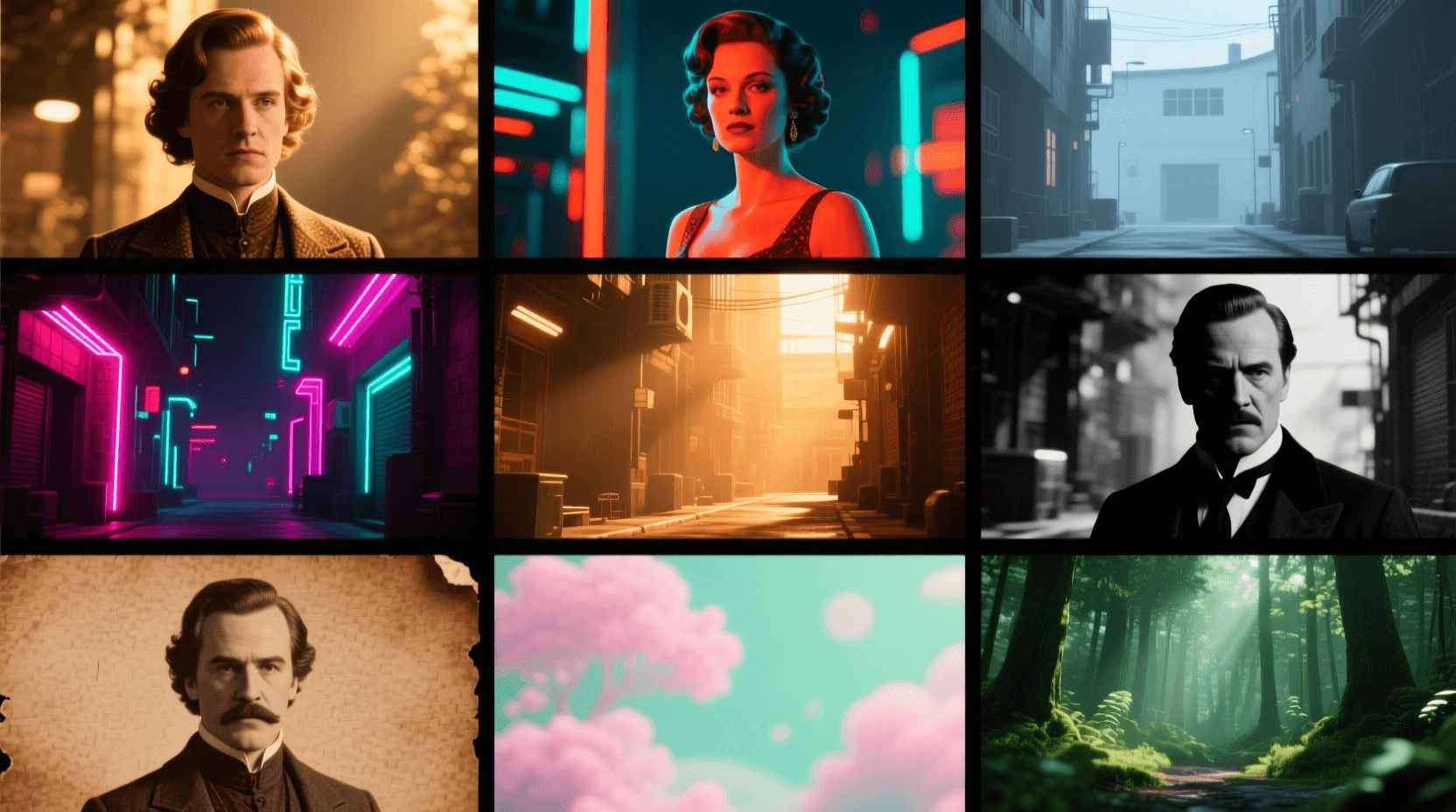
Be explicit: “color grade inspired by David Fincher films, lifted shadows with green undertones, highlights pulled toward amber, overall desaturated with selective color isolation on red elements.”
For creators working across multiple projects, understanding color relationships becomes essential. Tools like complementary color generators can help visualize palettes before applying them to video prompts.
9. Add Imperfections Intentionally
Perfection looks fake. Real footage contains dust particles, minor focus breathing, subtle lens vignetting, and occasional flares when bright lights hit at certain angles.
Prompting for these “flaws” paradoxically increases realism: “subtle lens dust visible against sky, minor chromatic aberration on high-contrast edges, natural vignette darkening frame corners by 15%.”
This approach counters AI’s tendency toward idealized, too-clean imagery. According to Wired’s coverage of AI video advances, intentional imperfection has become one of the most reliable techniques for achieving convincing results.
10. Structure Prompts for Specific Shot Types
Wide establishing shots require different prompt architecture than intimate close-ups. A tracking shot needs motion descriptors that a static locked-off frame doesn’t.
For wide shots: Lead with environment, then subject placement, then atmosphere. “Vast desert landscape at dawn, single figure visible in lower third of frame, heat shimmer distorting distant horizon.”
For close-ups: Lead with subject detail, then camera behavior, then background treatment. “Extreme close-up of elderly man’s weathered hands, shallow focus, slow subtle push-in, background rendered as abstract warm tones.”
The video prompt generator offers templates structured around common shot types for faster iteration.
11. Master the Negative Prompt
Telling the AI what to avoid can be as powerful as describing what you want. Negative prompts eliminate common AI artifacts before they appear.
Standard negative prompt elements for realistic AI video: “no morphing faces, no unnatural skin smoothing, no oversaturated colors, no artificial symmetry, no impossible physics, no duplicate elements, no text artifacts.”
Veo and Sora handle negative prompts differently. Test each platform’s response to understand how aggressively you can exclude unwanted elements without compromising your positive descriptions.
12. Sync Audio Cues in Your Text
Even when generating video without audio, describing sound helps AI models produce visually coherent content. A prompt mentioning “the low rumble of distant thunder, raindrops beginning to patter on leaves” will generate appropriate visual responses—darkening skies, visible precipitation.
This technique leverages cross-modal training data. Models learn associations between sounds and visuals during training, so audio descriptions activate relevant visual patterns even in silent output.
Creators planning to add music later can use the Suno prompt generator to create matching audio tracks with consistent mood.
13. Build Scenes in Sequential Layers
Complex scenes benefit from hierarchical prompt construction. Start with the foundation (environment, time of day, overall mood), add mid-level details (primary subjects, their actions, key relationships), then finish with surface details (textures, fine movements, subtle effects).
Layer 1: “Autumn forest clearing, late afternoon, melancholic atmosphere”
Layer 2: “Young woman in vintage wool coat standing beside fallen oak, looking at object in her hands”
Layer 3: “Fallen leaves occasionally drifting through frame, breath slightly visible in cooling air, weak sunbeams filtering through canopy creating dappled light on her face”
Combined, these layers give AI models structured context that produces more coherent output than single-paragraph descriptions.
14. Leverage Platform-Specific Strengths
Google Veo 3 and Sora aren’t interchangeable. Each has distinct capabilities worth exploiting.
Veo excels at: Smooth continuous camera motion, consistent character appearance across longer sequences, photorealistic natural environments, and integration with text-to-speech for dialogue.
Sora performs best with: Dynamic action sequences, surreal or impossible camera movements, stylized artistic interpretations, and complex multi-subject interactions.
Matching your project’s needs to the right platform prevents wasted generations. For Veo-specific optimization, the free Veo 3 prompt generator includes platform-tuned templates.
15. Iterate with Seed Control
Both platforms allow seed values that make outputs reproducible. Once you generate a promising result, lock that seed and modify other parameters to refine without starting from scratch.
This approach enables systematic improvement: generate → identify issues → adjust specific prompt elements → regenerate with same seed → compare. Without seed control, each generation introduces too many variables to isolate what’s working.
Professional workflows often involve dozens of iterations on a single shot. AI video prompt tools that track version history make this process manageable.
7 Mistakes That Sabotage Your Photorealistic AI Videos
Knowing what to do matters less if you’re simultaneously doing things that undermine your results. Avoid these common pitfalls:
- Overloading single prompts – cramming too many instructions causes models to ignore or blend elements unpredictably. Split complex scenes into shorter sequential clips.
- Ignoring aspect ratio – 16:9 and 9:16 produce different composition behaviors. Specify your target format upfront.
- Generic subject descriptions – “beautiful woman” tells the AI nothing. Describe specific features: age range, ethnicity indicators, clothing details, posture.
- Forgetting scale references – without size context, AI may render subjects at wrong proportions. Include reference objects or explicit measurements.
- Skipping weather and atmosphere – clear vs. hazy air dramatically affects realism. “Slight atmospheric haze reducing contrast on distant objects” adds depth that clean renders lack.
- Using absolute motion descriptions – “fast movement” is subjective. Use comparative or timed references: “walking pace,” “moving twice as fast as surrounding pedestrians.”
- Neglecting frame edges – AI often struggles with what happens at composition boundaries. Specify whether subjects enter/exit frame or if edges should show environment continuation.
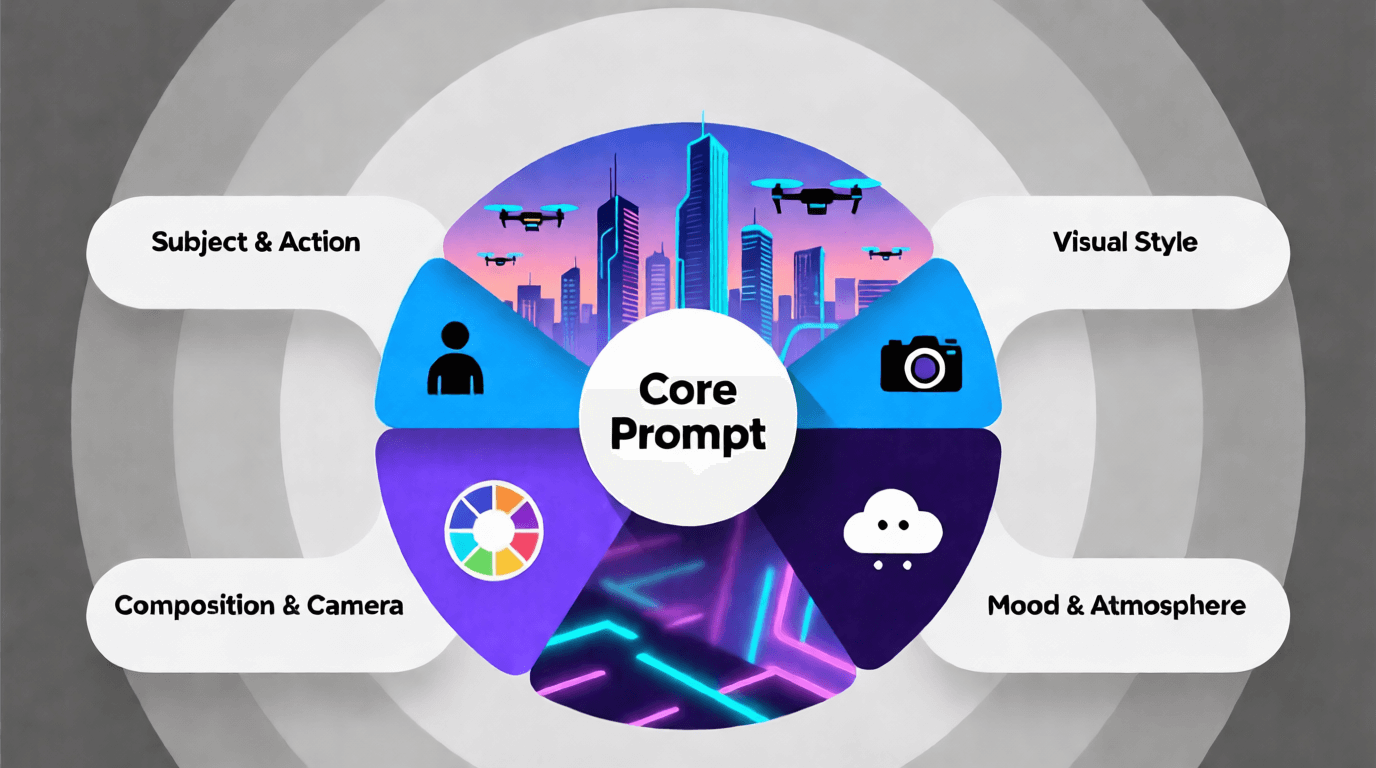
Quick Reference: Prompt Formula for Photorealistic Results
| Element | Example Text | Purpose |
|---|---|---|
| Camera/Lens | “Shot on ARRI Alexa, 50mm Zeiss Master Prime” | Establishes visual signature and depth characteristics |
| Film/Sensor | “Clean digital sensor, ISO 800, slight noise in shadows” | Defines texture and grain behavior |
| Lighting | “Soft window light camera left, practical lamp providing warm fill” | Creates believable illumination |
| Subject | “Middle-aged man, Mediterranean features, gray stubble, worn leather jacket” | Specific enough to prevent generic generation |
| Action | “Slowly turns head toward camera over 2 seconds, expression shifting from neutral to slight concern” | Defines temporal behavior |
| Environment | “Cluttered detective’s office, 1970s decor, dust particles visible in light shafts” | Provides context and atmospheric detail |
| Technical | “Shallow depth of field, rack focus from background file cabinet to subject’s face” | Adds professional cinematography elements |
Frequently Asked Questions
What resolution do Veo and Sora generate videos at?
As of 2026, Google Veo 3 outputs up to 4K resolution, while Sora generates at 1080p with
higher resolutions available in paid tiers. Both platforms continue updating their capabilities, so check current specifications before starting projects requiring specific output requirements.
How long can AI-generated videos be?
Veo supports clips up to 60 seconds in a single generation, with stitching capabilities for longer sequences. Sora currently maxes out at 20 seconds per generation but handles scene-to-scene consistency better for multi-clip editing.
Can I use these videos commercially?
Commercial usage rights depend on your subscription tier and local regulations. Google Veo includes commercial rights in paid plans, while Sora’s terms vary. Always verify licensing before publishing AI-generated content for commercial purposes.
Which platform produces more realistic results?
Neither platform is universally “more realistic.” Veo handles natural environments and human subjects with slight edge, while Sora produces more convincing complex motion and action sequences. Your subject matter should guide platform selection.
How do I fix AI artifacts like morphing faces?
Strong negative prompts help, but the most reliable fix involves generating shorter clips where the subject appears for less time, then editing clips together. Face consistency improves significantly in sub-5-second segments for both platforms.
Do I need technical cinematography knowledge?
It helps substantially, but you can learn through iteration. Start with the Veo prompt generator or Sora prompt tools to understand effective terminology, then gradually incorporate more technical language as you see what works.
How many generations does a good result typically take?
Expect 10-30 generations for professional-quality output on complex scenes. Simple shots with clear prompts might succeed in 3-5 attempts. Building a library of working prompt templates dramatically reduces iteration count over time.
Creating photorealistic AI video isn’t about finding a magic prompt formula—it’s about understanding how these models interpret instructions and systematically providing the context they need. Start with camera and lighting foundations, add physical and temporal specificity, and iterate with purpose. The tools keep improving, but prompt craftsmanship remains the differentiator between mediocre output and genuinely convincing results.