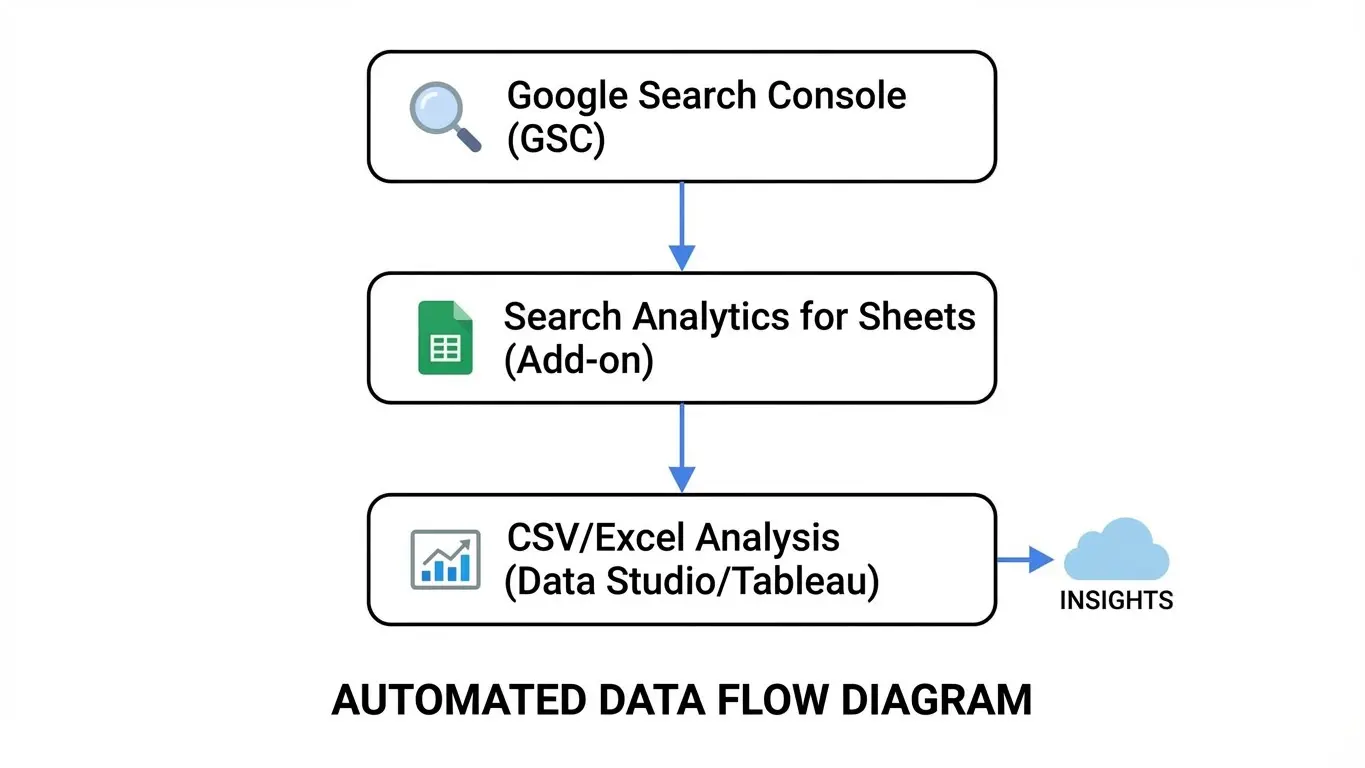
Exporting data from Google Search Console (GSC) and Google Analytics is essential for any SEO professional or website owner who wants to analyze performance, track keywords, and make data-driven decisions. However, the standard Google Search Console interface limits exports to 1,000 rows, which can hinder comprehensive analysis, especially for large websites with thousands of pages or queries. Fortunately, there are free and effective ways to bypass this limit, giving you full access to your data for better insights.
This guide will show you the best free solution, detailed setup instructions, practical tips, and additional free and paid options for exporting more than 1,000 rows.
The Best Free Solution to Export More Than 1,000 Rows From Google Search Console
Search Analytics for Sheets (Google work space extension)
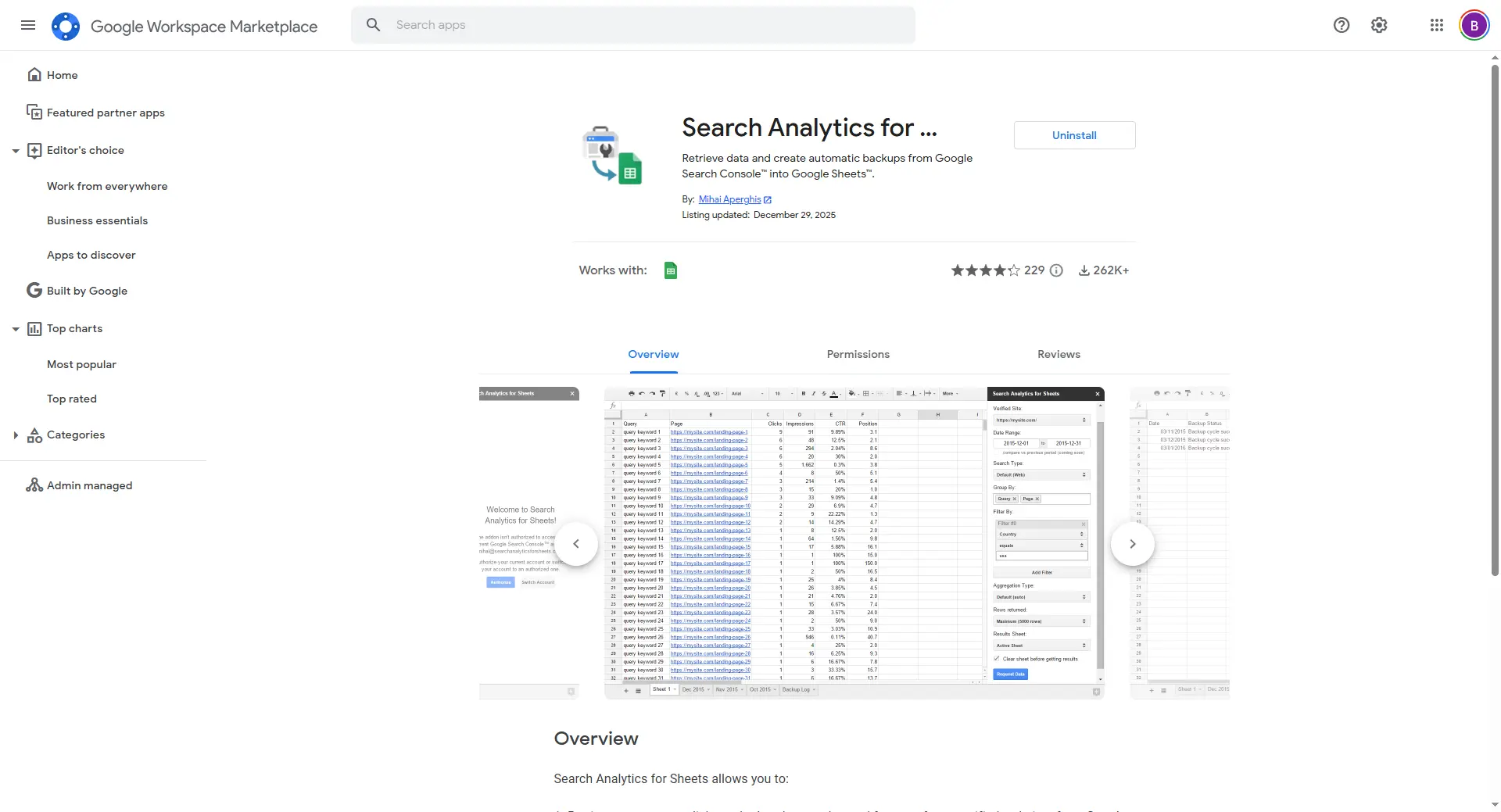
Search Analytics for Sheets is the recommended free solution for exporting unlimited rows from Google Search Console. This Google Sheets workspace add-on connects directly to the Search Console API and allows you to extract query data, page performance metrics, and other insights without worrying about the 1,000-row limit. It’s ideal for SEO professionals, marketers, and website owners seeking detailed analysis.
Install Search Analytics for Sheets
Benefits of Using Search Analytics for Sheets
Using this add-on comes with several advantages:
- Unlimited Rows: No more 1,000-row restrictions.
- Direct API Access: Pulls accurate, up-to-date data straight from GSC.
- Flexible Filters: Segment by date range, queries, pages, countries, devices, and search types.
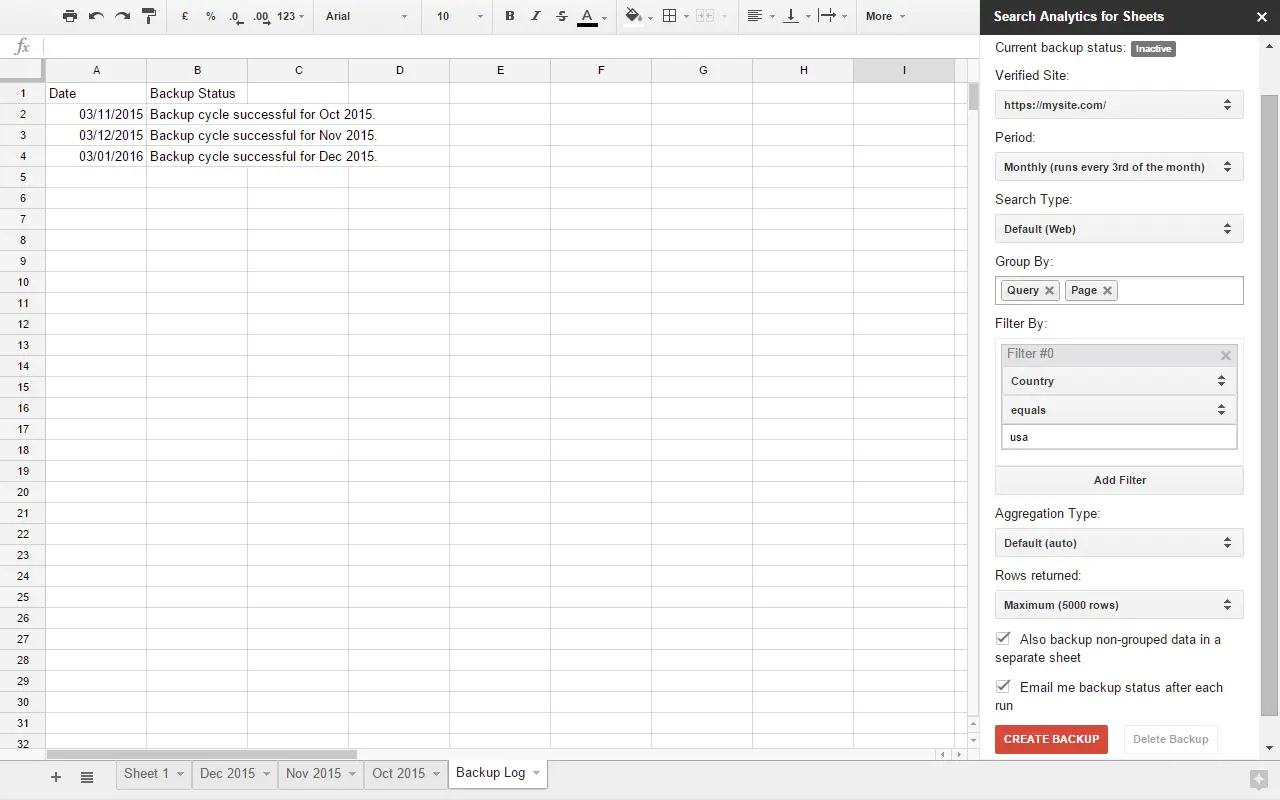
- Automatic Updates: Schedule refreshes to keep your sheets updated without manual effort.
- Free: No cost for both basic and advanced exports.
How to Set Up and Use Search Analytics for Sheets
Getting started is easy and quick. Follow these steps:
- Open a new Google Sheet.
- Navigate to
Extensions→Add-ons→Get add-ons. - Search for Search Analytics for Sheets and click Install.
- Open the add-on via
Extensions→Search Analytics for Sheets→Open Sidebar. - Connect your Google account and authorize access to Search Console data.
- Select the website property you want to analyze.
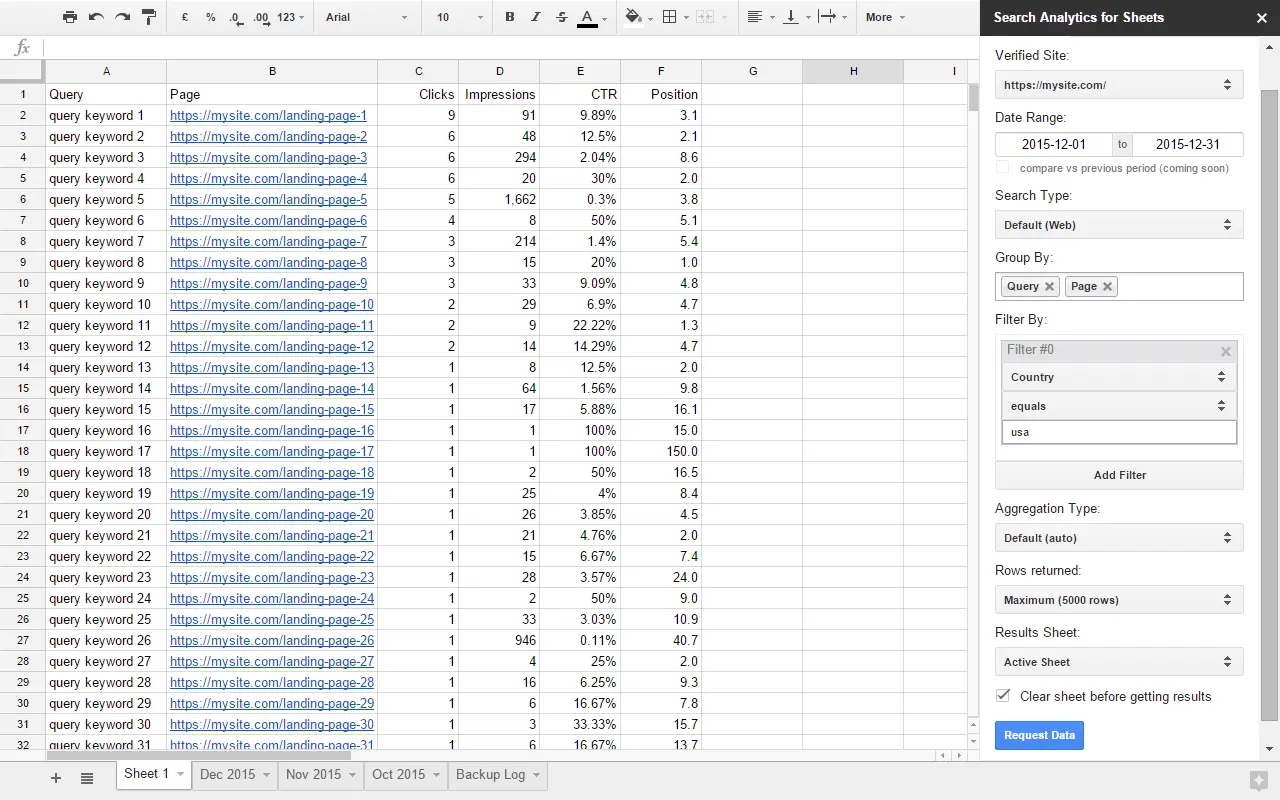
- Choose the metrics and dimensions to pull (queries, pages, clicks, impressions, CTR, average position).
- Apply filters for countries, devices, or search types if needed.
- Click Request Data to populate your sheet with the full dataset.
- Export the sheet as CSV or Excel for reporting or integration.
Tips to Maximize Your Export
- Use pagination for very large datasets to avoid hitting sheet limits.
- Schedule automatic refreshes to keep data current.
- Apply filters for devices, countries, or search types to organize large datasets efficiently.
Other Free Options for Large Exports
If you’re comfortable with technical methods, you can explore additional free options:
- Google Search Console API: Access more than 1,000 rows programmatically using Python or Google Apps Script.
- Bulk Export via BigQuery: Export GSC data to BigQuery for advanced analysis (requires Google Cloud knowledge).
- Google Apps Script in Sheets: Call the API directly for full control over data extraction.
Paid Solutions for Large Scale Exports
For users who need advanced features, higher export limits, or multi-site management, the following tools offer paid options:
- GSCTool (Chrome Extension): Exports more than 1,000 rows; full functionality requires a subscription. GSCTool Website
- PowerSearchConsole: Can export up to 25,000 rows; paid subscription required. PowerSearchConsole Website
- Search Console Data Exporter (SEOTesting.com): Paid version required for unlimited exports. SEOTesting Website
Exporting Google Analytics Data Beyond 1,000 Rows
Google Analytics also imposes row limits. Free solutions include:
- Google Analytics Add-on for Sheets: Pull more than 1,000 rows directly into Sheets; supports scheduling.
- BigQuery Export (GA4 only): Export raw event-level data for detailed analysis.
- Manual Segmentation: Split exports by dates or dimensions; free but labor-intensive.
Recommended Workflow for Free Users
For a comprehensive and efficient workflow:
- Use Search Analytics for Sheets for GSC data.
- Use Google Analytics Add-on for Sheets for GA data.
- For large websites, integrate BigQuery for both GSC and GA.
- Schedule automatic refreshes to maintain updated datasets.
- Export data as CSV or Excel for further analysis and reporting.
Exporting more than 1,000 rows from Google Search Console and Google Analytics doesn’t have to be expensive or complicated. Search Analytics for Sheets provides unlimited access, flexible filtering, and direct integration with Google Sheets. While paid tools like GSCTool and PowerSearchConsole offer more advanced options, free users can achieve comprehensive exports and perform deep SEO analysis with the methods outlined above. By following this guide, you can unlock your website’s full data potential and make informed, data-driven SEO decisions.