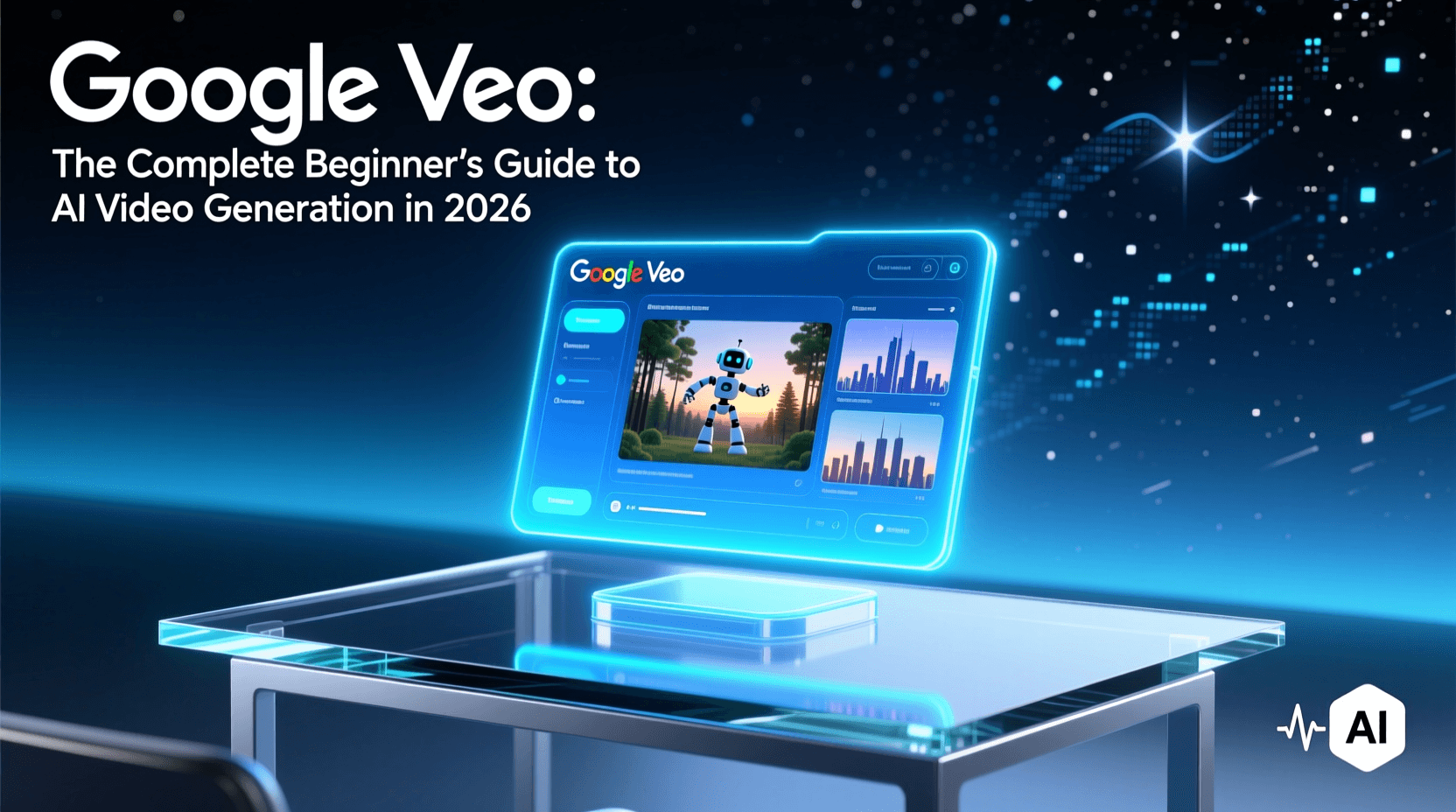
Creating professional-quality videos used to require expensive software, technical expertise, and hours of editing. Google Veo changes everything. This AI video generator transforms simple text descriptions into stunning video content in minutes, making professional video creation accessible to anyone with an idea.
Whether you want to produce marketing content, educational videos, or creative projects, this guide walks you through every step of using Google Veo effectively. You’ll discover how to write prompts that get results, avoid common beginner mistakes, and create videos that actually look good.
Table of Contents
- What Is Google Veo?
- How Google Veo Actually Works
- Getting Started: Access and Setup
- Writing Effective Video Prompts
- Key Features You Should Know
- Practical Prompt Examples That Work
- 7 Mistakes That Ruin Your AI Videos
- Real-World Use Cases
- Tips for Better Video Results
- Frequently Asked Questions
What Is Google Veo?
Google Veo is an AI-powered video generation model developed by Google DeepMind. It creates high-quality video clips from text prompts, still images, or a combination of both. The technology builds on Google’s extensive research in machine learning and multimodal AI systems.
Unlike basic video tools that stitch together stock footage, Veo generates entirely new visual content. Each frame is synthesized based on your prompt, giving you unique footage that doesn’t exist anywhere else. The AI interprets your description and creates coherent motion, lighting, and visual elements across the entire video duration.
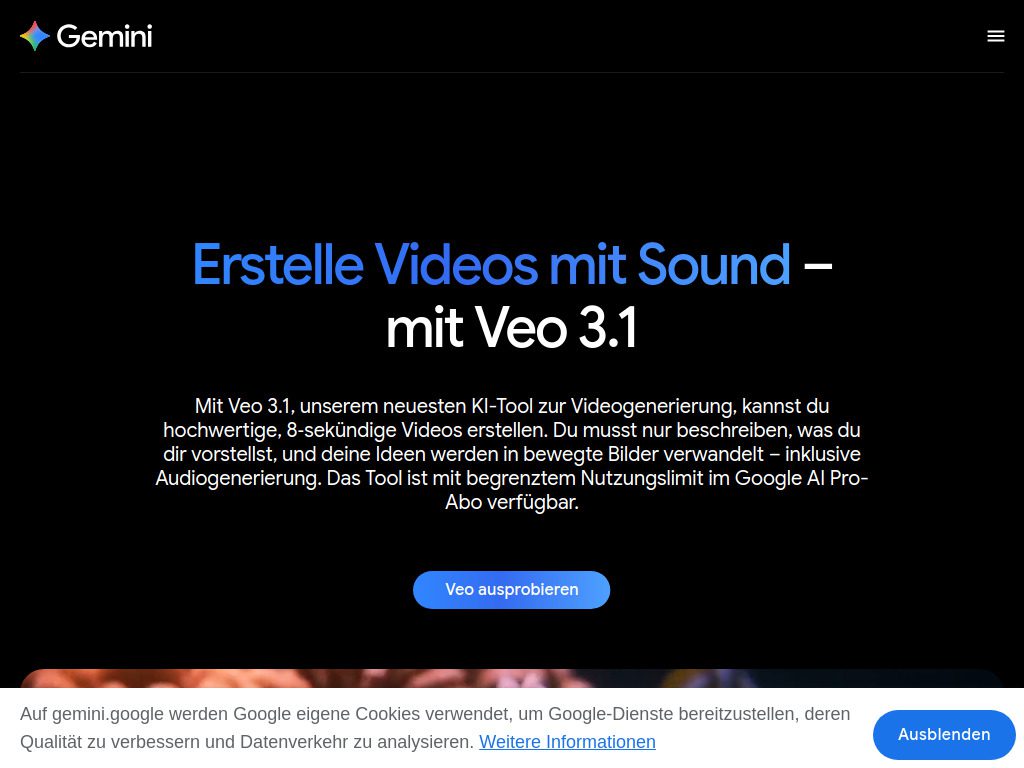
Google integrated Veo into several products including Google Labs, the Gemini app, and YouTube Shorts creation tools. This integration means you can access AI video generation across multiple platforms depending on your specific needs.
How Google Veo Actually Works
At its core, Veo uses a diffusion model architecture similar to what powers image generators, but extended to handle temporal consistency across video frames. The system starts with noise and progressively refines it into coherent video based on your text input.
The model processes your prompt through several stages. First, it analyzes the semantic meaning of your description. Then it determines visual elements like objects, environments, lighting conditions, and camera angles. Finally, it generates frames that flow naturally together, maintaining consistent subjects and physics throughout the clip.
What makes Veo particularly impressive is its understanding of cinematography concepts. Mention “tracking shot” or “slow zoom” in your prompt, and the AI applies those camera movements. Request “golden hour lighting” and the system renders appropriate warm tones and soft shadows.

Getting Started: Access and Setup
Accessing Google Veo depends on which platform you prefer to use. Here’s how to get started with each option:
Through Google Labs (VideoFX)
VideoFX serves as the primary standalone interface for Veo. Visit labs.google/fx/tools/video-fx and sign in with your Google account. You’ll need to join a waitlist initially, though access has expanded significantly throughout 2026.
Once approved, the interface presents a clean workspace where you enter prompts and adjust generation settings. The free tier provides limited generations per day, while paid options offer higher quotas and additional features.
Via Gemini Advanced
Subscribers to Gemini Advanced can generate videos directly within the Gemini app. Simply describe the video you want in a conversation, and Gemini uses Veo to create it. This approach works well when you want AI assistance refining your prompt before generation.
Through YouTube Shorts
YouTube creators can access Veo through the Shorts creation flow. This integration focuses specifically on vertical video format and includes templates optimized for social content. It’s particularly useful if you’re already creating content on the platform.
Writing Effective Video Prompts
Your prompt determines everything about the final video. Vague descriptions produce generic results, while specific, detailed prompts yield footage that matches your vision. Here’s how to structure prompts that actually work.
The Anatomy of a Strong Prompt
Effective Veo prompts typically include these elements:
- Subject description – Who or what appears in the video
- Action or movement – What’s happening in the scene
- Setting or environment – Where the action takes place
- Visual style – The aesthetic or mood you want
- Camera direction – How the shot should move or frame the subject
Consider the difference between these two prompts:
Weak prompt: “A dog running”
Strong prompt: “A golden retriever running through a sunlit meadow filled with wildflowers, slow motion capture, shallow depth of field with bokeh background, warm afternoon light”
The second prompt gives Veo specific information about the subject (golden retriever), environment (sunlit meadow with wildflowers), style (slow motion, shallow depth of field), and lighting (warm afternoon). Each detail guides the AI toward your intended result.
If you struggle with crafting detailed prompts, try our free Veo prompt generator to help structure your ideas into effective descriptions.
Cinematography Terms That Improve Results
Veo responds well to industry-standard camera terminology. Incorporating these terms adds precision to your prompts:
- Tracking shot – Camera follows the subject’s movement
- Dolly zoom – Creates that distinctive “vertigo effect”
- Crane shot – Camera rises or descends smoothly
- Steadicam – Smooth, floating camera movement
- Dutch angle – Tilted camera for dramatic effect
- Close-up / Wide shot / Medium shot – Framing specifications
- Push in / Pull out – Forward or backward camera movement
These terms translate directly into camera behavior in your generated video. A prompt like “close-up tracking shot of raindrops sliding down a window, rack focus to reveal a city skyline” communicates specific visual intent that Veo can execute.
Key Features You Should Know
Beyond basic text-to-video generation, Veo includes several capabilities that expand creative possibilities.
Image-to-Video Generation
Upload a still image and Veo animates it. This feature works exceptionally well for bringing product photos to life, animating artwork, or creating motion from photographs. The AI analyzes the image content and applies realistic movement while preserving the original visual style.
For best results with image inputs, use high-resolution source images with clear subjects. The AI performs better when it can identify distinct elements to animate.
Extended Duration Options
Standard generations produce clips between 5-8 seconds. Premium tiers unlock longer durations, and Google has progressively extended maximum lengths throughout 2026. For longer content, you can generate multiple clips and edit them together using conventional video editing software.
Resolution and Aspect Ratio
Veo supports multiple output formats. Choose between landscape (16:9), portrait (9:16), or square (1:1) depending on your platform. Resolution options include 720p and 1080p, with higher resolutions available for paid users.
Negative Prompts
Specify what you don’t want in the video. Negative prompts help exclude unwanted elements, artifacts, or styles. For instance, adding “no text, no watermarks, no distorted faces” helps avoid common AI generation issues.
Practical Prompt Examples That Work
Seeing real examples helps you understand how to construct effective prompts for different purposes.
Product Showcase Video
“A sleek white wireless earbud case rotating slowly on a matte black surface, dramatic product lighting with soft highlights, studio photography style, 360-degree rotation, premium tech commercial aesthetic”
Nature Documentary Style
“Aerial drone shot pushing forward over a misty rainforest canopy at sunrise, rays of light breaking through the fog, cinematic 4K footage, David Attenborough documentary style, sweeping orchestral mood”
Social Media Content
“Vibrant flat lay of colorful summer fruits being arranged on a white marble surface, top-down camera, stop motion style movement, bright natural lighting, Instagram aesthetic”
Abstract Background
“Flowing liquid metal textures morphing between gold and silver, macro photography perspective, seamless loop, satisfying ASMR aesthetic, slow undulating movement”
Architectural Visualization
“Smooth walkthrough of a minimalist Japanese interior, morning light streaming through rice paper screens, tracking shot moving through living space to garden view, calm contemplative atmosphere”
Notice how each example combines subject, setting, camera movement, style references, and mood descriptors. This layered approach consistently produces better results than single-element prompts.
Need help generating prompts for other AI tools? Our AI video prompt generator creates optimized descriptions for various platforms.
7 Mistakes That Ruin Your AI Videos
Most beginners make similar errors when starting with Veo. Avoiding these pitfalls saves time and improves your output quality immediately.
1. Writing Prompts That Are Too Short
Single-sentence prompts rarely produce impressive results. The AI needs context to make creative decisions. When you provide minimal information, Veo fills the gaps with generic choices. Aim for prompts between 30-75 words that describe multiple aspects of your desired video.
2. Expecting Photorealistic Human Faces
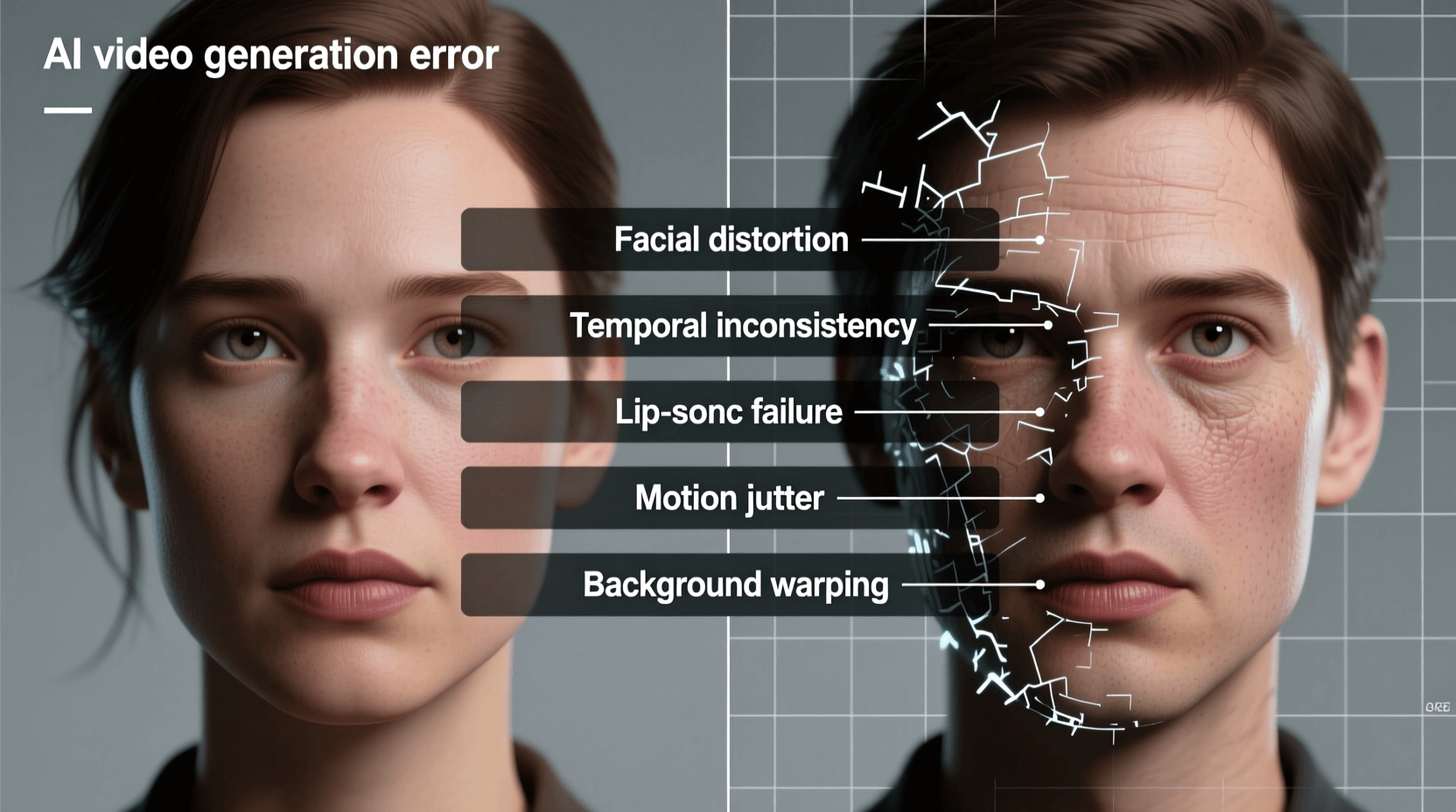
AI video generation still struggles with consistent human faces, especially in motion. Subtle distortions or shifts in facial features can occur between frames. For content featuring people prominently, consider framing that doesn’t rely on close-up facial detail, or use silhouettes and more distant shots.
3. Ignoring Aspect Ratio Until the End
Your intended platform determines the ideal aspect ratio. A beautifully generated landscape video becomes awkward when cropped for Instagram Stories. Decide on format before you generate—not after.
4. Requesting Too Many Elements
Complex scenes with many distinct subjects often produce chaotic results. The AI balances attention across everything mentioned in your prompt. Sometimes simpler scenes with fewer elements generate cleaner, more professional-looking footage.
5. Using Ambiguous Action Words
Terms like “moving” or “changing” don’t communicate specific motion. Instead of “the camera moving around the building,” specify “orbital tracking shot circling a glass skyscraper, maintaining constant distance.” Precision eliminates guesswork.
6. Forgetting About Lighting
Lighting dramatically affects mood and quality. Prompts without lighting specifications often produce flat, evenly lit scenes. Adding “dramatic side lighting” or “soft diffused overcast light” or “golden hour backlighting” transforms ordinary footage into cinematic content.
7. Not Iterating on Results
First attempts rarely nail exactly what you want. Treat initial generations as drafts. Analyze what worked, adjust your prompt, and regenerate. This iterative process is how professionals achieve polished results.
Real-World Use Cases
Google Veo serves practical purposes across multiple industries and creative fields. Here’s how different users leverage the technology.
Marketing and Advertising
Small businesses create promotional content without production budgets. Generate product visualization videos, background footage for presentations, or social media content at a fraction of traditional costs. Marketing teams prototype concepts before committing to expensive live-action shoots.
Education and Training
Educators produce visual explanations of abstract concepts. Imagine showing students cellular division, historical events, or scientific phenomena through custom-generated footage. Training departments create scenario videos for onboarding materials.
Content Creation
YouTubers and social media creators generate B-roll footage, intro sequences, and background visuals. When you need a five-second transition clip of clouds moving or water flowing, AI generation beats searching through stock libraries. If you also need accompanying scripts, check out our YouTube script generator.
Concept Visualization
Architects, game designers, and filmmakers preview ideas before full production. Generate quick concept videos to communicate vision to clients or team members. This visualization capability accelerates creative workflows and improves stakeholder communication.
Art and Experimentation
Digital artists explore new aesthetic territories. The AI generates unexpected visual combinations that spark creative directions. Many artists use Veo outputs as starting points for further manipulation and artistic development.
Tips for Better Video Results
These practical techniques improve your Veo output quality consistently.
Reference Real Cinematography
Study films, commercials, and music videos you admire. Identify specific techniques—how shots are framed, how camera moves, what lighting creates certain moods. Translate these observations into prompt language. The more visual vocabulary you develop, the better you communicate with the AI.
Build a Prompt Library
Save prompts that produce good results. Organize them by category—product shots, nature scenes, abstract backgrounds. When starting new projects, adapt successful prompts rather than writing from scratch. Your library becomes increasingly valuable over time.
Use Style References
Mentioning specific visual styles helps Veo understand your aesthetic intent. Terms like “Wes Anderson color palette,” “cyberpunk aesthetic,” “film noir lighting,” or “documentary realism” trigger recognizable visual approaches. The AI trained on vast amounts of visual content and recognizes these stylistic patterns.
Generate Multiple Variations
Run the same prompt multiple times. Each generation produces slightly different interpretations. From several outputs, select the best result or combine elements from different generations in post-production.
Consider the Audio Dimension
Veo generates silent video. Plan for sound design, music, or voiceover from the start. The pacing and mood of your generated footage should complement your intended audio. For projects needing voiceover, our text to speech tool generates natural-sounding narration.
Embrace Post-Production
Raw AI output improves with basic editing. Color grading, speed adjustments, and selective cropping polish generated footage. Even simple adjustments in free editing software elevate the final product significantly.
Frequently Asked Questions
How long are videos generated by Google Veo?
Standard free-tier generations produce clips between 5-8 seconds. Paid tiers and premium access can extend this to longer durations. For extended content, most creators generate multiple clips and edit them together.
Can I use Veo-generated videos commercially?
Google’s terms permit commercial use of generated content, though you should review the current terms of service for your specific use case. Some restrictions may apply to certain types of content or industries.
Do I need special hardware to use Veo?
No. All processing happens on Google’s servers. You only need a web browser and internet connection. Your local device simply displays the interface and receives the finished video file.
How is Veo different from other AI video generators?
Veo distinguishes itself through visual quality, motion coherence, and understanding of cinematic concepts. Google’s massive training data and compute resources enable more realistic physics and lighting than many competitors. Integration with Google’s ecosystem also provides convenient access points.
Can I edit or modify generated videos?
Yes. Downloaded videos are standard video files that work in any editing software. Apply color correction, add effects, trim clips, combine with other footage—all standard post-production workflows apply.
What happens if my prompt produces unexpected results?
Refine your prompt and regenerate. Add more specific details about elements that didn’t match your vision. Use negative prompts to exclude unwanted features. Generation is fast enough that iteration costs little time.
Are there content restrictions?
Google applies content policies prohibiting generation of harmful, misleading, or inappropriate material. The system includes safety filters that prevent certain types of content generation. Attempting to circumvent these filters violates terms of service.
How do I get better at writing prompts?
Practice regularly, study successful prompts from other users, and learn cinematography terminology. Communities sharing Veo results often include their prompts, providing learning opportunities. Our video prompt generator also helps you learn effective prompt structures.
Can I animate my own images with Veo?
Yes. The image-to-video feature accepts uploaded images and generates motion based on their content. This works well for product photos, artwork, and photographs you want to bring to life.
Is there a mobile app for Veo?
Veo integrates with the Gemini mobile app for subscribers. YouTube mobile also includes Veo-powered features for Shorts creation. The VideoFX web interface works on mobile browsers but performs better on desktop.
Moving Forward With AI Video
Google Veo represents a genuine shift in video creation accessibility. Skills that once required years of training and expensive equipment now activate through well-crafted text descriptions. The technology continues improving rapidly, with each update expanding what’s possible.
Start with simple prompts and build complexity as you learn the system’s capabilities. Save your best results and study why they worked. Join communities where creators share techniques and discoveries. The learning curve is real but manageable—and the creative possibilities reward the effort.
Your next video project might be just a prompt away.