AI tools now let anyone create professional comic book panels without drawing skills. You type what you want to see, and the AI generates the artwork in seconds. This guide shows you exactly how to turn your ideas into finished comic panels using AI generators.
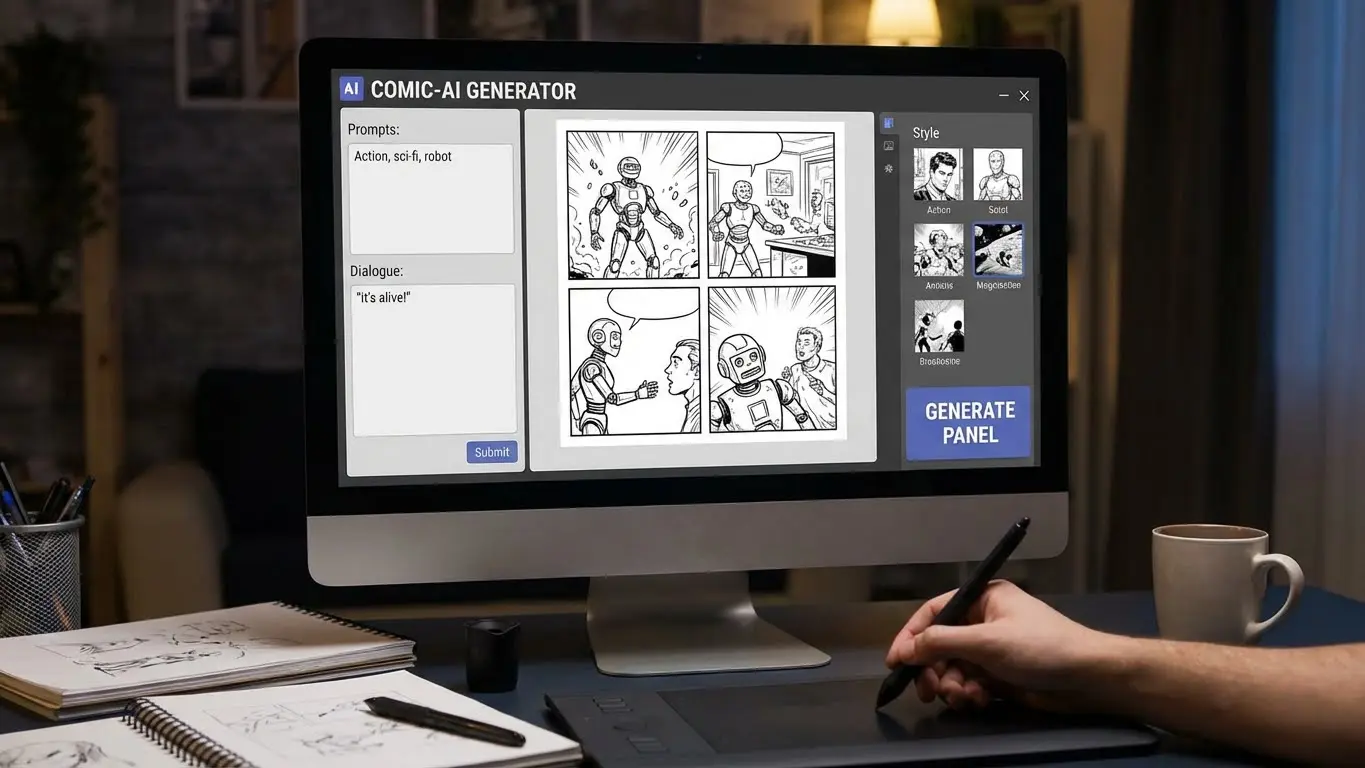
Table of Contents
- What Is an AI Comic Panel Generator?
- Best AI Tools for Comic Panel Creation
- Step-by-Step Process to Create Comic Panels
- Keeping Characters Consistent Across Panels
- Comic Panel Layouts and Design Tips
- Adding Speech Bubbles and Text
- Common Mistakes to Avoid
- Frequently Asked Questions
- Key Takeaways
What Is an AI Comic Panel Generator?
An AI comic panel generator creates comic book artwork from text descriptions. You describe characters, scenes, and actions in words. The AI reads your description and draws the panel for you. AI Comic Factory and similar tools use machine learning to understand prompts and generate images that match comic book styles.
The technology works by training on thousands of existing comic images. The AI learns patterns like how characters are drawn, common panel compositions, and different art styles. When you give it a prompt like “a superhero flying over a city at sunset,” it combines these learned patterns to create new artwork.
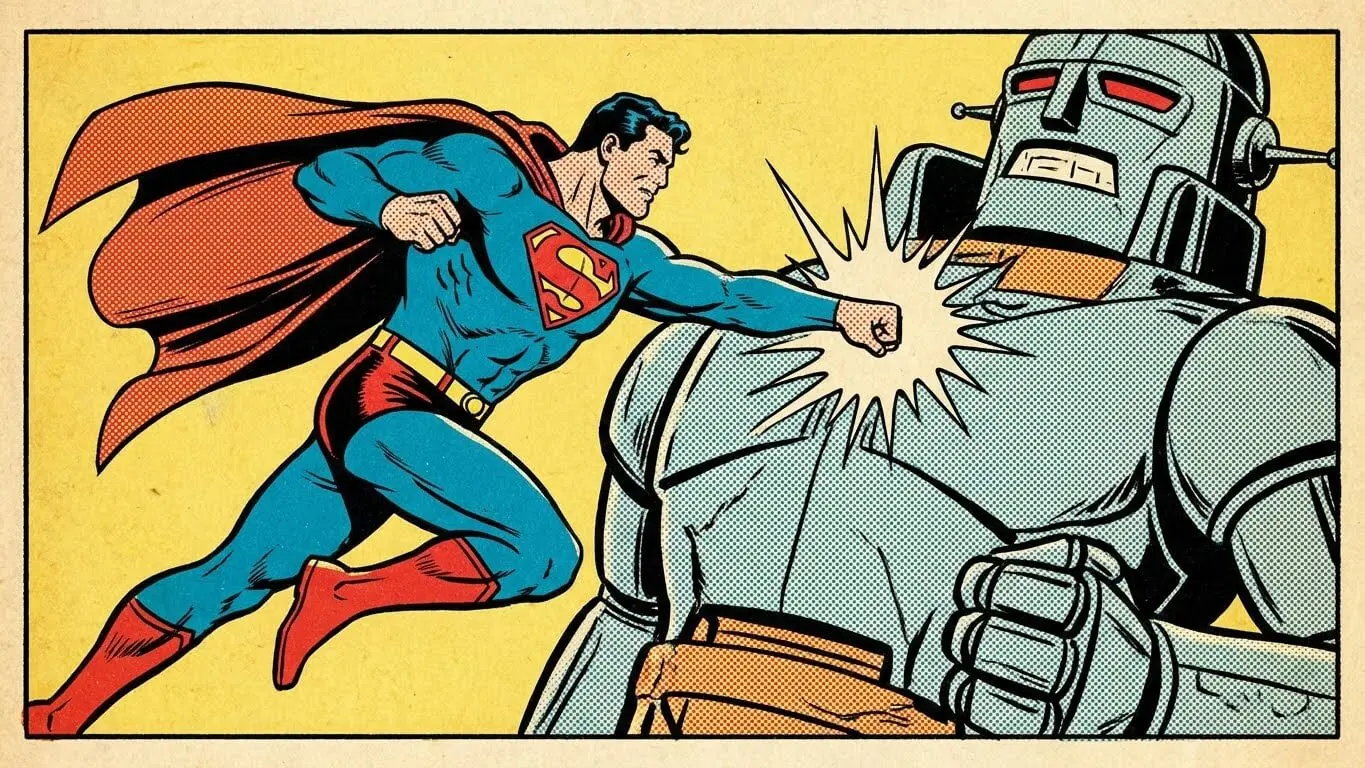
Most AI generators let you pick from different comic styles. You can choose Japanese manga, American superhero comics, vintage styles, or modern digital art. Some tools generate single panels while others create full multi-panel comic pages from one prompt.
Best AI Tools for Comic Panel Creation
1. AI Free Forever Comic Panel Generator
Our Comic Panel Image Generator creates professional comic panels instantly. Type your scene description and select from multiple art styles. The tool generates high-quality panels without watermarks. You can also use our Comic Book Image Generator for full-page layouts.
The generator works completely free with no sign-up required. You get unlimited generations and can download all images in high resolution. The interface is simple – just type what you want and click generate.
2. AI Comic Factory
AI Comic Factory specializes in maintaining character consistency throughout your story. You can upload reference images to keep characters looking the same across all panels. The platform offers various layout options and lets you add captions to each panel.
The tool runs on Hugging Face technology and provides both free and paid plans. Free users can create comics but with longer generation times. Paid plans add faster processing and better character consistency features.
3. Dashtoon Studio
Dashtoon is designed specifically for webtoon creators. According to Dashtoon’s platform, it offers script-to-comic conversion where you upload your story script and it automatically breaks it into panels. The character library feature lets you save characters and reuse them across different scenes.
The studio includes editing tools like magic eraser for removing unwanted elements and inpainting for fixing details. You can adjust lighting, shadows, and colors after the AI generates your panels.
4. Adobe Firefly
Adobe Firefly is trained on licensed content, making it safe for commercial use. The platform states on their AI comic generator page that you can export images up to 2000 x 2000 pixels as JPEG or PNG files. Integration with Photoshop and Adobe Express makes it easy to refine your panels.
Firefly offers multiple comic styles including classic comic, science fiction, anime, and vintage aesthetics. The learning curve is steeper than other tools but gives you more control over the final output.
5. Fotor Comic Generator
Fotor lets you turn photos into comic characters. Upload a selfie and the AI transforms you into a comic book character while keeping your facial features. According to Fotor’s website, you can choose from styles like American superhero, idol girl, battle manga, or Korean webtoon.
The platform includes a speech bubble generator to add dialogue after creating your panels. Downloads are free without watermarks.
Step-by-Step Process to Create Comic Panels
1. Plan Your Story First
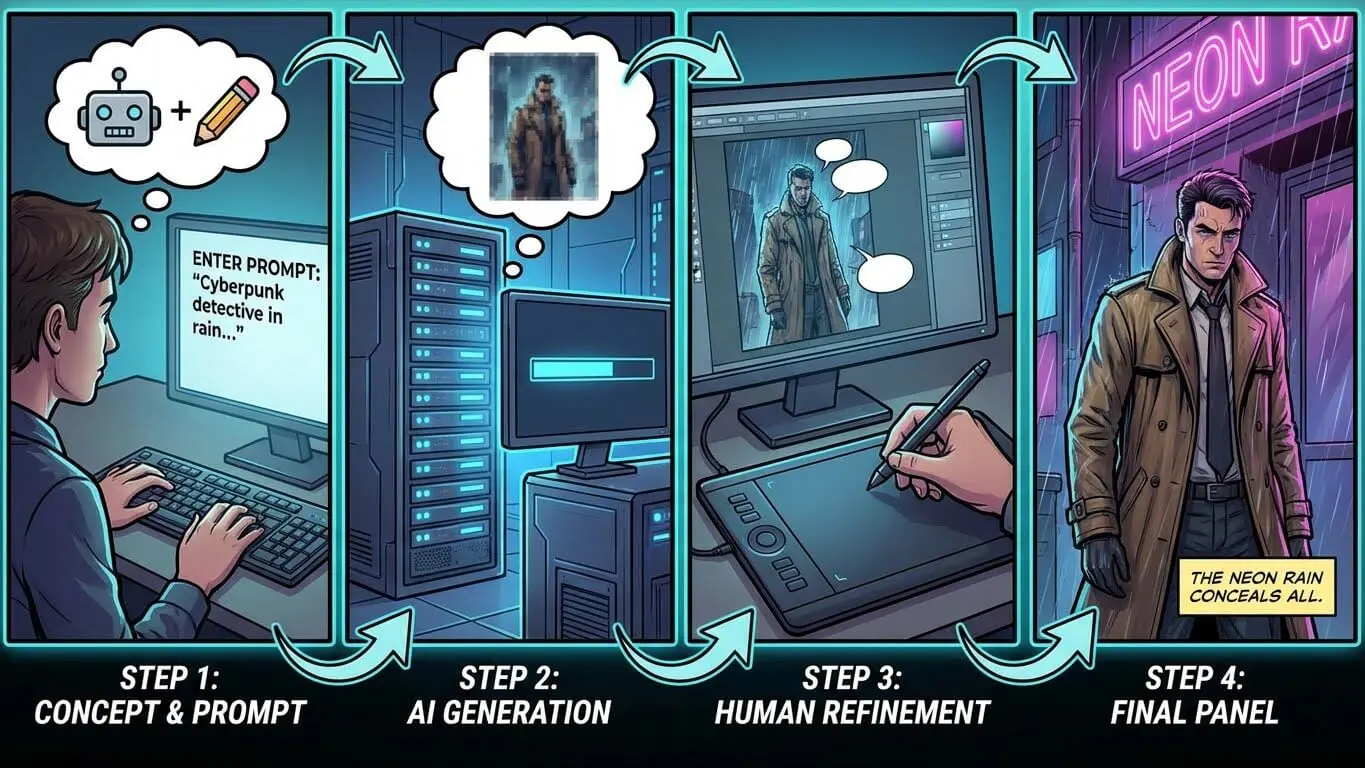
Write a simple outline before generating panels. Break your story into scenes. Each scene needs one or more panels. A basic three-panel comic might show: setup, conflict, resolution. Planning prevents you from generating random images that don’t connect.
Decide how many panels you need per page. Most comic pages work well with four to nine panels. More panels create a faster pace. Fewer panels let readers focus on important moments.
2. Write Detailed Prompts
Good prompts include specific details. Instead of “a hero,” write “a muscular superhero in a red cape standing on a rooftop at night.” Add details about the art style you want. Mention the camera angle like “wide shot” or “close-up on face.”
Include the mood and lighting. “Dramatic shadows with moonlight from behind” gives different results than “bright daylight.” The more specific you are, the closer the output matches your vision.
3. Generate and Review
Click generate and wait for the AI to create your panel. Most tools take 10 to 30 seconds. Check if the image matches your prompt. If not, adjust your description and try again. Some generators let you edit the prompt and regenerate specific panels.
Save panels you like immediately. Generate multiple versions of the same prompt to have options. You can pick the best one later when assembling your full page.
4. Refine Details
Use editing features to fix small problems. Most AI generators include inpainting tools to redraw specific areas. If a character’s hand looks wrong, highlight that section and let the AI regenerate just that part.
Adjust colors, contrast, and brightness if needed. Some tools offer auto-coloring features that balance the hues across your entire panel.
5. Arrange Panels into Pages
Use image editing software or comic layout tools to combine panels into pages. Tools like Canva or Adobe Express offer comic templates. Arrange panels in reading order – left to right, top to bottom for Western comics.
Leave space between panels called gutters. These white spaces help readers’ eyes flow from one panel to the next. Professional comic artists recommend keeping panel borders consistent unless you want to create specific dramatic effects.
How to keep Characters Consistent Across Comic book Panels
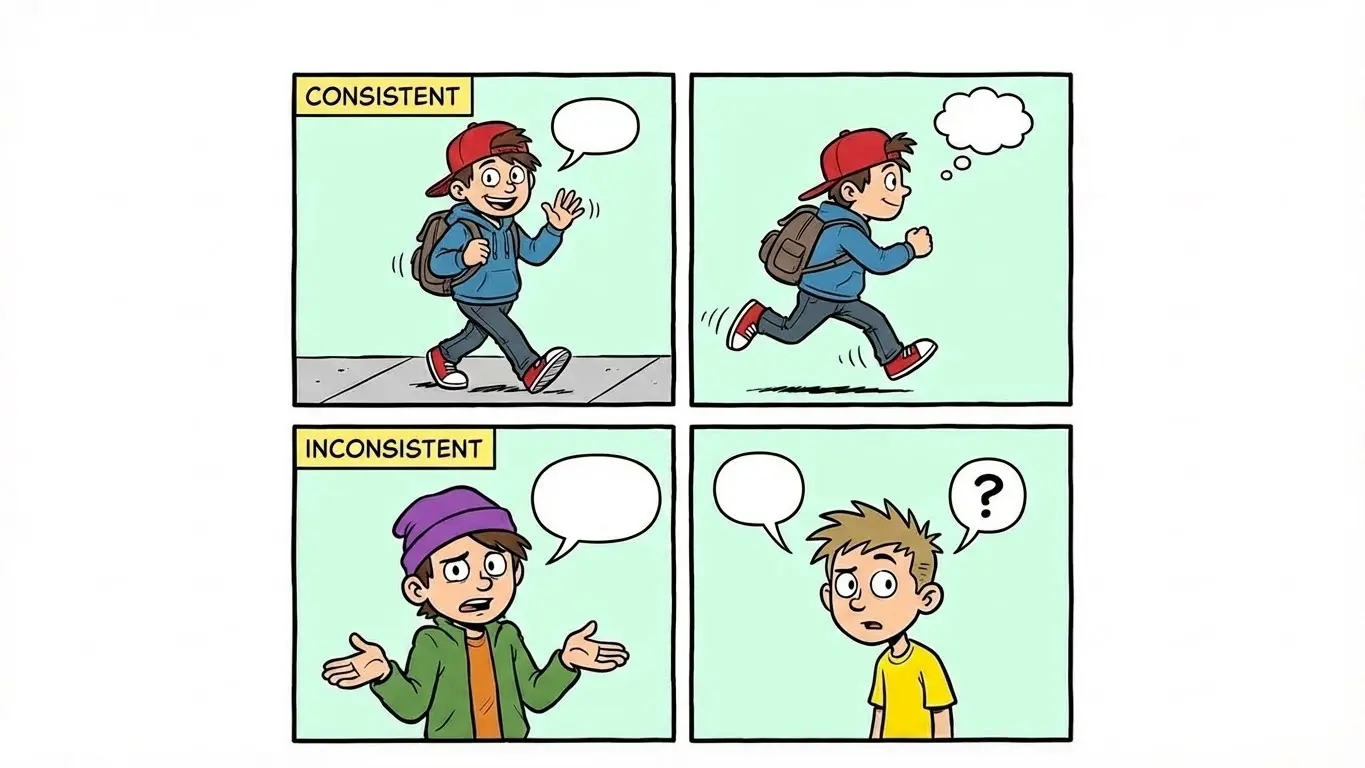
Character consistency means your hero looks the same in every panel. This is the biggest challenge with AI comic generators. When readers see a character change appearance between panels, they get confused.
1. Use the Same Prompt Structure
Keep your character description identical across all prompts. If your first prompt says “a young woman with short black hair wearing a red jacket,” use those exact words every time. Don’t switch “red jacket” to “crimson coat” in later panels.
Create a character reference document. List all visual details: hair color and style, eye color, clothing, accessories, body type. Copy this description into every new prompt.
2. Upload Reference Images
Many tools let you upload a reference image. According to Dashtoon’s guide on character consistency, uploading a reference image helps the AI replicate facial features, clothing, and expressions across multiple scenes. The AI uses your image as a visual guide.
Take a reference image from your first generated panel. Upload it when creating subsequent panels. The AI will try to match the character’s appearance to your reference.
3. Stick to One Art Style
Don’t switch between manga and superhero styles mid-story. Each style draws characters differently. Pick one aesthetic and use it for all panels. According to artists who tested character consistency, maintaining the same art style prompt helps keep characters looking similar.
4. Use Character Libraries
Some advanced tools like Dashtoon and AI Comic Factory offer character libraries. You create a character once, save it to your library, and the AI remembers it. When you need that character in a new scene, you select them from your library instead of describing them again.
5. Manual Touch-Ups
Even with perfect prompts, AI sometimes generates variations. Use photo editing software to make small adjustments. If the character’s shirt color is slightly off in one panel, color-correct it to match the others. These minor edits maintain visual continuity.
Comic Panel Layouts and Design Tips
What Are Panel Layouts?
Panel layout is how you arrange frames on a page. Good layouts guide the reader’s eye and control story pacing. Traditional comic layouts use grids with panels arranged in rows and columns. Modern comics often break these grids for dramatic effect.
1. Start with Basic Grids
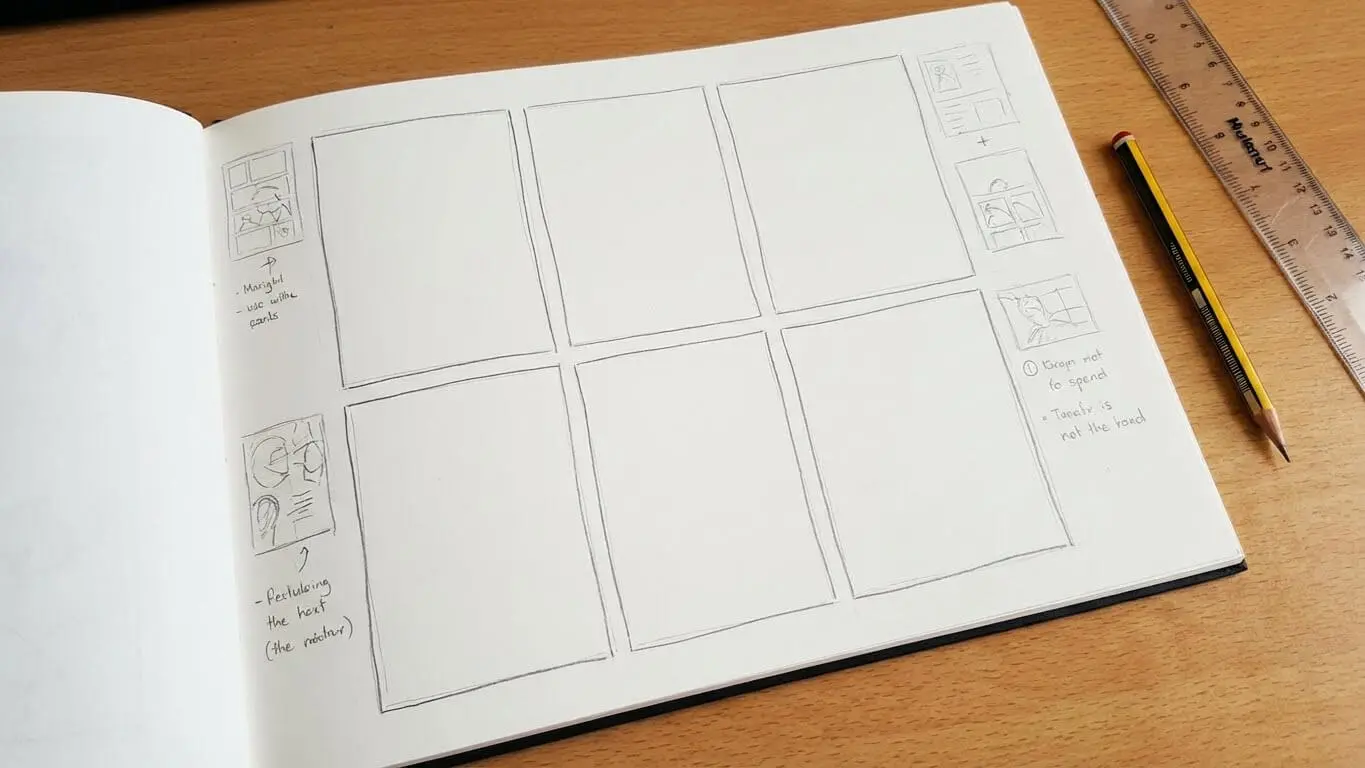
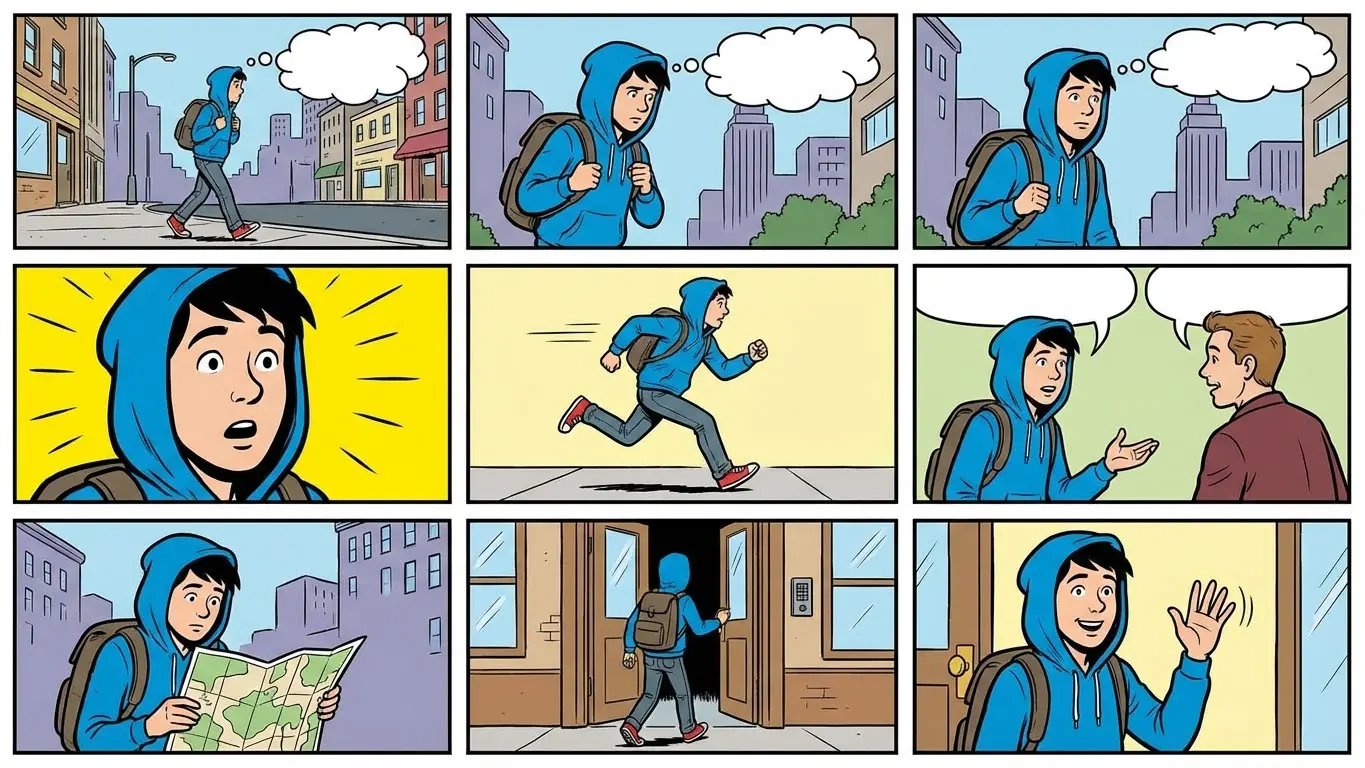
Beginners should use simple grid layouts. A six-panel grid has two rows of three panels each. This creates a balanced, easy-to-follow page. Nine-panel grids work well for dialogue-heavy scenes with multiple quick exchanges.
Three-panel layouts stack panels vertically. This format works great for vertical webtoons that readers scroll through on phones.
2. Vary Panel Sizes for Emphasis
Make important moments bigger. If your hero punches the villain, give that action panel more space than surrounding panels. Larger panels slow down time and let readers focus on key events.
According to comic layout experts, a full-page panel (called a splash page) creates maximum impact for climactic scenes. Use these sparingly for reveals or dramatic moments.
3. Consider Reading Flow
Western readers scan left to right, top to bottom. Arrange panels so the natural eye movement follows your story sequence. If readers have to stop and figure out which panel comes next, you’ve broken the flow.
For manga, the reading order goes right to left. Make sure your layout matches your target audience’s reading habits.
4. Use Gutters Effectively
Gutters are the white space between panels. Consistent gutter width creates a clean, professional look. Wider gutters slow down pacing. Tighter gutters speed things up and create tension.
| Panel Count | Best For | Pacing |
|---|---|---|
| 1-3 panels | Key moments, establishing shots | Slow, deliberate |
| 4-6 panels | Standard scenes, balanced action | Medium |
| 7-9 panels | Quick dialogue, rapid action | Fast, energetic |
| 10+ panels | Hectic scenes, chaos | Very fast, overwhelming |
5. Experiment with Panel Shapes
Panels don’t have to be rectangles. Circular panels can show flashbacks or memories. Jagged, irregular borders create chaos or show explosions. Borderless panels (called bleeds) make scenes feel expansive or infinite.
Break panel borders when characters or objects need to pop out. A character’s arm extending outside their panel border creates dynamic action.
Adding Speech Bubbles and Text
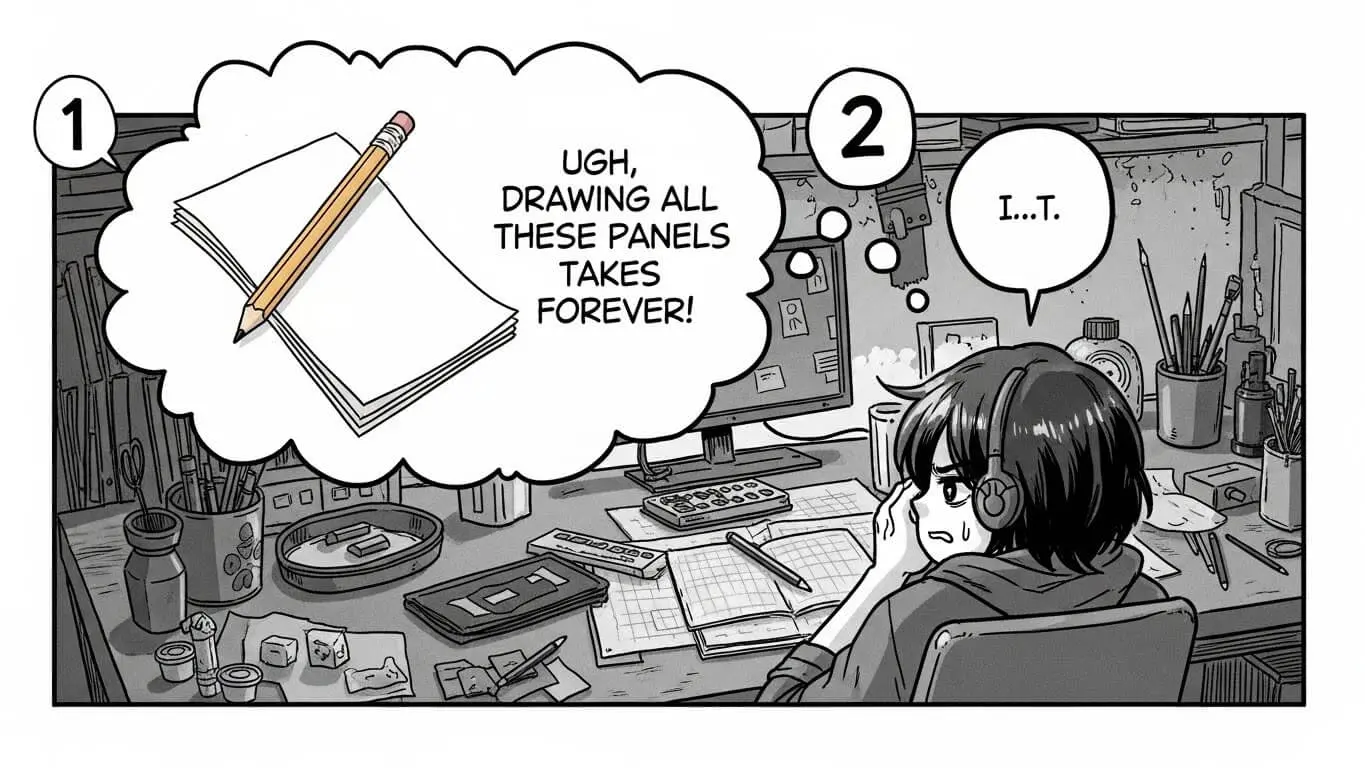
Most AI generators create images without text. You need to add dialogue, captions, and sound effects separately.
1. Use Comic Creation Software
Programs like Clip Studio Paint, Canva, or online tools specifically designed for comics make adding text easy. These programs include pre-made speech bubble templates. You can also use our AI Story Generators to write compelling dialogue for your characters.
2. Speech Bubble Placement
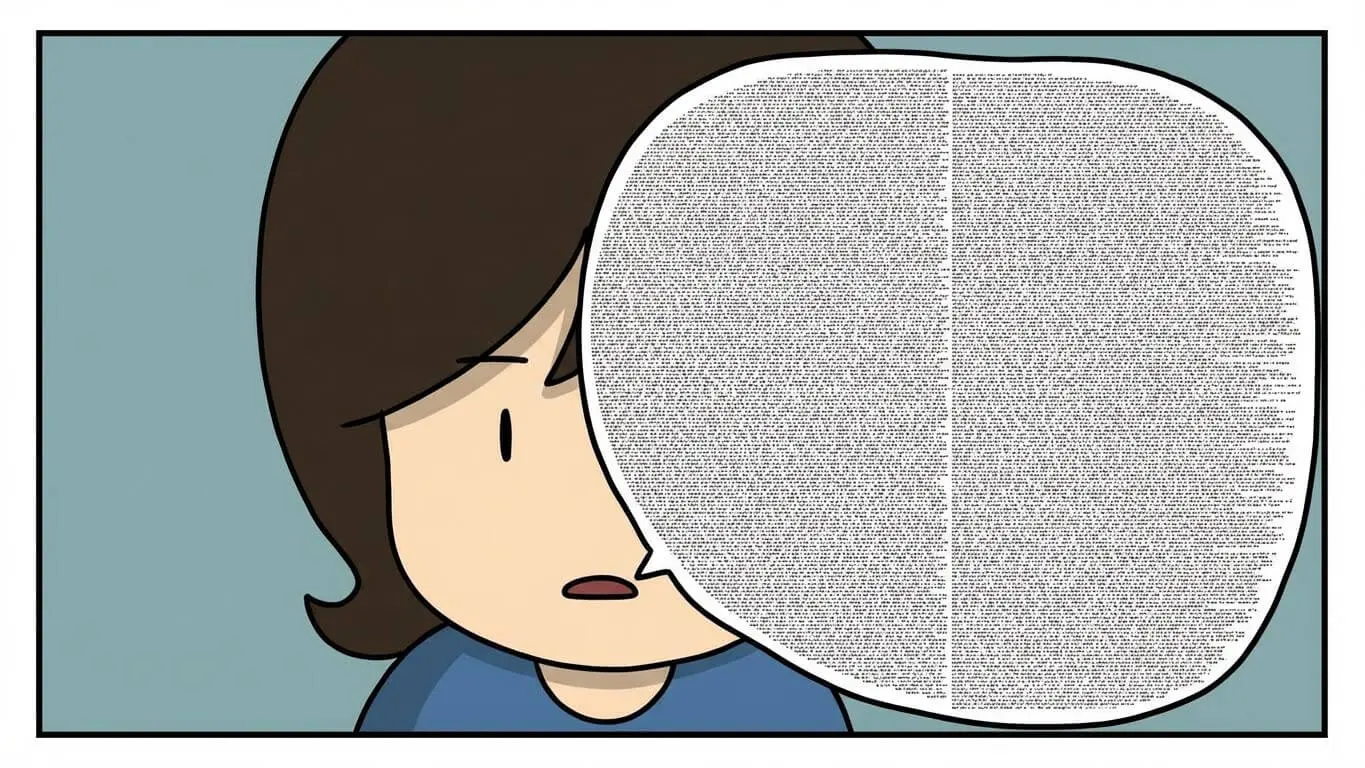
Place bubbles near the speaking character but not covering their face. Position bubbles so readers can follow the conversation order. The first bubble should be in the top left, moving right and down as characters speak.
According to comic layout guides, bubbles that are too large crowd the artwork. If dialogue is lengthy, break it into two smaller bubbles across separate panels.
3. Different Bubble Types
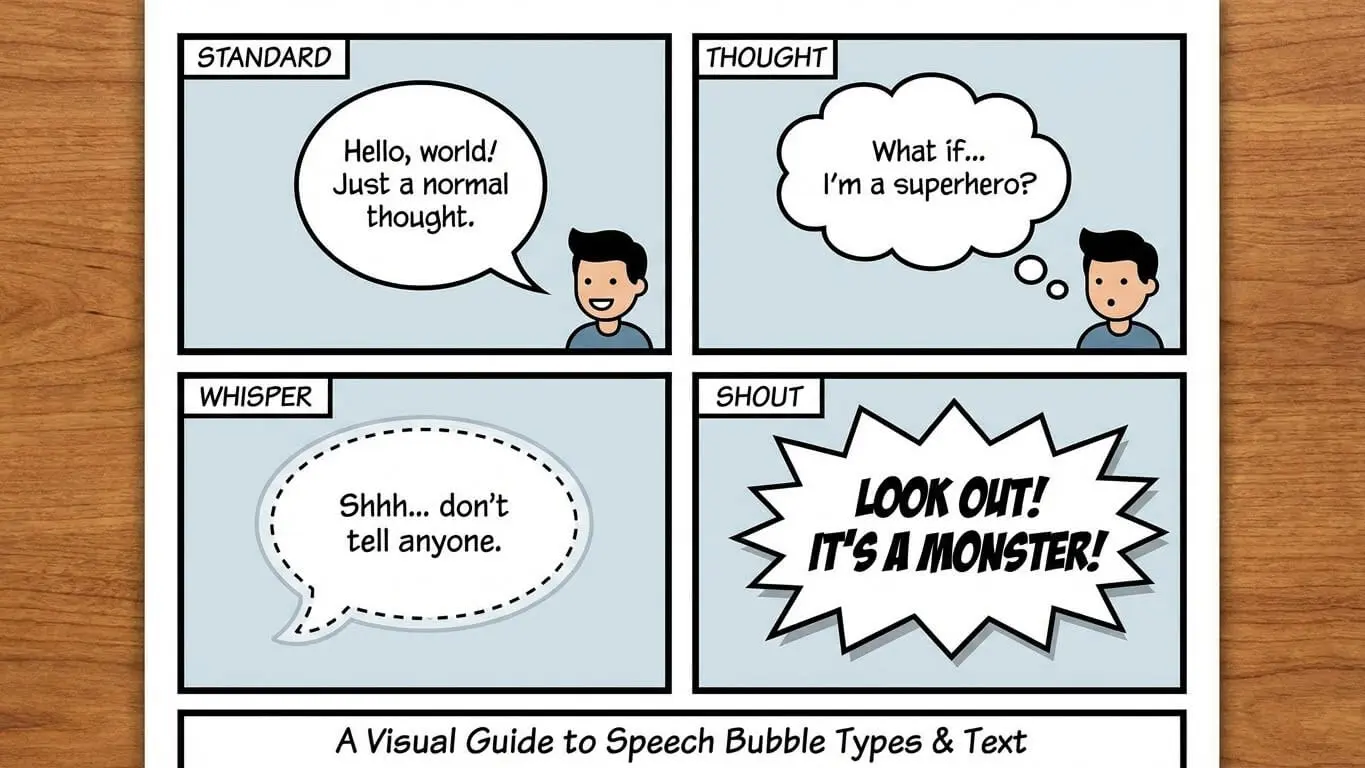
- Speech bubbles: Round or oval shapes with a tail pointing to the speaker
- Thought bubbles: Cloud-like shapes with small circles leading to the thinker
- Caption boxes: Rectangular boxes for narration or scene-setting
- Sound effects: Stylized text placed directly in the panel without bubbles
4. Font Selection
Use clear, readable fonts. Comic Sans gets mocked but was literally designed for comics. Other popular options include Wildwords, Anime Ace, and Badaboom. Keep font size consistent throughout your comic.
Bold text for emphasis. ALL CAPS for shouting or sound effects. Regular text for normal conversation.
5. Leave Room for Text
When generating panels, consider where text will go. Don’t fill the entire frame with detailed artwork. Leave empty space in corners or at the top for speech bubbles. Panels with complex backgrounds everywhere make it hard to add readable text.
Frequently Asked Questions
Can I create comics without any drawing skills?
Yes, AI comic generators require zero drawing ability. You only need to write descriptions of what you want to see. The AI handles all the artwork. Tools like our Comic Panel Generator are built specifically for people who can’t draw.
Are AI-generated comics free to use commercially?
This depends on the tool. Adobe Firefly is trained on licensed content and explicitly allows commercial use. Other tools have different terms. Always read the platform’s terms of service. Some free tools restrict commercial use while paid plans allow it.
How long does it take to create a full comic page?
With AI, you can generate a complete page in 15 to 30 minutes. This includes writing prompts, generating panels, making small edits, and arranging the layout. Traditional hand-drawn comics take hours or days for the same page.
Can I edit AI-generated panels?
Most platforms let you download images and edit them in any photo editing software. Some generators include built-in editing tools like inpainting, color adjustment, and object removal. You have full control to refine AI output.
What’s the best resolution for comic panels?
For digital comics, 1500 to 2000 pixels on the longest side works well. For print, you need higher resolution – around 300 DPI at final print size. Many AI generators let you upscale images after creation.
How do I make characters look the same across all panels?
Use identical character descriptions in every prompt. Upload reference images to the AI. Some tools offer character libraries where you save and reuse characters. Stick to one art style throughout. Manual editing can fix small inconsistencies.
Can AI create manga-style comics?
Yes, most AI generators offer manga and anime art styles. You can create Japanese-style comics with the right prompts. Tools like our Manga Image Generator specialize in this aesthetic.
Do I need special software?
No special software is required. AI comic generators work through web browsers. For adding text and arranging final pages, free tools like Canva or GIMP work fine. Paid options like Adobe Photoshop offer more features but aren’t necessary.
How many panels should be on one page?
Standard comic pages have four to nine panels. This range balances detail with pacing. Fewer panels work for splash pages or important moments. More than nine panels creates a rushed, crowded feeling.
Can I create webtoons with AI?
Absolutely. Webtoons use vertical scrolling layouts. Generate panels in vertical formats and stack them. Some tools like Dashtoon are specifically designed for webtoon creation with built-in vertical layouts.