Your computer is running slow. Programs take forever to open. Your hard drive is almost full, but you’re not sure why. Sound familiar? You’re not alone. Millions of PC users deal with these frustrating issues every day.
The good news? You don’t need to be a tech expert to fix these problems. Glary Utilities is a powerful PC cleaning tool that helps you speed up your computer, free up space, and fix errors—all with just a few clicks.
In this guide, we’ll walk you through everything you need to know about downloading and using Glary Utilities to clean your PC. Whether you’re a complete beginner or someone looking to get more out of their computer, this article has you covered.
Table of Contents
- What Is Glary Utilities?
- Why You Need PC Cleaning Software
- How to Download Glary Utilities
- Installing Glary Utilities: Step by Step
- Getting Started: Your First Scan
- Key Features You Should Use
- Cleaning Your PC Effectively
- Best Practices for PC Maintenance
- Free vs Pro Version: Which One Do You Need?
- Common Mistakes to Avoid
- Troubleshooting Tips
- AI FREE FOREVER: The Best Alternative
- Frequently Asked Questions
- Key Takeaways
What Is Glary Utilities?
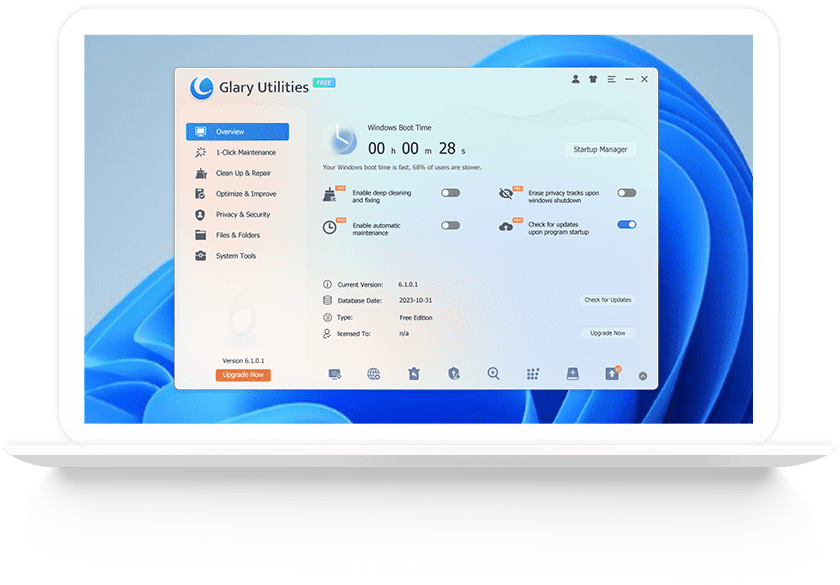
Glary Utilities is an all-in-one PC maintenance tool that helps keep your Windows computer running smoothly. Think of it as a Swiss Army knife for your computer—it includes over 20 different tools to clean, fix, and speed up your PC.
According to Glarysoft’s official site, the software is the number-one free and all-in-one utility for cleaning and maintaining your PC. The latest version, 6.33 for Windows, was updated in October 2025.
Here’s what makes Glary Utilities special:
- One-Click Maintenance: Fix common problems with a single button
- Registry Cleaner: Removes broken entries that slow down your system
- Disk Cleanup: Deletes temporary files and frees up space
- Startup Manager: Controls which programs launch when Windows starts
- Privacy Protection: Clears your browsing history and personal data
The best part? Glary Utilities works on all Windows versions from Windows 7 through Windows 11, and it runs smoothly on both 32-bit and 64-bit systems.
Why You Need PC Cleaning Software
Your computer gets slower over time. It’s not your imagination—it’s a real problem that affects every PC user. But why does this happen?
Every time you use your computer, it creates temporary files. When you browse the internet, install programs, or update software, your system accumulates digital clutter. These unnecessary files pile up like dust bunnies under your bed and simple tasks like AI image generation can take forever due to slow PC.
Market research from STATS N DATA shows that the PC cleaner software market is valued at approximately $1.2 billion and is growing rapidly. This growth reflects how many people need these tools.
Here’s what happens when you don’t clean your PC:
- Your hard drive fills up with junk files
- Programs take longer to open
- Your computer crashes more often
- Windows boots up slowly
- You risk losing important files
According to industry analysis, the PC cleaner software market was valued at $525 million in 2025. The increasing cyber threats and complexity of operating systems are driving more people to use PC cleaning tools.
Regular PC maintenance isn’t just about speed—it’s also about security. Old, forgotten files can contain sensitive information. Outdated software has security holes that hackers can exploit.

How to Download Glary Utilities
Downloading Glary Utilities is straightforward. Follow these steps to get the software safely on your computer:
Step 1: Visit the Official Website
Open your web browser and go to the official Glary Utilities download page. Always download from the official site to avoid malware or fake versions.
Step 2: Choose Your Version
You’ll see two options:
- Glary Utilities Free: Perfect for most users with all essential features
- Glary Utilities Pro: Includes automatic updates and deep cleaning
If you’re not sure which one to pick, start with the free version. You can always upgrade later.
Step 3: Download the Installer
Click the download button. The file is small—usually around 15-20 MB—so it downloads quickly. Your browser will save the file (typically named something like “glary_utilities_setup.exe”) to your Downloads folder.
Step 4: Check the File
Before running any downloaded file, make sure it came from a trusted source. Check that:
- The file size matches what the website says
- Your antivirus doesn’t flag it as suspicious
- The file name looks correct
Pro Tip: Before you install any system utility, create a Windows restore point. This gives you a safety net if something goes wrong.
Installing Glary Utilities: Step by Step
Now that you’ve downloaded the installer, let’s get Glary Utilities up and running on your PC.
Step 1: Run the Installer
Find the downloaded file in your Downloads folder and double-click it. Windows might show a security warning asking if you want to allow this app to make changes to your device. Click “Yes” to continue.
Step 2: Choose Your Language
The installer will ask you to select your preferred language. Choose English or whichever language you’re most comfortable with.
Step 3: Accept the License Agreement
Read through the license agreement (or at least skim it). Check the box that says you accept the terms, then click “Next.”
Step 4: Select Installation Location
The installer will suggest a default location (usually C:Program FilesGlary Utilities). For most people, the default location works fine. Click “Next” to continue.
Step 5: Create Desktop Shortcuts
You’ll be asked if you want to create a desktop shortcut. I recommend checking this box—it makes launching the program easier.
Step 6: Watch Out for Extra Software
Here’s an important step: Some installers try to add extra programs you didn’t ask for. Carefully read each screen and uncheck any boxes for additional software or toolbars you don’t want.
Step 7: Complete Installation
Click “Install” and wait a few moments. The installation usually takes less than a minute. When it’s done, click “Finish” to launch Glary Utilities.
Getting Started: Your First Scan
Congratulations! Glary Utilities is now installed on your computer. Let’s run your first scan and see what we find.
Launch the Program
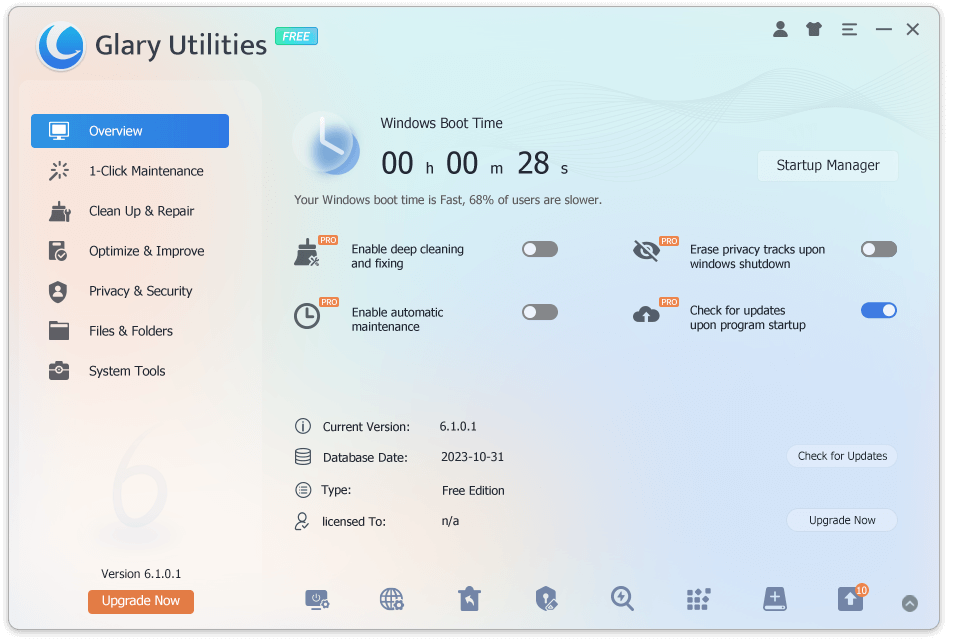
Open Glary Utilities from your desktop shortcut or Start menu. You’ll see a clean interface with several tabs at the top.
Run One-Click Maintenance
Click on the “1-Click Maintenance” tab. This is where the magic happens. You’ll see several checkboxes for different types of scans:
- Clean up temp files
- Fix registry problems
- Remove spyware
- Clear privacy tracks
Make sure all the boxes you want are checked, then click “Scan for Issues.” The scan usually takes 2-5 minutes depending on how cluttered your PC is.
Review the Results
When the scan finishes, you’ll see a list of problems Glary Utilities found. Don’t panic if the numbers seem high—my first scan found over 1,000 issues! This is normal, especially if you’ve never cleaned your PC before.
According to TechRadar’s review, Glary Utilities’ file cleaner typically finds over a gigabyte of temporary files to remove on most systems.
Fix the Problems
Click “Repair Problems” to let Glary Utilities clean up the issues it found. The program will automatically create a backup before making changes, so you can undo anything if needed.
Important: For your first time, review what the program plans to remove. While Glary Utilities is generally safe, it’s good practice to know what’s happening to your system.
Key Features You Should Use
Glary Utilities packs in over 20 tools. Here are the most useful ones you should know about:
1. Disk Cleanup
This tool searches for old temporary files, obsolete installation files, log files, internet history, cache, and error reports. These are all safe to delete and can free up gigabytes of space.
To use it: Go to Advanced Tools > Clean Up & Repair > Disk Cleanup
2. Registry Cleaner
Your Windows registry is like a giant database of settings. Over time, it fills up with broken entries from uninstalled programs. The Registry Cleaner removes these safely.
Glarysoft claims that based on years of experience, their tool can “more safely clean up errors in your registry to prevent program errors or system crashes.”
To use it: Go to Advanced Tools > Clean Up & Repair > Registry Cleaner
3. Startup Manager
This is one of my favorite features. It shows you every program that starts when Windows boots up and tells you how many seconds each one adds to your startup time.
According to TechRadar, “The Startup Manager of Glary Utilities is excellent, showing you a breakdown of all the startup programs, scheduled tasks, plugins, application services, and Windows services.”
To use it: Go to Advanced Tools > Optimize & Improve > Startup Manager
4. Duplicate File Finder
Have you ever downloaded the same file twice? Or backed up photos multiple times? The Duplicate File Finder scans your hard drive and shows you identical files you can safely delete.
To use it: Go to Advanced Tools > Files & Folders > Duplicate Files Finder
5. Uninstall Manager
Unlike Windows’ built-in uninstaller, Glary Utilities removes ALL traces of a program—including leftover files and registry entries.
To use it: Go to Advanced Tools > Optimize & Improve > Uninstall Manager
6. Tracks Eraser
This tool protects your privacy by removing your browsing history, cookies, and recent file lists. Your browser records every URL you visit, and some software saves files you recently opened. Tracks Eraser cleans all of this.
To use it: Go to Advanced Tools > Privacy & Security > Tracks Eraser
Cleaning Your PC Effectively
Now that you know the tools, let’s talk about how to use them effectively. Cleaning your PC isn’t just about clicking buttons—it’s about doing it the right way.
Create a Weekly Routine
The best way to keep your PC running smoothly is regular maintenance. Set aside 10 minutes each week to:
- Run the 1-Click Maintenance scan
- Empty your Recycle Bin
- Check for software updates
If you have the Pro version, you can schedule these tasks to run automatically.
Deep Clean Once a Month
Once a month, do a more thorough cleaning:
- Run the Disk Cleanup tool
- Scan for duplicate files
- Review and remove unused programs
- Check your startup items
According to MiniTool, running Glary Utilities once a week is a good starting point for beginners. This frequency helps maintain your system’s performance without taking too much time.
Don’t Overdo It
Here’s something important: you can clean your PC too much. Running intensive scans multiple times a day doesn’t help—it can actually slow your computer down while the scans are running.
Always Review Before Deleting
Before you click “Delete” on anything, take a moment to review what you’re removing. While Glary Utilities is smart about what it flags, you might occasionally see something you want to keep.
Use the Right Tool for the Job
Don’t just rely on 1-Click Maintenance for everything. Use specific tools for specific problems:
- Computer running slow? Check Startup Manager first
- Running out of space? Use Disk Cleanup and Duplicate File Finder
- Programs crashing? Try Registry Cleaner
- Privacy concerns? Use Tracks Eraser
Best Practices for PC Maintenance
Cleaning your PC with Glary Utilities is just one part of good computer hygiene. Here are some best practices to keep your system healthy:
Back Up Before Big Changes
Before you run a deep clean or make system changes, create a restore point. Glary Utilities includes a Restore Center that makes this easy.
Keep Your Software Updated
Outdated software has security holes and bugs. Use Glary Utilities’ Software Update feature to check for new versions of your installed programs.
According to Glarysoft, “The newer version of the software usually has better functions, higher performance, fixes bugs and vulnerabilities, and has better security.”
Don’t Disable Things You Don’t Know About
The Startup Manager is powerful, but don’t go crazy disabling everything. Some programs need to run at startup. If you’re not sure what something does, leave it alone or research it first.
Clean Your Browser Regularly
Browsers are space hogs. They store cached images, cookies, and history that pile up quickly. Use the Tracks Eraser at least once a month.
Uninstall Programs the Right Way
Never just delete a program’s folder. Always use the Uninstall Manager to remove software properly. This ensures all leftover files and registry entries are removed too.
Monitor Your Disk Space
Keep an eye on your available disk space. When your hard drive gets more than 80% full, your computer slows down. Use the Disk Space Analyzer to see what’s eating up your storage.
Free vs Pro Version: Which One Do You Need?
Glary Utilities comes in two versions: Free and Pro. Let’s break down the differences so you can decide which one is right for you.
Glary Utilities Free
The free version includes most features and is perfect for individual users. You get:
- All 20+ cleaning and optimization tools
- 1-Click Maintenance
- Registry Cleaner
- Disk Cleanup
- Startup Manager
- Uninstall Manager
- Basic support
Cost: Completely free for personal use
Glary Utilities Pro
The Pro version adds some convenience features:
- Scheduled automatic maintenance
- Deep Clean mode (finds even more junk)
- Automatic privacy track deletion on shutdown
- Automatic update checks
- Priority technical support
Cost: $19.97 per year for up to 3 PCs (according to TechRadar)
Some sources mention a price of $39.95 per year, so check the official website for current pricing.
Which Should You Choose?
For most home users, the free version is more than enough. The main advantage of Pro is automation—if you want your PC to clean itself automatically, Pro is worth it.
Consider upgrading to Pro if:
- You forget to run maintenance regularly
- You want the deepest possible clean
- You need to maintain multiple computers
- You want priority support
The good news? Glarysoft offers a 90-day money-back guarantee on the Pro version, so you can try it risk-free.
Troubleshooting Tips
Sometimes things don’t go perfectly. Here’s how to fix common problems:
Glary Utilities Runs Slowly
If scans take forever, try these fixes:
- Close other programs while running scans
- Update to the latest version
- Run Glary Utilities as administrator (right-click > Run as administrator)
- Temporarily disable your antivirus during scans
The Program Crashes
According to ConsumerSearch, if Glary Utilities crashes:
- Check that your system meets minimum requirements
- Run the program as administrator
- Reinstall the software
- Make sure Windows is fully updated
Can’t Uninstall the Program
If you want to remove Glary Utilities:
- Make sure no other instances are running (check Task Manager)
- Use Windows’ Programs and Features
- If that doesn’t work, use a third-party uninstaller
Disk Space Doesn’t Match
Sometimes the program says you have more free space than Windows shows. This is normal—different tools measure differently. Trust Windows’ built-in space indicator.
Registry Clean Caused Problems
If cleaning your registry caused issues, use Glary Utilities’ Restore Center to undo the changes. This is why creating restore points is so important!
Frequently Asked Questions
Is Glary Utilities safe to use?
Yes, when downloaded from the official website, Glary Utilities is completely safe. It’s been around for years and is trusted by millions of users. The program creates backups before making changes, so you can undo anything if needed.
How often should I run Glary Utilities?
For most users, running 1-Click Maintenance once a week is perfect. Do a deeper clean with additional tools once a month. Daily cleaning isn’t necessary and doesn’t provide extra benefits.
Will Glary Utilities speed up my computer?
Yes, especially if you haven’t cleaned your PC in a while. The TechRadar review found that “the results were noticeable in terms of improved speed and responsiveness.”
Can Glary Utilities recover deleted files?
Yes! Glary Utilities includes a File Recovery tool that can restore files you’ve accidentally deleted, even if you’ve emptied your Recycle Bin.
Does it work on Windows 11?
Absolutely. Glary Utilities supports Windows 7, 8, 10, and 11 (both 32-bit and 64-bit versions).
What’s the difference between Glary Utilities and CCleaner?
Both are excellent PC cleaners. Glary Utilities includes more tools (over 20 vs. CCleaner’s 10-15), while CCleaner has a slightly more modern interface. Many users find Glary Utilities offers more control over what gets cleaned.
Will it delete my personal files?
No. Glary Utilities only removes system junk, temporary files, and broken registry entries. Your documents, photos, and personal files are safe. The program clearly shows you what it plans to remove before doing anything.
Do I need the Pro version?
Not necessarily. The free version includes all the essential cleaning tools. Pro adds automation and deeper cleaning. Start with free and upgrade if you want those extra features.
Can I use it on multiple computers?
The free version can be installed on as many computers as you want. The Pro version license covers up to 3 PCs.
Does it remove viruses?
Glary Utilities includes basic spyware removal, but it’s not a full antivirus program. You should still use dedicated antivirus software for complete protection.
Key Takeaways
- Glary Utilities is a powerful, free PC cleaning tool that includes over 20 maintenance utilities in one program
- Always download from the official website at glarysoft.com to avoid malware
- Create a system restore point before running major cleanups—this gives you a safety net
- Run 1-Click Maintenance weekly and do a deeper clean monthly for optimal performance
- The free version works great for most users—you don’t need Pro unless you want automation features
- Review what you’re deleting before clicking “Remove” to avoid accidentally removing important files
- Use the Startup Manager to speed up your boot time by disabling unnecessary programs
- Keep Glary Utilities updated to get the latest features and bug fixes
- Don’t overdo it—cleaning your PC 5 times a day doesn’t help and wastes time
- Combine Glary Utilities with good habits like regularly uninstalling unused programs and keeping software updated
Your computer deserves to run smoothly. With Glary Utilities and regular maintenance, you can keep your PC fast, clean, and reliable for years to come. Download it today and experience the difference!