The best Screen Recording Softwares for tutorials and demos are Loom, OBS Project and TechSmith for polished screen capture with editing. ScreenPal, Descript, and Riverside are also strong picks because they mix recording with captions, editing, and sharing.
- Loom Fast video communication is where it shines, with screen and cam recording, transcriptions in 50+ languages, comments, emoji reactions, and unlimited recording time on paid plans for polished tutorials and demos.
- Obsproject Powerful recording and live production is its strongest fit, since you can build unlimited scenes, mix multiple sources, use an advanced audio mixer, and extend everything with plugins and scripts.
- Techsmith Professional screen recording and editing is its core strength, with Camtasia offering screen recording, multitrack editing, animations, callouts, quizzes, and audio tools for tutorial-style videos.
- Screenpal All-in-one tutorial creation is where it stands out, because it combines screen recording, video editing, quizzes, AI captions, translation, and hosting in one platform.
- Descript Text-based video editing and AI-assisted cleanup is its best use case, with screen recording, transcription, filler word removal, translation, avatars, and watermark-free exports on paid plans.
- Riverside High-quality separate-track recording is its main advantage, because you can record up to 4K video, use text-based editing, remove silences and filler words, and repurpose clips with AI tools.
- Movavi Simple screen capture with built-in editing works well for demos, thanks to screen and system audio recording, webcam capture, drawing tools, and a bundled video editor option.
- Bandicam Reliable Windows screen recording is its specialty, with unlimited recording, no time limit or watermark on paid licenses, hardware encoding, real-time drawing, and webcam overlay support.
- Screenpresso Screen capture with editing and sharing is its strongest fit, since the PRO plan includes HD and 4K video capture, system sound, OCR, a full image editor, video clipping, and merging.
- Clipchamp Beginner-friendly video creation is what it does best, with screen, camera, and voice recording, AI editing tools, watermark-free exports, and 4K UHD export through Microsoft 365 premium access.
How this list was compiled
This list focuses on tools that record screen content well and help you turn it into tutorials or demos fast. Lets get into it without wasting time.
Loom
01
Loom is built for quick screen recordings that you can send to people right away. It works well when you want to explain a process, walk through a product, or leave a visual update without a long editing session. Paid plans remove limits and add higher quality recording plus better editing. The AI plan adds automatic cleanup and recap features that help with tutorial workflows.
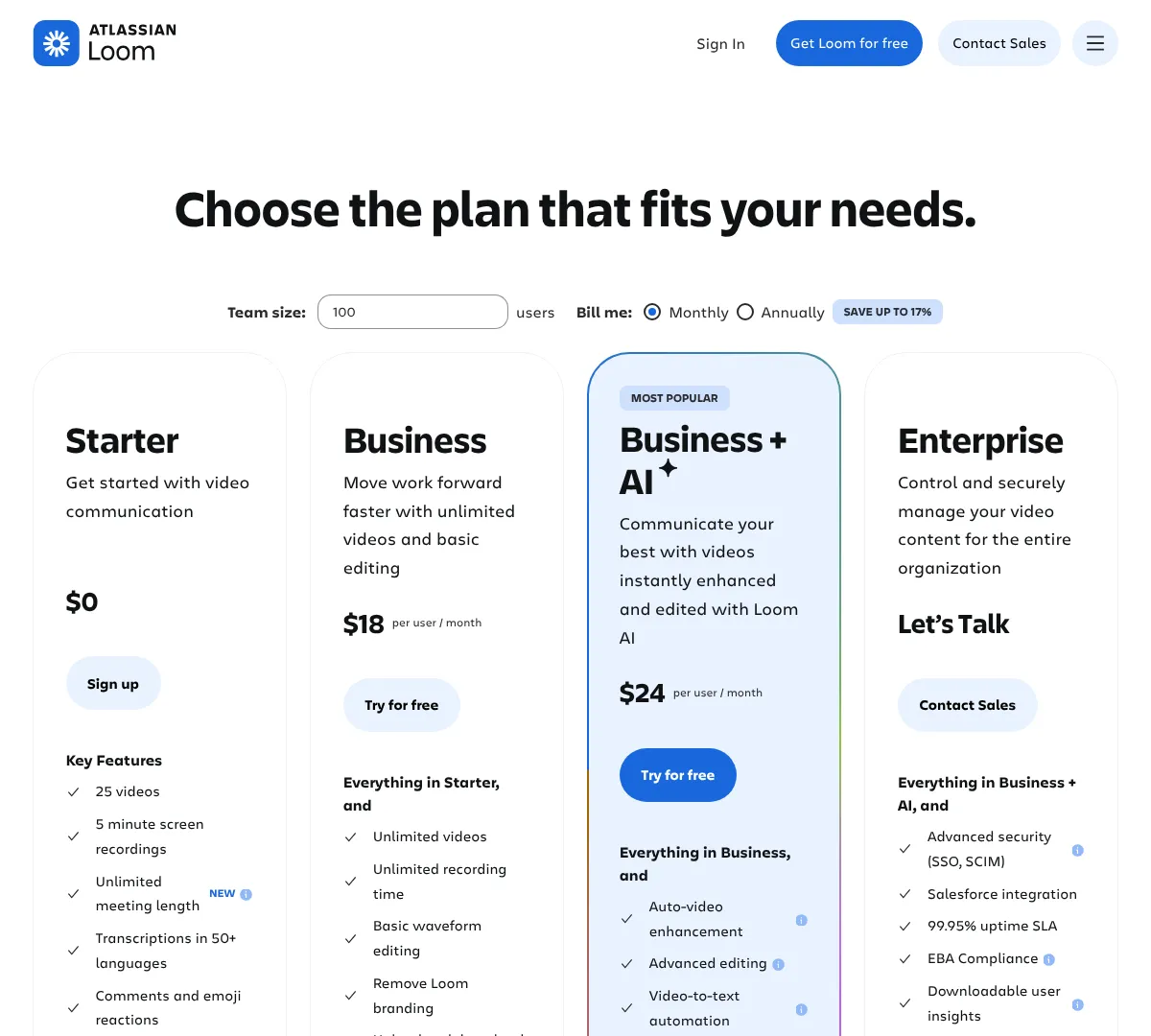
This price was last verified on May 13, 2026 by the AFF Research team by checking the pricing page of Loom.
- •Screen & cam bubble recording: record your screen with a camera bubble
- •Transcriptions: available in 50+ languages
- •Reactions: comments and emoji reactions for feedback
- •Video editing: trim, stitch, and basic waveform editing
- •Recording quality: up to 4K on paid plans
- •Security: password-protected videos and workspace privacy controls
- ✓Easy to record and share quickly
- ✓Strong transcription and comment tools
- ✓Paid plans allow unlimited recording time
- ✕Free plan is limited to 5-minute recordings
- ✕Business pricing is per user
- ✕Advanced AI tools cost extra
Obsproject
02
OBS is made for high-control recording and streaming. You can build scenes with multiple sources, switch between them, and fine-tune audio with filters. It fits tutorial creators who want more control over layout, camera placement, and capture sources. It is also a strong choice if you want to expand later with plugins and scripts.
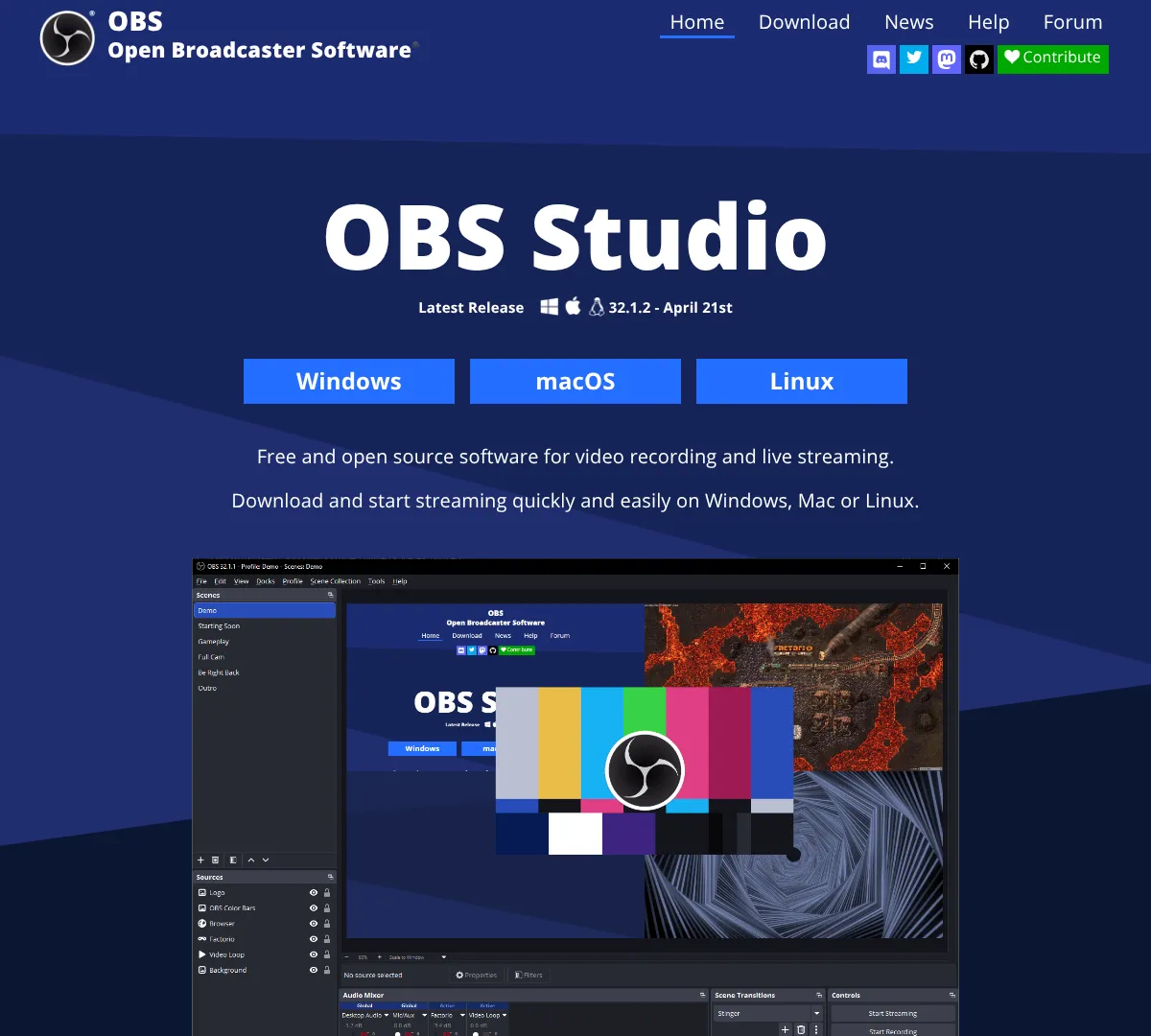
This price was last verified on May 13, 2026 by the AFF Research team by checking the pricing page of Obsproject.
- •Scene control: create unlimited scenes with seamless transitions
- •Source mixing: combine window captures, webcams, images, text, and browser sources
- •Audio mixer: use per-source filters like noise suppression and gain
- •Hotkeys: control recording and scene switching quickly
- •Studio Mode: preview scenes before recording or going live
- •API support: extend the app with plugins and scripts
- ✓No cost to start
- ✓Very flexible capture setup
- ✓Strong audio control
- ✕Learning curve is steeper than simple screen recorders
- ✕No built-in tutorial hosting
- ✕Editing tools are limited
If you want a different recording workflow, compare OBS with these tools.
Loomloom.com
Bandicambandicam.com
Screenpressoscreenpresso.com
Techsmith
03
TechSmith is the screen recording choice for people who want tutorial videos that look finished. Camtasia brings recording, multitrack editing, callouts, templates, and animations into one workflow. Snagit is useful when you need fast screen capture plus markup. Audiate adds text-based audio editing, which helps when you want cleaner narration without spending forever on the timeline.
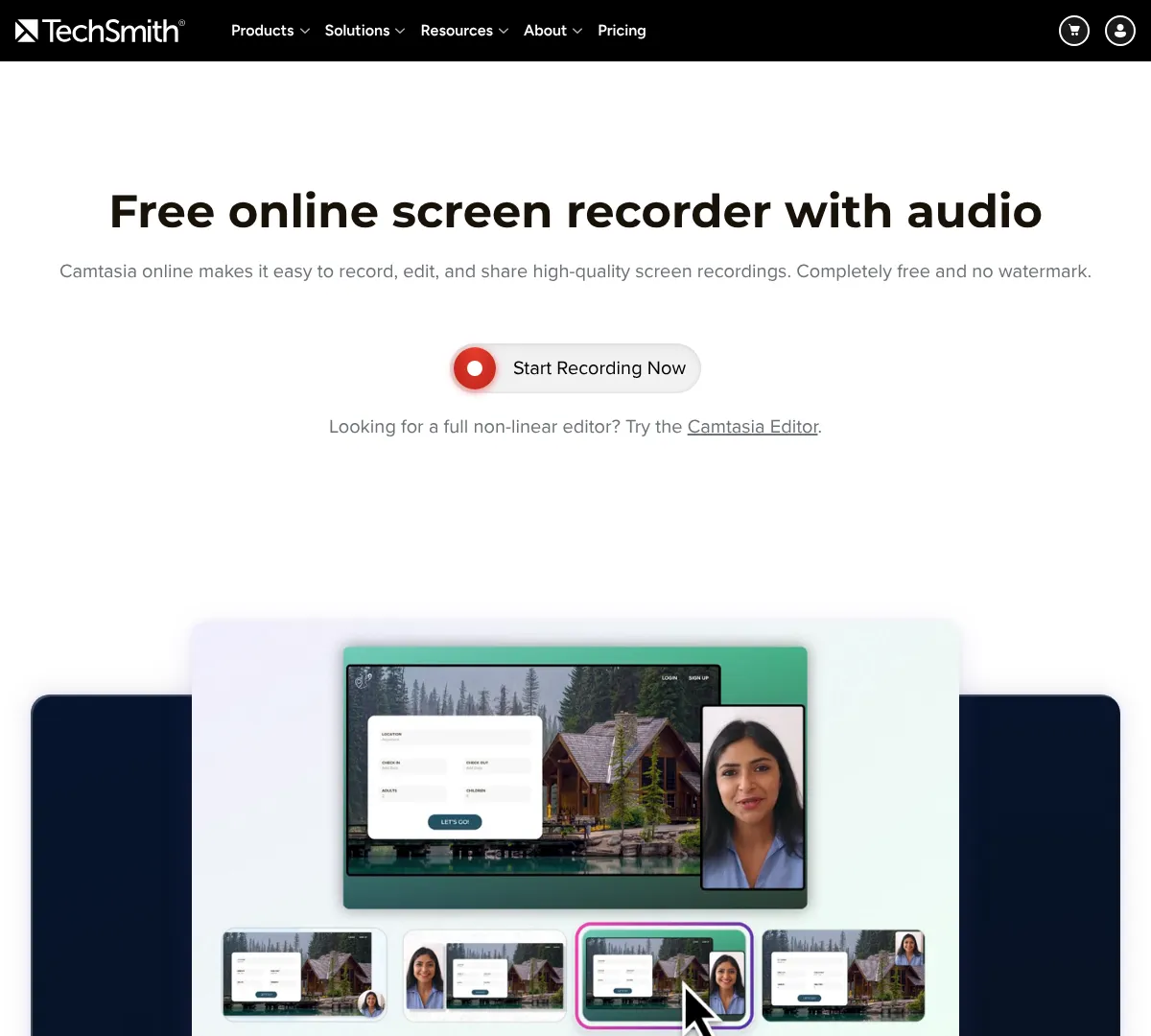
This price was last verified on May 13, 2026 by the AFF Research team by checking the pricing page of Techsmith.
- •Screen recording: capture tutorials and demos on screen
- •Video editing: work with a multitrack timeline
- •Interactive quizzes: add viewer checks and learning moments
- •Callouts and animations: highlight steps and actions
- •Templates: speed up recurring tutorial projects
- •Audio editing: clean up narration and other sound
- ✓Built for tutorial-style videos
- ✓Strong editing and annotation tools
- ✓One-time pricing instead of subscription
- ✕Higher upfront cost
- ✕Less simple than lightweight recorders
- ✕Overkill for very short clips
Screenpal
04
ScreenPal combines recording, editing, hosting, and interactive features in one place. You can record your screen, edit the video, add quizzes, and publish without jumping between apps. It is a practical choice for lessons, product demos, and internal training. The higher plan also adds AI captions, transcription, translation, and live support.
This price was last verified on May 13, 2026 by the AFF Research team by checking the pricing page of Screenpal.
- •Record any part of your screen: choose the area you want
- •Computer audio capture: record sound from your machine
- •Full-featured editing: trim and refine videos inside the platform
- •AI captions: auto-captions and transcriptions on paid plans
- •Interactive content: quizzes, polls, and CTA buttons
- •Hosting and sharing: store and publish videos from the platform
- ✓Very broad feature set
- ✓Good price entry on paid plans
- ✓Useful for tutorials and training content
- ✕Free plan has a recording limit and watermark
- ✕Advanced AI tools are on the higher plan
- ✕Can feel like more than you need for basic captures
Snagit
05
Snagit is better known for fast screen capture than long-form video work, but it still fits tutorial and demo creation well. You can capture, annotate, and share visuals quickly, then keep going with a simple workflow. It is a good option if your content mixes screenshots and short screen recordings. The business and enterprise options also make it easier to manage licenses across teams.
This price was last verified on May 13, 2026 by the AFF Research team by checking the pricing page of Snagit.
- •Screen capture: grab screen content quickly for tutorials
- •Markup tools: annotate images and captures
- •Video capture: record short screen clips for demos
- •Cloud sharing: share content through Screencast
- •Starter assets: use built-in assets for faster editing
- •License options: plans for individuals, business, education, students, and enterprise
- ✓Fast for screenshots and quick demos
- ✓Good for annotation-heavy workflows
- ✓Clear pricing for different user types
- ✕Not the strongest long-form recorder
- ✕Video workflow is lighter than dedicated editors
- ✕Enterprise pricing needs a quote
If Snagit is not enough for heavier recording work, compare it with these tools.
Techsmithtechsmith.com
Awesomescreenshotawesomescreenshot.com
Screenflow
06
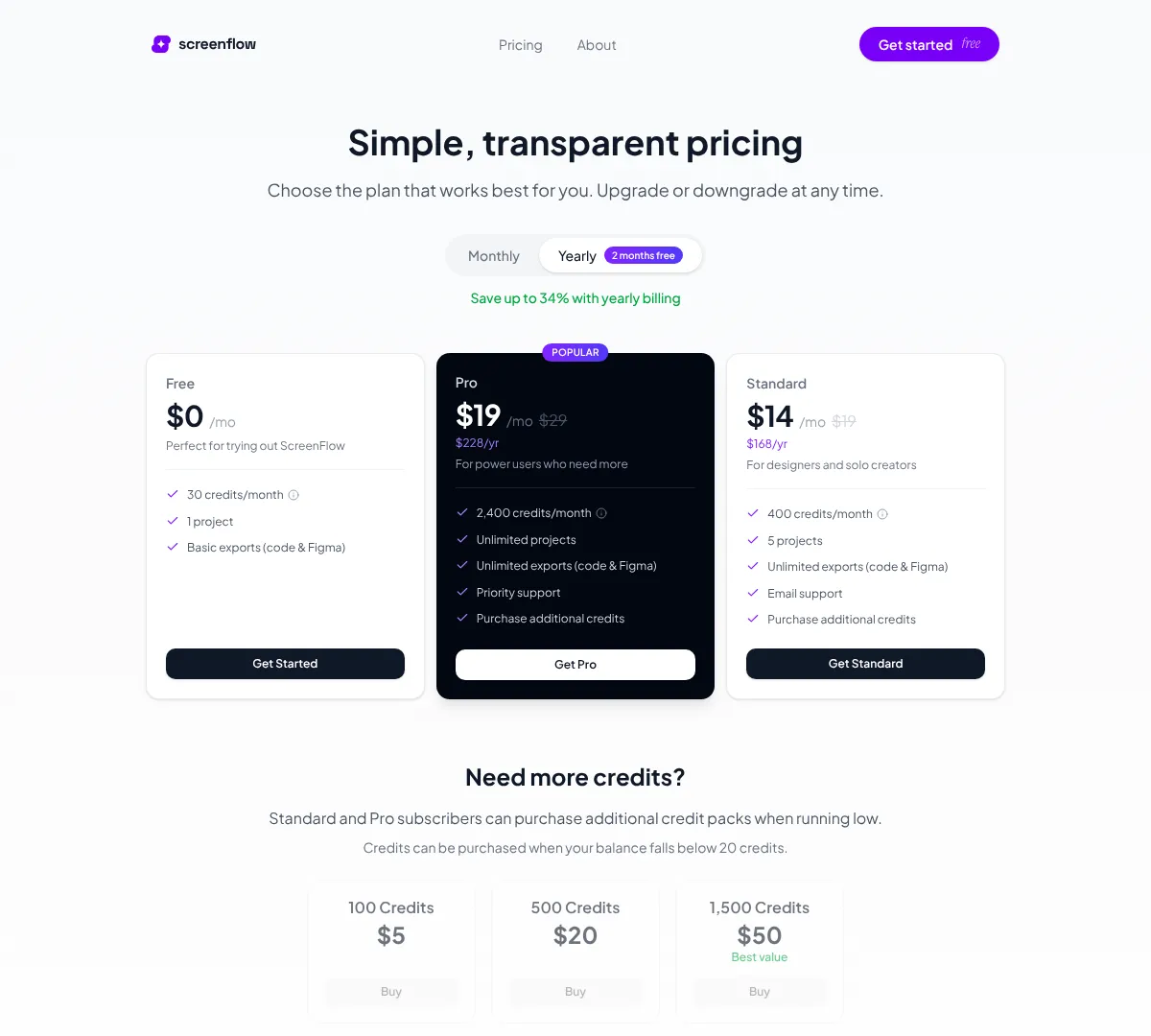
ScreenFlow is built around credits, projects, and exports, so it fits creators who want a structured screen creation workflow. The plan setup is simple, and you can move up when you need more projects or exports. It works well for people who make repeated tutorial assets or demo content and want clear usage limits. The paid plans give you more room for bigger workloads and priority support.
This price was last verified on May 13, 2026 by the AFF Research team by checking the pricing page of Screenflow.
- •Credit system: manage screen generation and fixes with monthly credits
- •Project limits: choose a plan based on how many projects you need
- •Exports: basic exports on the lower plan
- •Upgrade options: move between plans anytime
- •Credit packs: buy more credits when you run low
- •Commercial use: keep the designs you create
- ✓Simple plan structure
- ✓Useful for repeat work
- ✓Upgrade and downgrade flexibility
- ✕Credit system adds complexity
- ✕Not a classic screen recorder layout
- ✕Free plan is limited
Descript
07
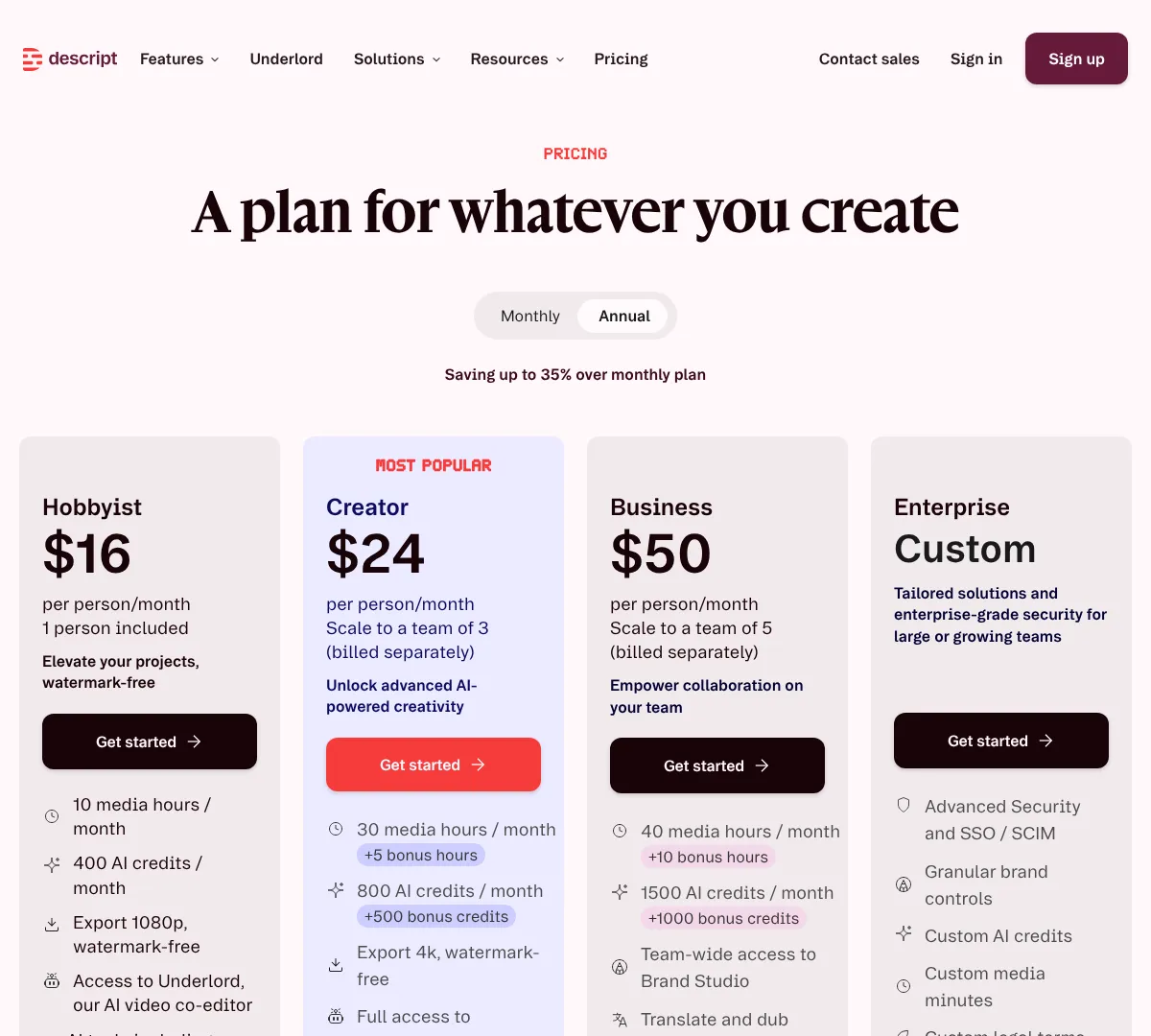
Descript is built for people who want to edit video like a document. You can record your screen, edit by text, remove filler words, and use AI tools to clean up the final cut. It is a strong match for tutorial creators who talk a lot while they record. The higher plans add more storage, more media hours, and stronger AI access.
This price was last verified on May 13, 2026 by the AFF Research team by checking the pricing page of Descript.
- •Text-based editing: edit video by editing transcript text
- •Transcription: turn speech into searchable text
- •Filler word removal: clean up narration fast
- •Translation: support for 30+ languages on Business
- •Avatars: use custom avatars on higher plans
- •Screen recording: capture tutorials directly in the app
- ✓Very fast for spoken tutorials
- ✓Strong AI cleanup tools
- ✓Useful watermark-free exports on paid plans
- ✕Free plan is limited
- ✕Media hours and AI credits can run out
- ✕Less traditional than a normal timeline editor
Riverside
08
Riverside focuses on clean recording quality and separate audio and video tracks. That makes it useful for demos, tutorials, interviews, and anything you may want to repurpose later. The editor and AI tools help you trim clips, remove silences, and create shorter versions from the same recording. It also has plans for live sessions and webinars if your work needs that next step.
This price was last verified on May 13, 2026 by the AFF Research team by checking the pricing page of Riverside.
- •Separate tracks: record audio and video separately
- •Recording quality: up to 4K video and uncompressed audio
- •Editing tools: full suite with text-based editing
- •AI tools: remove silences, filler words, and create clips
- •Producer mode: better control for live recording sessions
- •Support: onboarding, priority support, and account management on higher plans
- ✓Excellent recording quality
- ✓Separate tracks make editing easier
- ✓Good for repurposing content
- ✕Free plan is limited
- ✕Business pricing is custom
- ✕More than you need for very simple screen clips
Streamyard
09
StreamYard is geared toward live video, but it also works for recorded tutorials and demos. You can stream in Full HD on paid plans, add overlays and branding, and record your sessions. The platform is useful when tutorials need to be live, interactive, or broadcast to multiple destinations. Higher plans add 4K local recordings and more backstage control.
This price was last verified on May 13, 2026 by the AFF Research team by checking the pricing page of Streamyard.
- •Live studio: build and manage streams in one place
- •Multistreaming: send to multiple destinations
- •Branding tools: add logos, overlays, and backgrounds
- •Local recordings: keep copies of your sessions
- •Participant tools: manage on-screen guests
- •AI clips: create clips from streams
- ✓Good for live demos
- ✓Easy branding and overlays
- ✓Records sessions for later reuse
- ✕Not focused on traditional desktop capture
- ✕Free plan carries branding
- ✕Higher tiers are pricey
Bandicam
10
Bandicam is a straightforward Windows recorder with a strong focus on reliable capture. It removes the recording time limit and watermark on paid licenses, and it includes tools like hardware encoding and webcam overlay. It is a solid pick for software demos, gameplay, and tutorial recordings on Windows. If you want a simple recorder with one-time or annual licensing options, it is easy to compare.
This price was last verified on May 13, 2026 by the AFF Research team by checking the pricing page of Bandicam.
- •Unlimited screen recording: no time limit on paid licenses
- •Hardware encoding: improve performance while recording
- •Real-time drawing: mark up the screen as you record
- •Webcam overlay: show your face while presenting
- •Scheduled recording: set recordings ahead of time
- •Tech support: included with paid licenses
- ✓Good for Windows users
- ✓Flexible license options
- ✓No watermark on paid plans
- ✕Windows-first workflow
- ✕Editing is limited compared with full editors
- ✕Business pricing can scale quickly
If Bandicam is not enough, these alternatives cover similar use cases.
Movavimovavi.com
Obsprojectobsproject.com
Icecreamapps
11
Icecream Apps sells a bundle of desktop tools, including a screen recorder, video editor, and other utilities. The screen recorder supports screen and audio capture, screenshots, annotations, webcam overlay, and hotkeys. It works well if you want a lifetime license instead of a subscription. The bundle can make sense for users who also need editing and other media tools.
This price was last verified on May 13, 2026 by the AFF Research team by checking the pricing page of Icecreamapps.
- •Screen and audio recording: capture demos with sound
- •Screenshot tools: take and edit screenshots
- •Annotation support: mark up captured content
- •Webcam overlay: include your camera feed
- •Hotkeys: control recording faster
- •Lifetime license: one-time purchase model
- ✓One-time payment options
- ✓Bundle can cover several needs
- ✓Useful capture and annotation tools
- ✕Feature set is spread across many apps
- ✕Not as polished as top-tier tutorial tools
- ✕Bundle pricing can be confusing
If you want a more focused recorder, compare these options.
Apowersoft
12
Apowersoft Unlimited gives you access to all Apowersoft software titles under one license. That makes it a broad option if you want recording plus other tools without buying each one separately. It is available in both personal and business plans, with annual and lifetime choices. The business pricing is higher, but it covers the full software collection and support.
This price was last verified on May 13, 2026 by the AFF Research team by checking the pricing page of Apowersoft.
- •All-software access: use the full Apowersoft suite
- •Updates and support: lifetime updates on lifetime plans
- •Auto-renewal: monthly and annual billing options
- •Business use: separate business licensing available
- •Bundle value: one purchase for multiple tools
- ✓Simple bundle approach
- ✓Choices for personal and business use
- ✓Lifetime option available
- ✕Expensive upfront for lifetime access
- ✕Broad suite may be more than you need
- ✕Not a focused screen recorder plan
Movavi
13
Movavi Screen Recorder is a good fit if you want to capture a tutorial and make small edits right away. It records screen and system audio, grabs webcam output, and includes drawing tools and scrolling screenshot support. You can also pair it with Movavi Video Editor if you want a better editing workflow. The plan options give you a monthly, yearly, or combined package.
This price was last verified on May 13, 2026 by the AFF Research team by checking the pricing page of Movavi.
- •Screen recording: capture your screen and system audio
- •Microphone support: grab speakers and mic sound
- •Webcam capture: record webcam videos too
- •No watermark: create clean exports
- •Drawing tools: draw shapes on videos
- •Scrolling screenshots: capture long pages easily
- ✓Easy to use
- ✓Good for demos with webcam
- ✓Useful bundled editor option
- ✕No free plan listed here
- ✕One-month plan is mostly for testing
- ✕Advanced editing is better in the bundle
Filmora
14
Filmora is more of a video editor than a pure screen recorder, but it can still work for demos and tutorials if you want a strong editing layer. Its plan structure gives you monthly, annual, perpetual, and bundle options. The feature set focuses on editing, assets, and AI tools, which is helpful if your screen recording needs more post-production. It suits creators who want cleaner final videos after capture.
This price was last verified on May 13, 2026 by the AFF Research team by checking the pricing page of Filmora.
- •Video editing: timeline editing for tutorial polish
- •AI tools: speed up cleanup and creative work
- •Assets: access to creative assets and templates
- •No watermark: cleaner exports on paid plans
- •Perpetual option: lifetime access available
- •Support: senior technical support included
- ✓Strong editing tools
- ✓Flexible plan choices
- ✓Good for polishing captured clips
- ✕Not a dedicated screen recorder
- ✕Screen capture is only part of the workflow
- ✕Higher cost than simple recorders
Clipchamp
15
Clipchamp is a simple video editor with screen, camera, and voice recording built in. It is easy to start with and works well for quick demos, promo clips, and tutorial videos. The free plan includes up to 1080p exports, while premium access through Microsoft 365 unlocks 4K UHD and brand tools. It is a solid choice if you want a low-friction start inside the Microsoft ecosystem.
This price was last verified on May 13, 2026 by the AFF Research team by checking the pricing page of Clipchamp.
- •Screen recorder: capture your screen quickly
- •Camera recorder: record yourself alongside demos
- •Voice recorder: add narration easily
- •AI video editing: use built-in AI tools
- •Watermark-free exports: export without branding
- •Brand kit: available with premium access
- ✓Very easy for beginners
- ✓Good starter plan
- ✓Part of Microsoft 365 premium access
- ✕Premium pricing depends on Microsoft 365
- ✕Less advanced than professional editors
- ✕Brand kit is not on the free plan
Vmaker
16
Vmaker AI combines screen recording, video publishing, editing, and AI features in one product line. The plans scale from a free tier to starter, teams, and enterprise access, with stronger export limits and collaboration on the paid tiers. It is a flexible option if you want to record tutorials and then publish them in more than one place. The higher tiers add security, collaboration, and branding controls.
This price was last verified on May 13, 2026 by the AFF Research team by checking the pricing page of Vmaker.
- •Watermark-free videos: export clean recordings
- •Social publishing: post to YouTube, Instagram, and TikTok
- •AI video editing: unlimited credits on paid plans
- •Team collaboration: editor, brand kit, and shared library
- •Screen recording: recording limits up to unlimited on higher plans
- •Advanced security: SSO, 2FA, and SSL encryption
- ✓Strong AI and publishing tools
- ✓Good for teams
- ✓Export and upload limits scale well
- ✕Free plan is limited
- ✕Pricing has many tiers and limits
- ✕Enterprise requires a quote
Berrycast
17
Berrycast is built around quick screen recordings with sharing and protection features. Its free tier covers annotation, trimming, and a small monthly video allowance, while Pro adds branding, password protection, and unlimited recordings. That makes it good for support clips, explanations, and quick team updates. Enterprise adds stronger security and deployment choices.
This price was last verified on May 13, 2026 by the AFF Research team by checking the pricing page of Berrycast.
- •Annotation: mark up recordings fast
- •Trimming: cut clips without leaving the tool
- •Unlimited recordings: available on Pro
- •Custom branding: add your own branding and URL
- •Password protection: secure shared videos
- •Enterprise security: encryption and self-hosted option
- ✓Simple for quick updates
- ✓Low-cost Pro plan
- ✓Good sharing controls
- ✕Limited free plan
- ✕Not built for heavy editing
- ✕Enterprise pricing is custom
Zight
18
Zight combines screen recording, screenshots, GIFs, and video sharing in one app. The free plan is fine for quick use, but Pro and Team are better if you need unlimited recording or team controls. It also adds AI features like transcription, titles, chapters, and summaries through add-ons or included tools on higher tiers. That makes it useful for support, onboarding, and documentation videos.
This price was last verified on May 13, 2026 by the AFF Research team by checking the pricing page of Zight.
- •Screen capture: record screen and screenshots
- •Video hosting: manage videos in collections and folders
- •System audio: include computer audio in recordings
- •Analytics: track views and viewer emails
- •AI tools: transcription, summaries, titles, and chapters
- •Custom branding: available on paid plans
- ✓Good for support workflows
- ✓Useful AI add-ons
- ✓Strong sharing and hosting features
- ✕Some AI tools cost extra
- ✕Free plan is basic
- ✕Team setup may be more than solo users need
Droplr
19
Droplr mixes screen recording, screenshots, file uploads, and sharing tools in one place. It works across desktop and browser extensions, and the paid plans add branding, storage, analytics, and stronger account control. That makes it a good fit for team communication and visual support. Enterprise adds SSO and AI-driven redaction tools for larger organizations.
This price was last verified on May 13, 2026 by the AFF Research team by checking the pricing page of Droplr.
- •Screen recording: record with optional webcam
- •Screenshot markup: annotate and blur captures
- •File uploads: attach and share large files
- •Storage: up to 100GB on Pro Plus and unlimited on higher tiers
- •Branding: custom theme, branding, and domain
- •Security: SSO and AI-powered risk tools on Enterprise
- ✓Useful for sharing visuals fast
- ✓Good collaboration and branding options
- ✓Multiple app and extension options
- ✕Plans are divided by individual and team use
- ✕Enterprise features are custom
- ✕Not a full editing suite
If you want a different screen-sharing workflow, try these options.
Zightzight.com
Screenrecscreenrec.com
Usenimbus
20
Nimbus is built around self-hosted and cloud deployment choices for teams that want control. Its pricing is month to month, and you can upgrade or cancel anytime. The feature set focuses on secure team workflows, environment management, and support. That makes it more of a secure infrastructure tool than a classic screen recorder.
This price was last verified on May 13, 2026 by the AFF Research team by checking the pricing page of Usenimbus.
- •Self-hosted deployment: run in your own environment
- •Team management: organize access and seats
- •Enterprise security: SSO and SAML support
- •Live previews: preview workflows before rollout
- •Support: private Slack or premium support depending on plan
- ✓Good for control and security
- ✓Flexible deployment choices
- ✓Month-to-month billing
- ✕Not a standard screen recording tool
- ✕Pricing is aimed at teams
- ✕Too infrastructure-focused for most demo creators
If you need actual screen recording instead, these are better fits.
Droplrdroplr.com
Screenrec
21
ScreenRec is a simple recorder with screen, webcam, and audio capture plus instant sharing. The free plan is personal-use only, while Pro unlocks business use, higher quality, and larger storage. Premium adds 4K recording, phone support, and more seats. It is a useful option if you want quick recordings and easy cloud access across devices.
This price was last verified on May 13, 2026 by the AFF Research team by checking the pricing page of Screenrec.
- •Unlimited recording: no recording limit
- •Recording quality: up to 720p on Free and up to 4K on Premium
- •Screen plus cam plus audio: capture all three together
- •Annotations: take and annotate screenshots
- •Pause and resume: available on Pro
- •Cloud storage: 2GB, 50GB, or 200GB depending on plan
- ✓Very simple to start
- ✓Business use allowed on paid plans
- ✓Good cloud sharing workflow
- ✕Free plan is personal use only
- ✕Free quality is limited
- ✕Premium is expensive for solo users
Flashbackrecorder
22
FlashBack Express is a simple Windows screen recorder that also supports webcam and audio. It is designed for fast capture, drawing while recording, and quick editing after the fact. The paid license gives you lifetime use and support, which is handy if you hate subscriptions. It suits tutorial creators who want a straightforward install-and-record tool.
This price was last verified on May 13, 2026 by the AFF Research team by checking the pricing page of Flashbackrecorder.
- •Screen capture: record screen, webcam, and audio
- •Drawing tools: draw while recording
- •Instant editing: edit recordings quickly
- •Windows support: built for Windows 10 and 11
- •Lifetime licensing: one-time purchase access
- •Support: free support included
- ✓One-time purchase
- ✓Simple recording workflow
- ✓Good for Windows tutorials
- ✕Windows only
- ✕Feature set is narrower than all-in-one tools
- ✕Some bundles are more than basic users need
If you want broader editing or sharing tools, compare these next.
Nchsoftware
23
NCH Debut is a straightforward capture tool for recording screens, webcams, and other video sources. It supports multiple output formats and includes mouse highlighting, keystroke display, and green screen support. That makes it handy for tutorials, webinars, and recorded calls. The pricing is simple, with a home edition and a pro edition plus a quarterly plan.
This price was last verified on May 13, 2026 by the AFF Research team by checking the pricing page of Nchsoftware.
- •Video capture: record from screen, webcam, or video input devices
- •Screen selection: capture full screen, a single window, or a selected portion
- •Cursor and keys: highlight the mouse cursor and show keystrokes
- •Audio capture: record microphone and speakers with video
- •Green screen: replace background with image, video, or color
- •Multiple formats: save in avi, wmv, flv, mpg, mp4, mov, and more
- ✓Flexible capture sources
- ✓Good format support
- ✓Useful for software demos and calls
- ✕Interface feels more traditional
- ✕Not as modern as newer tools
- ✕Editing features are limited
Sharex
24
ShareX Cloud is more about storage and distribution than recording itself. The pricing tiers focus on file support and hosting limits rather than capture tools. It works as a companion for people who need to store or share screen-related assets. Since it is centered on cloud infrastructure, it fits best alongside another recorder.
This price was last verified on May 13, 2026 by the AFF Research team by checking the pricing page of Sharex.
- •File hosting: store and share captured assets
- •Format support: move from PNG-only to all formats
- •NVMe storage: fast storage performance
- •Redundancy: resilient platform infrastructure
- •Security: encryption, SSL/TLS, and Cloudflare protection
- •Transfer support: data transfer and bandwidth handling
- ✓Useful storage backbone
- ✓Low entry price
- ✓Strong hosting infrastructure
- ✕Not a full screen recorder
- ✕Free tier is limited to PNG
- ✕Needs another tool for capture
If you want an actual recorder, these fit better.
Kapso
25
Kapso is an automation tool with a pricing page that focuses on messaging and analytics. It is not built like a traditional screen recorder, so it fits outside the core tutorial workflow. You can still use it as part of a broader support or communication stack. The plans are simple, with a free tier, Pro, and Enterprise.
This price was last verified on May 13, 2026 by the AFF Research team by checking the pricing page of Kapso.
- •WhatsApp API access: connect messaging workflows
- •Automated messaging: send messages at scale
- •Multi-user support: share access across users
- •Analytics and reporting: track activity and outcomes
- •Enterprise option: custom pricing for bigger teams
- ✓Simple plan structure
- ✓Automation-focused
- ✓Has an enterprise path
- ✕Not a typical screen recorder
- ✕Limited fit for tutorials
- ✕Best used as a support tool
Gifox
26
Gifox is made for recording your screen as animated GIFs. It includes a built-in editor, compression controls, and capture settings for mouse clicks and keyboard input. That makes it handy for quick product snippets, bug reports, and short visual instructions. The paid version removes the watermark and recording limit, while the basic version stays free forever.
This price was last verified on May 13, 2026 by the AFF Research team by checking the pricing page of Gifox.
- •GIF recording: capture your screen as animated GIFs
- •Integrated editor: crop, cut, trim, and re-export
- •Capture settings: include mouse clicks and keyboard input
- •Compression control: adjust output quality and file size
- •Sharing: send to Dropbox, Google Drive, and Imgur
- •Mac focus: built for Mac users
- ✓Great for short GIF demos
- ✓One-time purchase
- ✓Built-in editing is handy
- ✕Not built for long videos
- ✕Mac only
- ✕Free version is limited to short recordings
Screenpresso
27
Screenpresso is a solid capture tool if you want both screen recording and image work in one place. The PRO plan adds HD and 4K video capture, system sound, OCR, a full image editor, and video clipping and merging. It works well for tutorials, support material, and documentation. The free version keeps things simple, while PRO and Enterprise add much more control.
This price was last verified on May 13, 2026 by the AFF Research team by checking the pricing page of Screenpresso.
- •HD and 4K capture: record in higher resolution on PRO
- •System sound: capture computer audio
- •OCR: extract text from images
- •Image editor: edit captures with advanced tools
- •Video clipping and merging: trim or combine recordings
- •Sensitive data blur: hide private details
- ✓Strong mix of capture and editing
- ✓Good for docs and support
- ✓One-time PRO pricing
- ✕Free version is limited
- ✕Enterprise is custom
- ✕Interface may feel utilitarian
If you want a different balance of recording and editing, check these next.
Snagitsnagit.com
Recordcast
28
RecordCast is a simple browser-based recorder for video calls, presentations, tutorials, webinars, and gameplay. It works across common systems and keeps the pricing easy to understand. The free plan gives you a short recording limit and basic downloads, while Plus unlocks longer recordings and higher-resolution exports. It is a decent pick when you want fast browser capture with almost no setup.
This price was last verified on May 13, 2026 by the AFF Research team by checking the pricing page of Recordcast.
- •Record video calls: capture meetings and calls
- •Record presentations: make quick slide walkthroughs
- •Record tutorials: create how-to videos
- •Record webinars: save live sessions
- •Cross-platform access: record on Mac, Linux, Windows, and Chromebook
- •Browser workflow: quick online use with low setup
- ✓Very low entry price
- ✓Simple to start
- ✓Works across multiple systems
- ✕Free plan is limited
- ✕Not a deep editor
- ✕Best for shorter recordings
If you need more features, compare these options.
Screencapturescreencapture.com
Screencapture
29
Screencapture.com is a browser-based recorder that handles screen, webcam, microphone, and sound capture. It also lets you draw on videos, highlight keystrokes, and trim unwanted parts after recording. The desktop recorder adds more power if you need a heavier workflow. It is a good fit for people who want to record quickly without installing much software.
This price was last verified on May 13, 2026 by the AFF Research team by checking the pricing page of Screencapture.
- •Screen capture: record the whole screen or a selected area
- •Webcam and mic: capture face and voice together
- •System sounds: include audio from the computer
- •Live annotation: draw on videos during capture
- •Keystroke highlighting: show keyboard and mouse actions
- •Quick trimming: remove unwanted segments after recording
- ✓No-install option
- ✓Good for quick explainers
- ✓Useful live annotation tools
- ✕Desktop pricing is custom
- ✕Not as full-featured as major editors
- ✕Best for lighter workflows
If you want a more established recorder, these are good alternatives.
Awesomescreenshot
30
Awesome Screenshot mixes screenshots, screen recording, sharing, and collaboration in one tool. The free plan covers a fair amount, and the paid tiers add longer recordings, more annotation tools, unlimited media, and team features. It is especially useful if you create docs, support material, or short demos that need fast markup. Teams get more storage and workspace control on the higher plan.
This price was last verified on May 13, 2026 by the AFF Research team by checking the pricing page of Awesomescreenshot.
- •Screen recording: capture with webcam overlay
- •Annotation tools: shapes, arrows, lines, and text
- •Instant sharing: create direct links quickly
- •Integrations: connect with Trello, Slack, Asana, and Jira
- •Full-page screenshots: capture long pages
- •Team workspace: collaboration on higher tiers
- ✓Good mix of screenshots and video
- ✓Simple sharing workflow
- ✓Low-cost paid entry
- ✕Advanced teamwork needs higher plans
- ✕Free plan caps screenshots
- ✕Not built for full editing suites
If you want a different screen capture workflow, compare these tools.