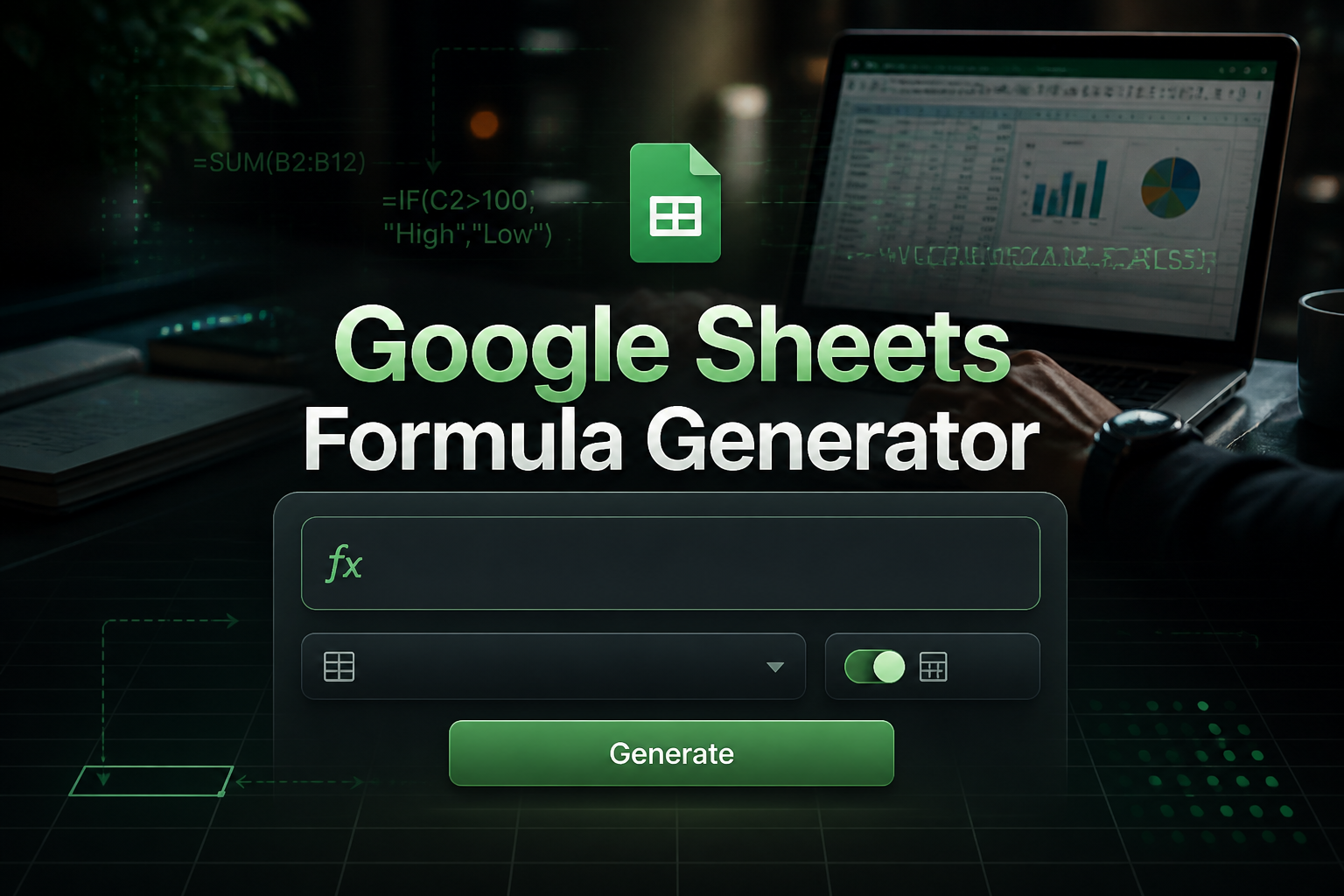
Google Sheets Formula Generator
A Google Sheets formula generator converts plain English descriptions into working formulas instantly. Type what you need in natural language and get ready-to-use SUMIF, VLOOKUP, IF statements, and complex calculations in seconds without memorizing syntax.
Google Sheets Formula Generator free tool
Transform plain English descriptions into working Google Sheets formulas. Perfect for SUMIF, VLOOKUP, IF statements, and more.
What is a Google Sheets Formula Generator?
A Google Sheets formula generator is a tool that converts plain English descriptions into working spreadsheet formulas. Instead of memorizing function syntax and structure, you describe what you need in natural language and receive ready-to-use formulas for calculations, lookups, conditional logic, and data manipulation.
This tool serves business analysts, students, data professionals, and anyone who works with spreadsheets regularly. It eliminates the need to search documentation or debug syntax errors, delivering accurate formulas instantly without requiring signup or payment.
How to Use This Tool

Type what you want your formula to do in plain English, select a formula category if needed, and click generate. The tool creates a working formula that you can copy directly into your spreadsheet. You can view an explanation to understand how each part works.
- Describe Your Formula Need
Type in plain English what you want the formula to do (e.g., "Sum all values in column B where column A says 'Approved'").
- Choose Formula Category
Select from Math/Arithmetic, Logical, Lookup, Text Functions, Date/Time, Array Formulas, or Conditional Formatting.
- Add Sheet Context (Optional)
Include cell ranges (e.g., A1:A10) and column headers to make formulas more accurate and specific.
- Select Output Format
Choose Google Sheets (default) or Excel-Compatible format depending on your spreadsheet application.
- Generate and Copy Formula
Get a syntax-highlighted formula ready to paste into your spreadsheet with one-click copying.
- View Explanation (Optional)
Click "Explain Formula" to understand how each part works and learn for future use.
Tips for Better Formula Results
Getting accurate formulas depends on how clearly you describe your needs. Follow these practices to ensure the generated formulas work correctly in your spreadsheets.
Be Specific
Mention columns, criteria, or conditions clearly. Use specific examples like "column A equals 'Approved'" instead of vague descriptions.
Use Correct Labels
Include cell ranges when possible (e.g., A1:A10, B2:D5) to get more accurate and ready-to-use formulas.
Use Explain Formula
Learn what each part does for better understanding and to improve your spreadsheet skills over time.
Save Frequently Used
Copy and store formulas for re-use in future projects. Build your own library of useful formulas.
Try Regenerating
If stuck, regenerate to see variations and different approaches to solving the same problem.
Test Your Formulas
Always test generated formulas with sample data before applying to important spreadsheets.
Types of Google Sheets Formulas You Can Generate
This generator supports all major Google Sheets formula categories. From basic calculations to advanced array functions, you can create any formula type your spreadsheet needs. Spreadsheet formulas handle simple calculations, but complex automation needs real code — generate it with our AI Python Code Generator.
SUMIF and COUNTIF Conditional Totals
Create conditional sum and count formulas that calculate totals based on specific criteria. Perfect for analyzing data with conditions like "sum sales where region equals 'North'" or "count orders where status is 'Complete'".
VLOOKUP, HLOOKUP, and INDEX/MATCH Lookups
Generate powerful lookup formulas to find and retrieve data from tables. Create VLOOKUP formulas for vertical searches, HLOOKUP for horizontal data, or INDEX/MATCH combinations for more flexible lookups.
IF, AND, OR, and IFS Logic-Based Formulas
Build conditional logic formulas that make decisions based on multiple criteria. Create nested IF statements, combine conditions with AND/OR, or use IFS for multiple condition checks.
Text Manipulation Formulas
Generate text processing formulas for cleaning, combining, and analyzing text data. Use SPLIT to divide text into columns, JOIN to combine cells, TEXT to format numbers, or LEN to count characters.
Date and Time Calculations
Create date and time formulas for calculations, comparisons, and formatting. Use TODAY, NOW, DATEDIF, and EDATE to calculate age, project deadlines, workdays between dates, or dynamic date-based conditions. If you need to work with Unix epoch timestamps in your data, the Unix timestamp converter converts between epoch seconds and human-readable dates instantly.
Array Formulas
Generate advanced array formulas that process entire ranges at once. Use ARRAYFORMULA, FILTER, UNIQUE, and SORT to filter data dynamically, remove duplicates automatically, sort data, or apply calculations to entire columns.
Nested and Multi-Step Formulas
Create complex formulas that combine multiple functions and operations. Build sophisticated calculations that handle multiple conditions, lookups, and calculations in a single formula.
Output Formats and Features
The generated formulas come with features designed for easy copying, learning, and implementation in your spreadsheets.
Syntax-Highlighted Code Box
Professional code formatting with syntax highlighting for easy reading and copying into spreadsheets.
Copy Formula Button
One-click copying with proper formatting preservation for immediate use in Google Sheets or Excel.
Explain Formula Toggle
Educational explanations that help you understand how each part of the formula works and why it's structured that way.
Regenerate Function
Alternative formula approaches and variations for the same problem, helping you learn different techniques.
Examples of Generated Formulas
These examples show how plain English descriptions translate into actual Google Sheets formulas. Each demonstrates a different formula type and use case.
Conditional Counting
Plain Input: "Count how many times 'Paid' appears in column B"
=COUNTIF(B:B, "Paid") Conditional Summing
Input: "Get total sales from column C where column A is 'Confirmed'"
=SUMIF(A:A, "Confirmed", C:C) Data Lookup
Input: "Find name in column A where ID in column B equals 123"
=VLOOKUP(123, B:A, 2, FALSE) Conditional Logic
Input: "Check if cell A1 is greater than 100, else say 'Low'"
=IF(A1 > 100, "High", "Low") Date Functions
Input: "Get today's date"
=TODAY() Key Benefits
Creating complex Google Sheets formulas traditionally requires deep knowledge of function syntax, proper nesting, and understanding of various operators. This generator eliminates these barriers by converting natural language descriptions into proper formula syntax automatically.
Instant Creation
Plain English to formulas in seconds
Perfect Syntax
Error-free formulas ready to use
Learn While Using
Explanations help you understand