Free Facebook QR Code Generator
Create scannable QR codes linking directly to your Facebook profile, page, or group. Perfect for marketing materials, business cards, and promotions.
Free Facebook QR Code Generator
Create scannable QR codes linking directly to your Facebook profile, page, or group. Perfect for marketing materials and promotions.
Online Tool for Creating Facebook QR Codes
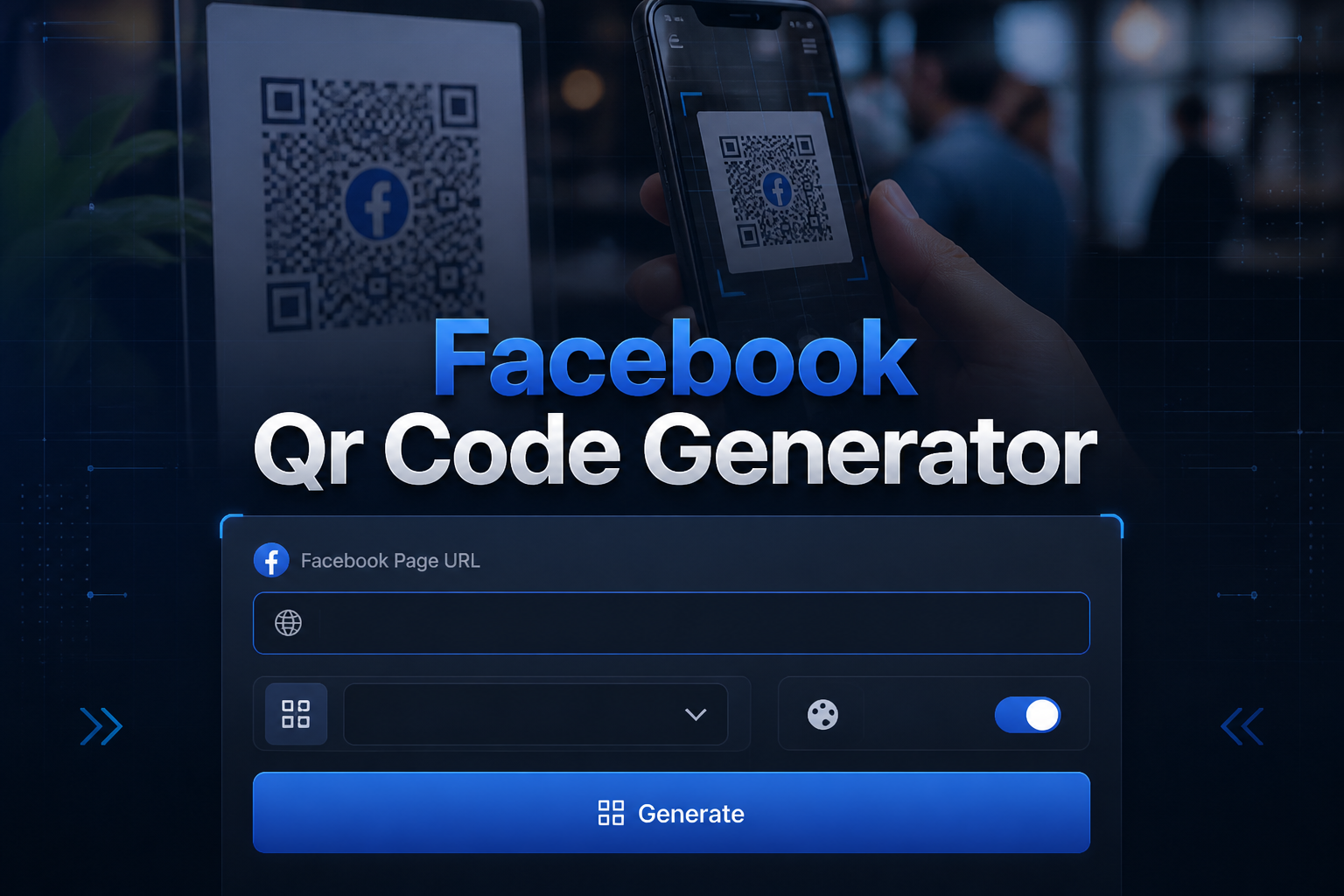
This free Facebook QR code generator helps you make scannable codes that link directly to your Facebook page, profile, or group. When people scan the QR code with their phone camera, it takes them straight to your Facebook without typing long URLs.
Business owners use these QR codes on business cards and flyers to get more Facebook followers. You can also use our LinkedIn post generator for professional content or our Facebook post generator to create engaging posts for your page. For a general-purpose QR code generator that supports URLs, plain text, email, phone numbers, and WiFi credentials, visit our QR Code Generator.
Different Types of Facebook QR Codes
You can create QR codes for different parts of Facebook depending on what you want people to find when they scan the code.
• Facebook Business Page QR Code
Links directly to your business Facebook page so people can like and follow your page. Good for business cards, store windows, and marketing materials.
• Personal Facebook Profile QR Code
Takes people to your personal Facebook profile for networking and making connections. Perfect for conference badges and social events.
• Facebook Group QR Code
Helps grow your Facebook group by making it easy for people to join. Great for community building and member recruitment.
• Facebook Event QR Code
Links to your Facebook event page so people can RSVP quickly. Perfect for event flyers, invitations, and promotional materials.
• Facebook Messenger QR Code
Opens a direct message conversation with you on Facebook Messenger. Good for customer service and quick business communication.
How to Create a QR Code for Facebook
Making a QR code for your Facebook page or profile is simple with this free generator. Just follow these easy steps to get your scannable QR code.
1. Copy Your Facebook URL
Go to your Facebook page, profile, or group and copy the URL from your browser. Paste this link into the generator input box.
2. Choose QR Code Style
Pick from black and white classic style, Facebook blue theme, or colorful gradient designs. Choose what looks best for your materials.
3. Select the Right Size
Use small size for business cards, medium size for flyers, or large size for posters and banners. Bigger QR codes are easier to scan.
4. Add Facebook Logo
Turn on the Facebook logo option to make it clear that the QR code goes to Facebook. This helps people know what to expect when they scan.
5. Download Your QR Code
Click generate to create your QR code, then download it as PNG for websites, SVG for printing, or PDF for marketing materials.
Best Ways to Use Facebook QR Codes
Facebook QR codes work great for connecting your offline marketing with your online Facebook presence. Here are the most effective ways people use them. QR codes drive traffic to your Facebook page — make sure visitors find engaging content when they arrive with posts from our Facebook Post Generator.
• Business Cards and Networking
Put QR codes on business cards instead of writing long Facebook URLs. People can scan and follow your page instantly during networking events.
• Store Windows and Displays
Add QR codes to your store window or product displays so customers can follow your Facebook page for updates, sales, and new products.
• Event Flyers and Invitations
Include QR codes on event flyers so people can quickly RSVP to your Facebook event or join your event group for updates.
• Product Packaging
Print QR codes on product packaging to connect customers with your Facebook page for support, reviews, and community discussions.
• Marketing Materials
Use QR codes on brochures, posters, and advertisements to make it easy for people to find and follow your Facebook business page.
Frequently Asked Questions
How do I create a QR code for my Facebook page?
Copy your Facebook page URL and paste it into this free QR code generator. Choose your style and size, then download the QR code as PNG, SVG, or PDF file.
Can I make a QR code for Facebook groups?
Yes, you can create QR codes for Facebook groups, pages, profiles, events, and Messenger. Just paste the Facebook URL and the generator will make a scannable QR code.
What size should Facebook QR codes be for business cards?
Use small or medium size QR codes for business cards. Make sure the QR code is at least 2cm x 2cm so phones can scan it easily. Test it before printing many cards.
Are Facebook QR codes free to create?
Yes, this Facebook QR code generator is completely free. You can create unlimited QR codes for your Facebook pages, profiles, and groups without paying anything.
Can I add the Facebook logo to my QR code?
Yes, you can add the Facebook logo to your QR code to make it clear that it links to Facebook. This helps people know what to expect when they scan the code.
Do Facebook QR codes work on all phones?
Yes, Facebook QR codes work on all smartphones with cameras. Most phones have built-in QR code scanners in their camera apps, so people can scan and go to your Facebook page easily.
How do I get my Facebook page URL?
Go to your Facebook page and copy the web address from your browser's address bar. It usually looks like facebook.com/yourpagename. Paste this URL into the QR code generator.
Can I use Facebook QR codes for marketing?
Yes, Facebook QR codes are great for marketing. Put them on flyers, business cards, store windows, and product packaging to help customers find and follow your Facebook page.